
Read invoice numbers automatically from your main vendors' invoices
One invoice document type reads each of your main vendors' layouts: a first zone works out which vendor sent the invoice, then that vendor's own zones fill the invoice number and PO. Invoices it can't read wait in the Coding Queue.
Before you begin
- A sample invoice from each vendor you want to read automatically
When you're done, invoices from the vendors you set up are filed with the vendor, invoice number, and PO filled in automatically. Any invoice whose number can't be read, including every invoice from a vendor you haven't set up, waits in the Coding Queue for a person.
A zone is a box on the page that Content Central reads into a field. One box can't work for every vendor, because each prints its invoice number somewhere different. So the first zone works out which vendor sent the invoice, and each vendor's own zones run only for that vendor.
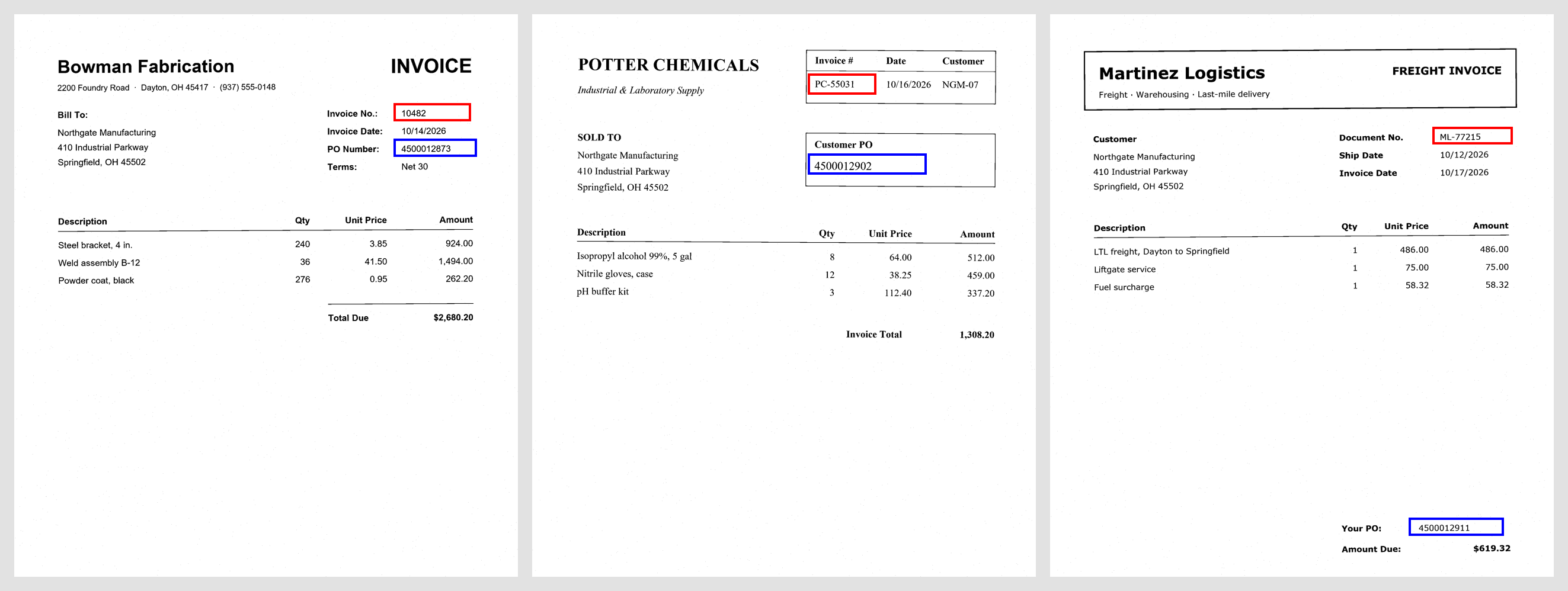
All the zones live on one invoice document type, under Administration > Catalogs & Document Types > your catalog and document type > Zonal Recognition tile. Click Add for each new zone; Save closes it.
Step 1: Add the fields
Add Vendor, Invoice Number, and PO Number text fields to the document type (Set up catalogs, fields, and document types). On Invoice Number, turn on Require entry. so any invoice whose number isn't read waits in the Coding Queue instead of being filed with a blank.
Step 2: Work out which vendor sent it
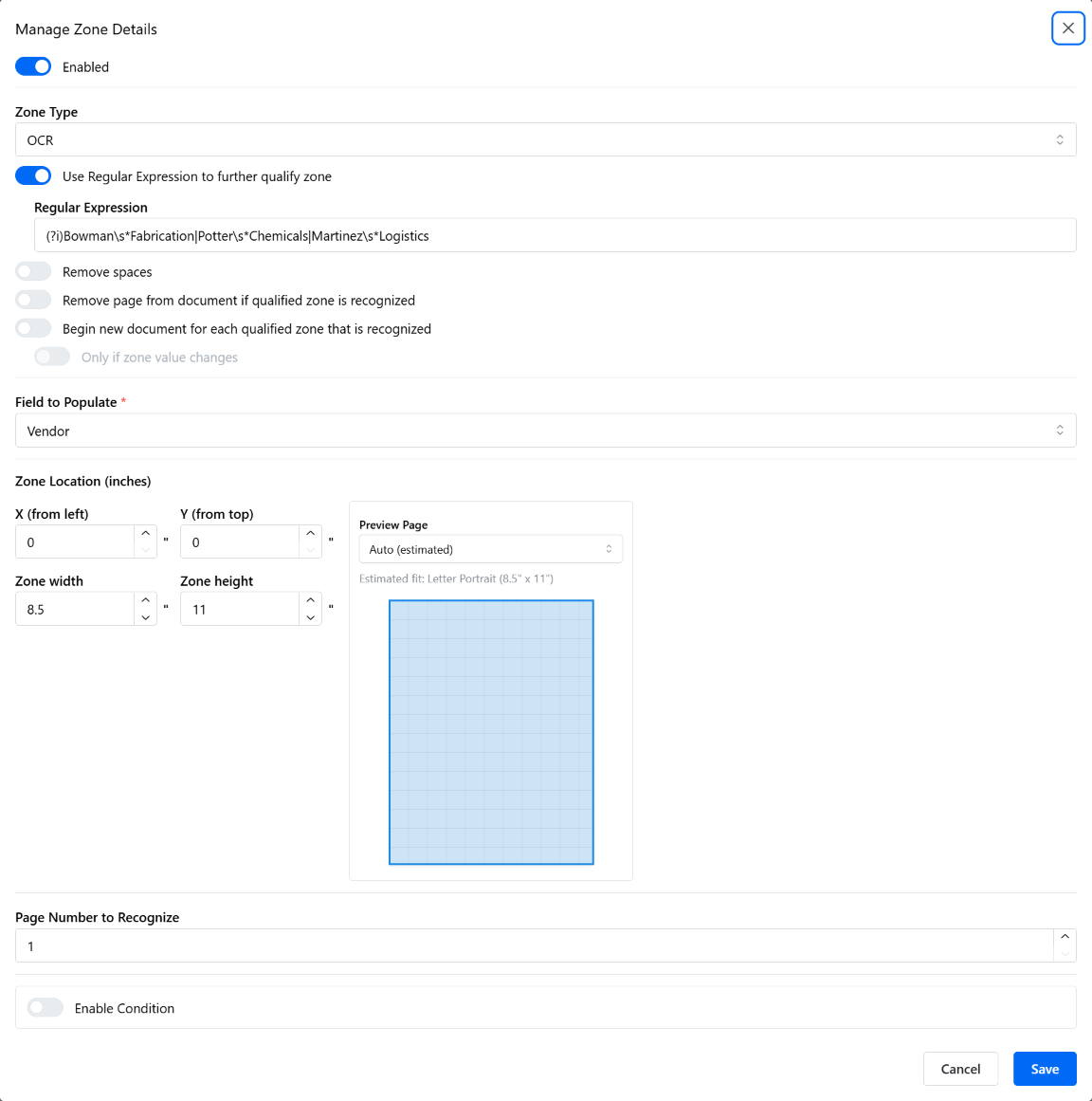
Add one zone that fills Vendor by looking for each vendor's name anywhere on page 1:
Zone Type:
OCR. Field to Populate:Vendor.
Make it the whole page: X (from left)
0, Y (from top)0, Zone width8.5, Zone height11, Page Number to Recognize1.
Turn on Use Regular Expression to further qualify zone and list your vendors' names, separated by
|(which means "or"):(?i)Bowman\s*Fabrication|Potter\s*Chemicals|Martinez\s*Logistics(?i)ignores capital letters, and\s*allows a space or none.
Use a name or phrase the vendor prints as plain text, such as in its address or remit-to block. A name that appears only in a logo usually can't be read.
Step 3: Add each vendor's zones
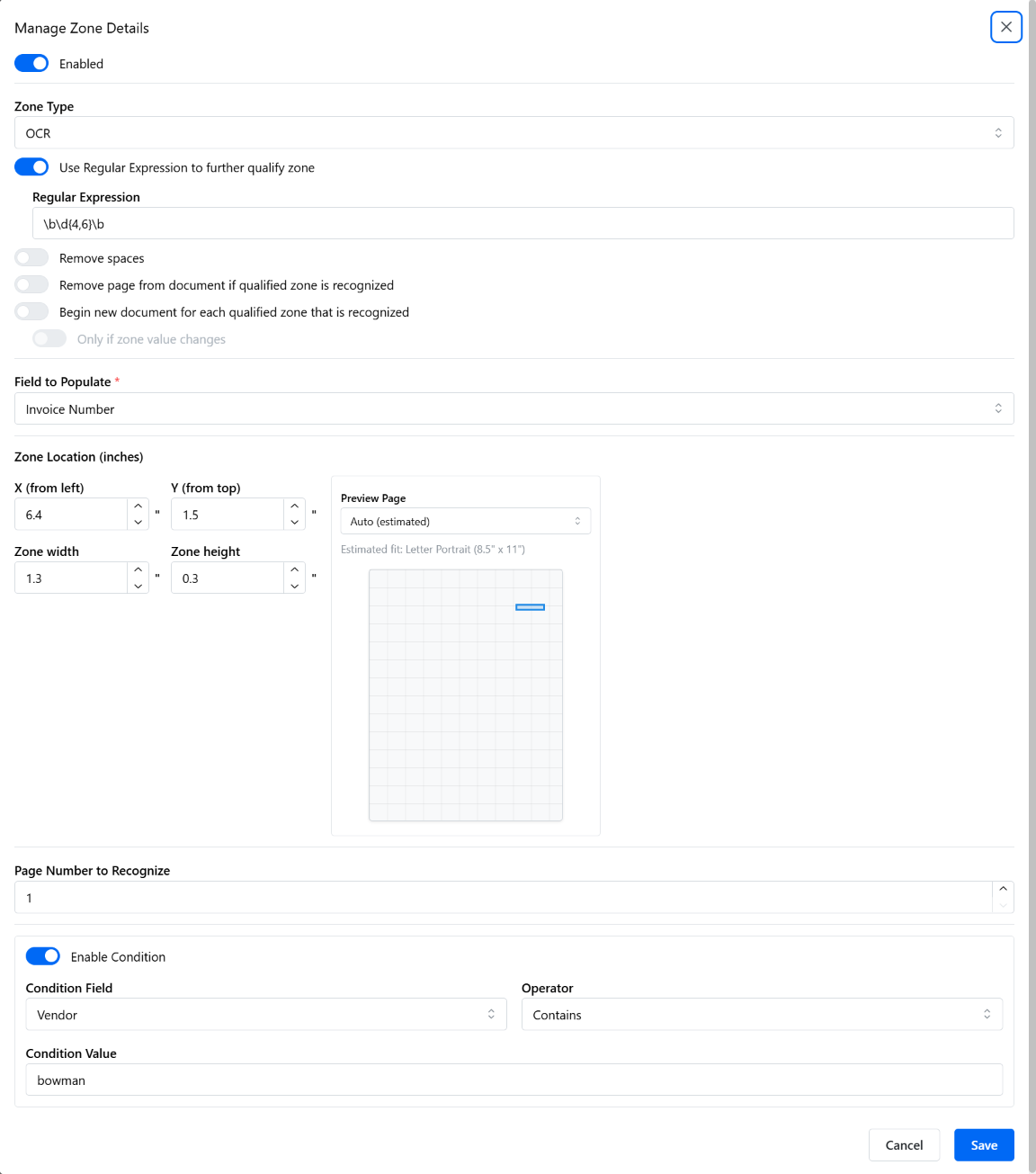
For each vendor, follow these steps for Invoice Number, then repeat them for PO Number with the same condition. To add a vendor later, do the same and add its name to the Step 2 pattern.
Zone Type:
OCR, Page Number to Recognize:1, and Field to Populate: the field this zone fills.
Print a sample invoice and measure with a ruler where the value sits, in inches from the left and top edges of the page. Make the box about a tenth of an inch bigger on every side, because scans shift slightly. Read data from fixed zones and barcodes has more on positioning.
Optional but recommended: turn on Use Regular Expression to further qualify zone with a pattern for that vendor's numbers, such as
PC-\d+for "PC-" followed by digits. If the box catches part of a neighboring line, the pattern keeps only the number.
Turn on Enable Condition: Condition Field
Vendor, OperatorContains, Condition Value a word from the vendor's name, such asbowman.
Step 4: Check the order and save
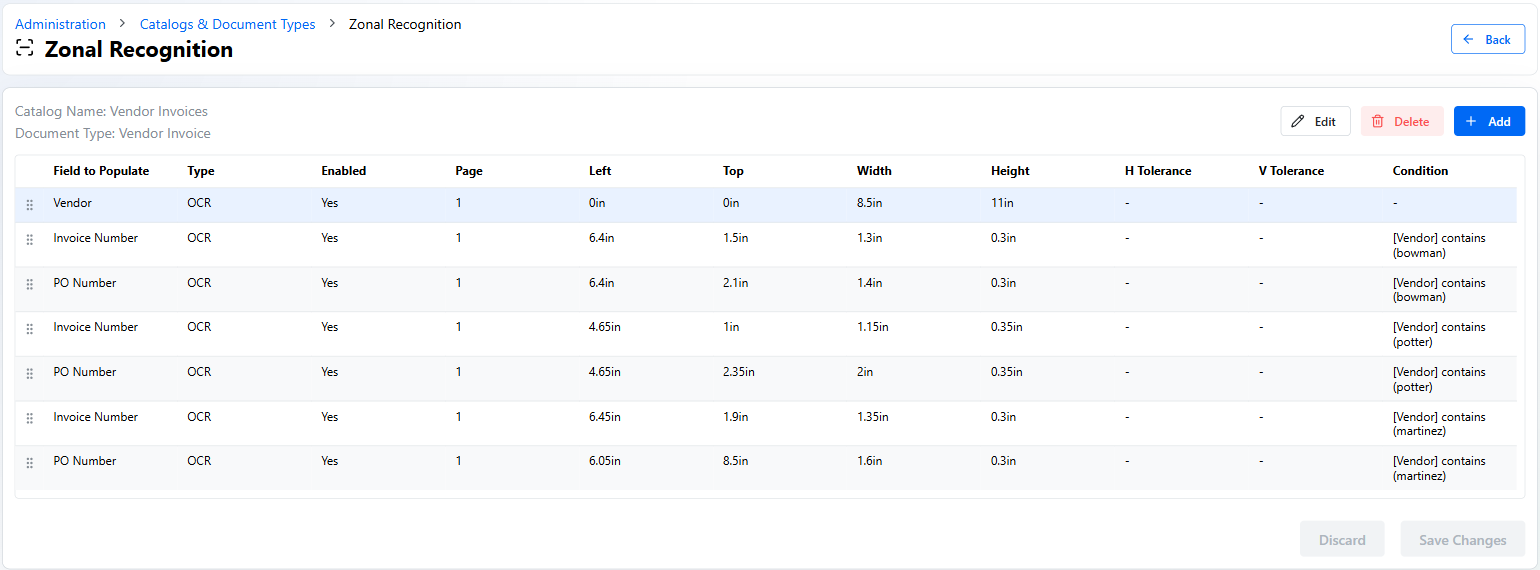
Zones run from top to bottom, so the vendor zone from Step 2 must be first. Drag it there by its handle if it isn't, then click Save Changes.
Step 5: Capture the invoices
Use a folder capture job for this document type, set up in Catalog Manager on the server. On its Descriptor tab, choose Document Descriptor None (each file is one invoice) and Processing Type Image (so scanned pages are read), and check Bypass Coding Queue and send documents directly to Catalog.
Test it
Drop one invoice from each vendor you set up, plus one from a vendor you didn't, into the capture folder. After a minute or so, search for each set-up vendor's invoice number and open the results.
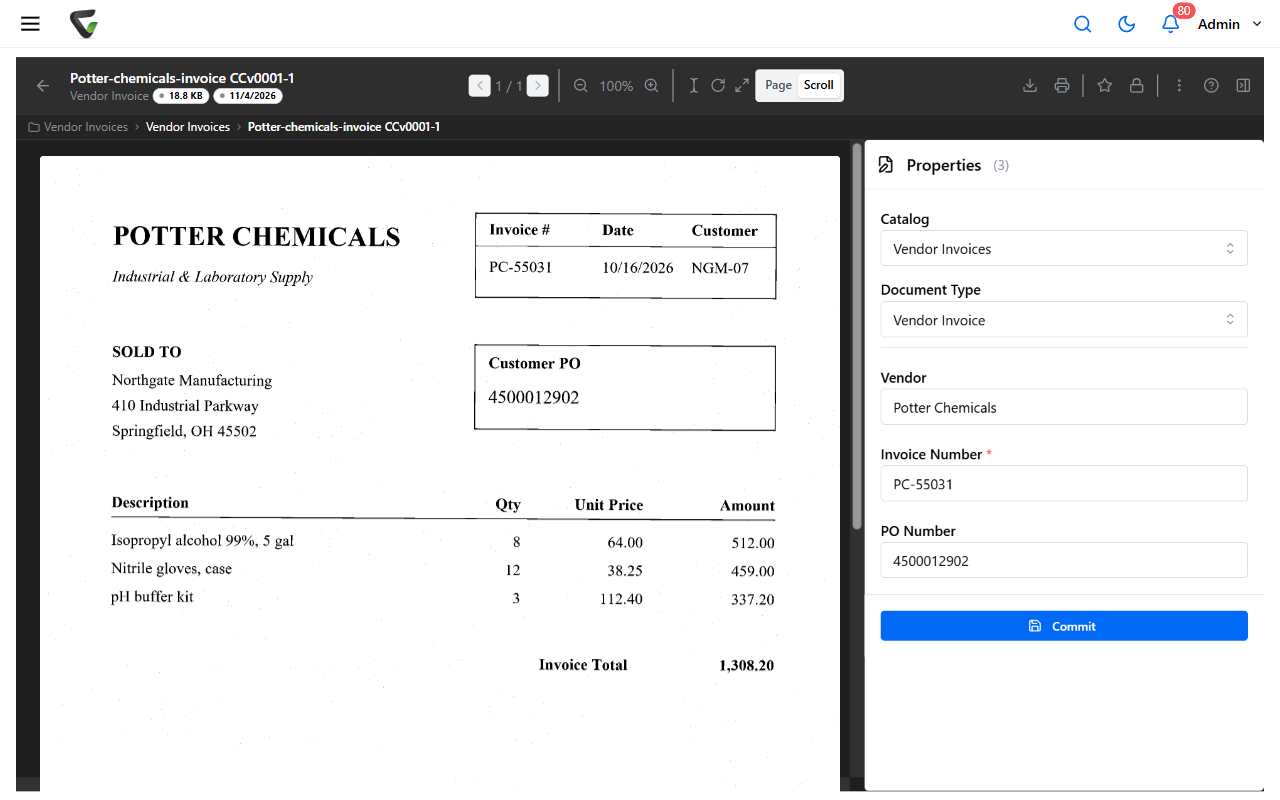
What you should see: each set-up vendor's invoice is filed with all three fields filled. The other vendor's invoice is in the Coding Queue.
If invoices arrive by email
Use an email capture job instead of the folder job, and skip the Step 2 zone. Under the job's E-mail Field Settings, map From to the Vendor field, so Vendor holds the sender's address before any zone runs. In Step 3, use part of each vendor's address as the Condition Value, such as bowmanfab.com. Check Bypass Coding Queue and send documents directly to Catalog on the email job's Descriptor tab.
Things to know
| Situation | What to do |
|---|---|
| A set-up vendor's invoice lands in the Coding Queue with Vendor blank | Its name was misread, such as an M read as an N. In the Step 2 pattern, use a shorter piece of the name that avoids the misread letters, and check your scan settings |
| Vendor fills but the invoice number is blank or wrong | The box missed the number, or the vendor changed its layout. Re-measure that vendor's zones from a fresh scan |
Still stuck?
Contact support with a sample invoice from the vendor that isn't working and a screenshot of your zone list.