
Read data from fixed zones and barcodes (zonal recognition)
For forms that always look the same: define zones by position — OCR text or a barcode — and Content Central fills the fields and splits the documents by itself, with no QCards and no typing.
Before you begin
- A document type whose paper layout is consistent
- A ruler, honestly — zones are defined in inches
At the end of this guide, a consistent form — your own invoice, a standard application, anything printed from a template — indexes itself: a zone reads the number in the top-right into its field, and a change in that number starts the next document. No separator sheets, no data entry.
Zonal recognition trades generality for automation. It only works when the value is always in the same place — which is exactly true for documents your own systems print.
Define the zones
Go to Administration > Catalogs & Document Types, pick the catalog and document type, and open Zonal Recognition ("Configure recognition zones for populating field values automatically during the capture process").
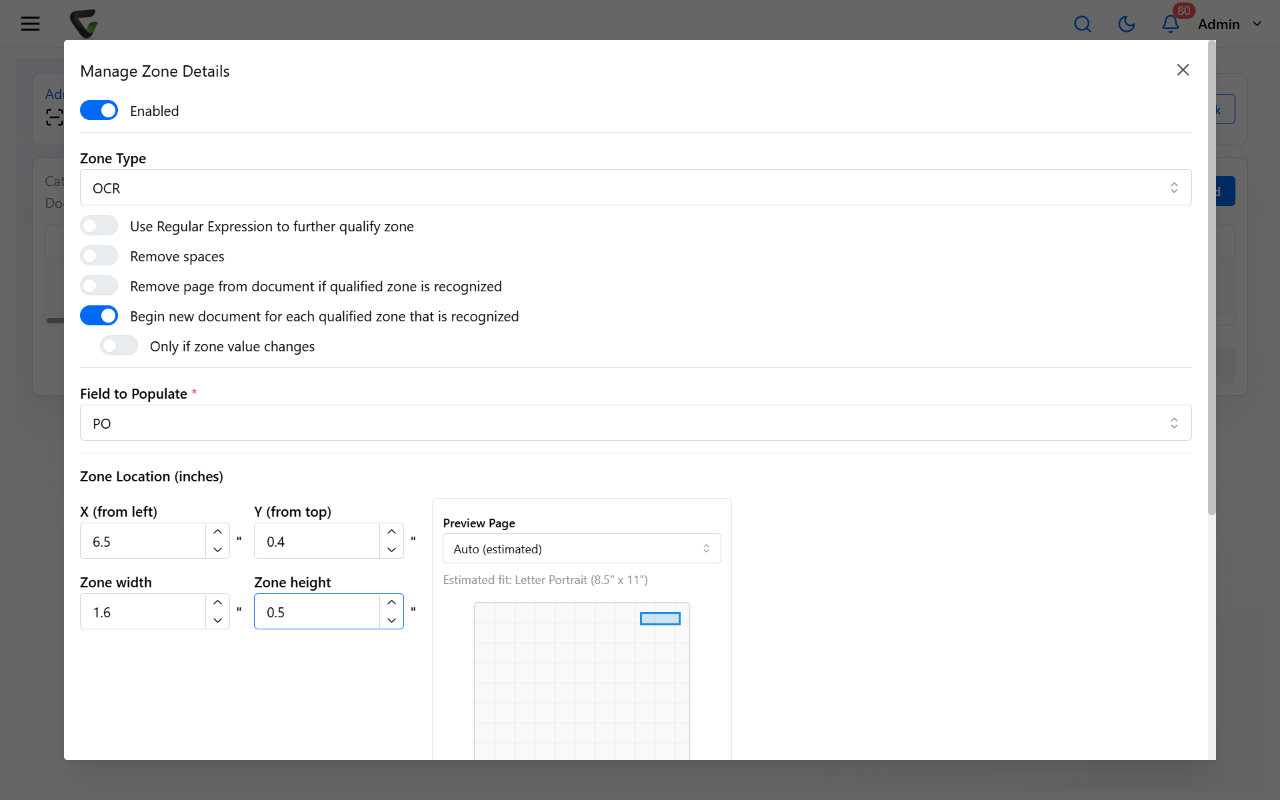
Click Add in the zone list's toolbar. The Manage Zone Details dialog is the whole feature:
- Zone Type — OCR (read printed text) or Custom Barcode (read a barcode; the Barcode Type: list covers Code 128, Code 3 of 9, Interleaved 2 of 5, UPC/EAN and more, or Any).
- Field to Populate — the document-type field this zone's value fills.
- Zone Location (inches) — here's the part to know going in: you type coordinates, you don't draw on an image. X (from left), Y (from top), then Zone width/Zone height for OCR (barcodes take Horizontal tolerance/Vertical tolerance around the point instead). The schematic preview on the right shows your rectangle against a page outline — set Preview Page to your paper size. Measure a printed sample with a ruler; a half-inch of tolerance forgives scanner drift.
- Page Number to Recognize — usually 1.
Refinements when the plain read isn't enough:
- Use Regular Expression to further qualify zone — only values matching the pattern count as a hit; the guard against OCR noise.
- Remove spaces — for numbers that scan as
1 0 0 2 3. - Enable Condition — the zone applies only when another field Equals or Contains a value.
Click Save, then Save Changes on the zone list.
Make zones split the stack
Two switches on the zone turn recognition into separation:
- Begin new document for each qualified zone that is recognized — every page where this zone reads successfully starts a new document.
- Only if zone value changes — the refinement that handles multi-page documents: a new document starts only when the value changes. A stack of invoices splits exactly at each new invoice number — pages 2 and 3 of an invoice carry the same number, so they stay attached.
(Remove page from document if qualified zone is recognized is the third variant — for when the zone lives on a cover page that shouldn't be kept.)
Feed it documents
- Unattended: a folder capture job whose Document Descriptor (Descriptor tab, Catalog Manager) is set to
Zonal— "Zones (Custom Barcodes and Zonal OCR) defined in Zonal Recognition determine the document boundaries." This path also offers Bypass Coding Queue and send documents directly to Catalog — with well-tuned zones, straight-through filing. - At the desk: the DirectScan Zonal capture type (Capture New menu). Notice what's missing on that page: no field entry at all — the zones are the data entry. Its catalog list shows only document types that have zones configured; an empty list means the configuration above hasn't happened yet.
A batch whose first page has no qualifying zone is set aside (a Missing Zonal notice) — the same protective logic as QCard stacks: no instructions, no guessing.
Success check: scan three documents of the type in one stack. They should come out as three documents, each with the zone's field filled correctly. One wrong split points at the separation switches; one wrong value points at the zone's position or tolerances.