
Create and print QCards
QCards are printed barcode instruction sheets — this guide generates them: the coding-time choice, the field values that print, the options that control splitting and lookups, and the DocType QCard that switches types mid-stack.
At the end of this guide you can generate the QCard a job needs — a printed instruction sheet the scanner reads so paper can be indexed before it's ever scanned — and you'll know what the barcode actually does, which explains most QCard surprises.
What a QCard really is
A QCard is a PDF cover sheet carrying a barcode and, printed as text, its instructions: the catalog, the document type, field values, where the documents should go. The crucial mechanic: the barcode encodes only a reference — the instructions live in Content Central, and the barcode points at them. That's why a QCard is generated fresh for each job rather than photocopied from last week's: a copy points at last week's instructions.
Generate a QCard
In the left menu, expand Capture New and choose QCard.
Set Document Properties — the same coding-time choice as other capture types: Provide now (enter field values here; they print on the card and apply to the scanned documents), Provide later in Coding Queue, Provide some now, some later, or Provide only Catalog & Document Type.
Pick the Catalog and Document Type, and fill in fields if you chose to provide them now. (With Provide later in Coding Queue the page asks for nothing more — even catalog and type get decided later, in the queue.)
Open Options for the refinements:
- Use fixed page count + Fixed page count — split every N pages instead of waiting for the next QCard; for stacks of uniform documents.
- Perform lookup at capture time — run the document type's lookups when the scan is processed, so one keyed value fills in the rest.
- Include end-of-document QCard — adds a stop card to the PDF, for marking where a document ends when trailing pages shouldn't join it.
Click Go. The QCard PDF renders on the right — Download it, or print it straight away.
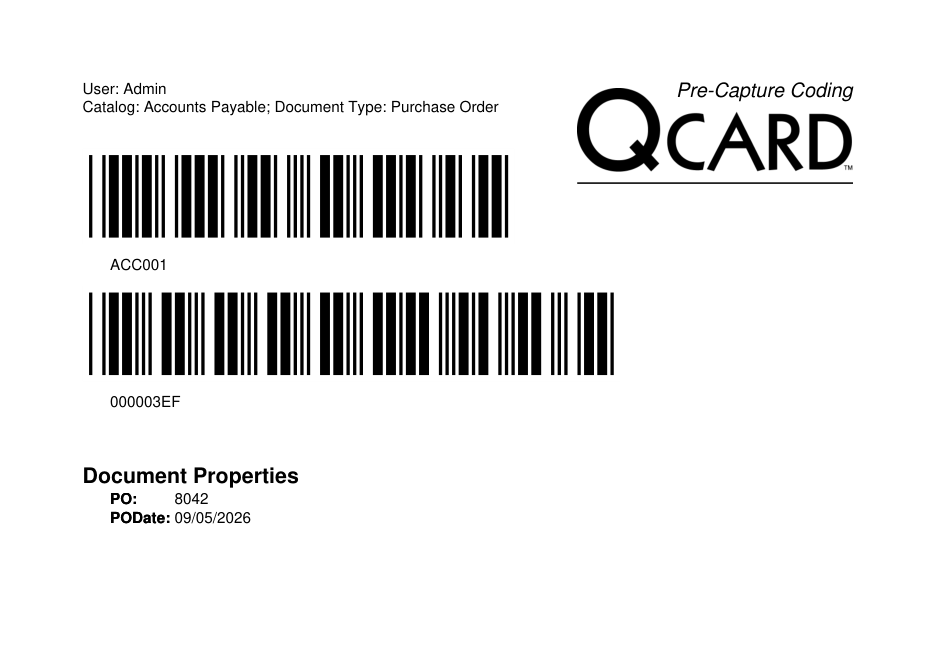
Field values print on the card only for fields whose administrator turned on Print field on QCards. — everything else prints as <hidden>. The values still apply either way; printing is about what a passerby can read off the sheet. And under your preferences, QCard Options offers Automatically print QCards (plus Use default printer without prompting) for high-volume days.
The DocType QCard: switching types mid-stack
Capture New > DocType QCard is deliberately minimal — Catalog, Document Type, Go. Its printed sheet says what it does: "This QCard will change the Document Type, but retain the field values of the previous QCard." Slip one into a stack where an invoice's supporting pages become a packing slip: same PO number carries forward, new type from that sheet on.
Append and Replace QCards
An existing document's actions menu offers Get QCard inside its Append and Replace submenus. The generated card targets that document: scan it ahead of new pages and the capture pipeline appends them to (or replaces) the original — paper-driven revisions, no computer at the scanner.
If QCard is missing from your Capture New menu
Administrators control which capture types appear (System Settings > Capture Settings > Capture-Type Visibility) — an absent entry means it's turned off for your organization, and browsing to it directly answers "This capture type has been disabled by your administrator."
Success check: generate a QCard with a field value you set to print, and check the sheet — the barcode, the catalog and type, and your value all legible. Then put it to work: Scan stacks with QCard separator sheets.