
Start an approval every time an invoice is captured
The moment an invoice lands in Content Central, put it on the approver's queue automatically — one Content Capture trigger, one Start Process action, one rule — plus the checkbox that does the same job with no rule at all.
Before you begin
- An approval process already exists on the invoice document type (see Set up an approval process)
- You can open Administration > Catalogs & Document Types
When you're done, every invoice that enters Content Central — scanned, emailed, dropped in a hot folder, or uploaded — starts its approval process by itself and appears on the first approver's Approval tab within seconds.
- Trigger
- Content Capture › Content Captured in this Document TypeAny source, any format, no field condition
- Action
- Approval Process - Start ProcessAssignment Type: Single Approval Process · Approval Process: your invoice process
- Rule
- "Invoice captured → start approval", enabled
The shortcut you might not need a rule for
Every approval process has its own switch: Automatically start this process on all captured content of this document type, under Options on the process details page. If every invoice should enter the same process with no conditions, turn that on and you're finished — no trigger, no rule.
Build the rule below when you want any of these:
- A condition — only invoices from a certain source, in a certain format, or with a certain field value (that's the second-approver recipe).
- More than one thing to happen on arrival — start approval and email someone, and stamp a field.
- One place to switch the automation on and off, with a name that explains it.
Don't do both. If the process's auto-start checkbox is on and a rule starts the same process, you'll get duplicate assignments. Pick one.
Build the trigger
Go to Administration > Catalogs & Document Types. In the selectors at the top, pick the Catalog and the invoice Document Type, then click the Workflow tile.
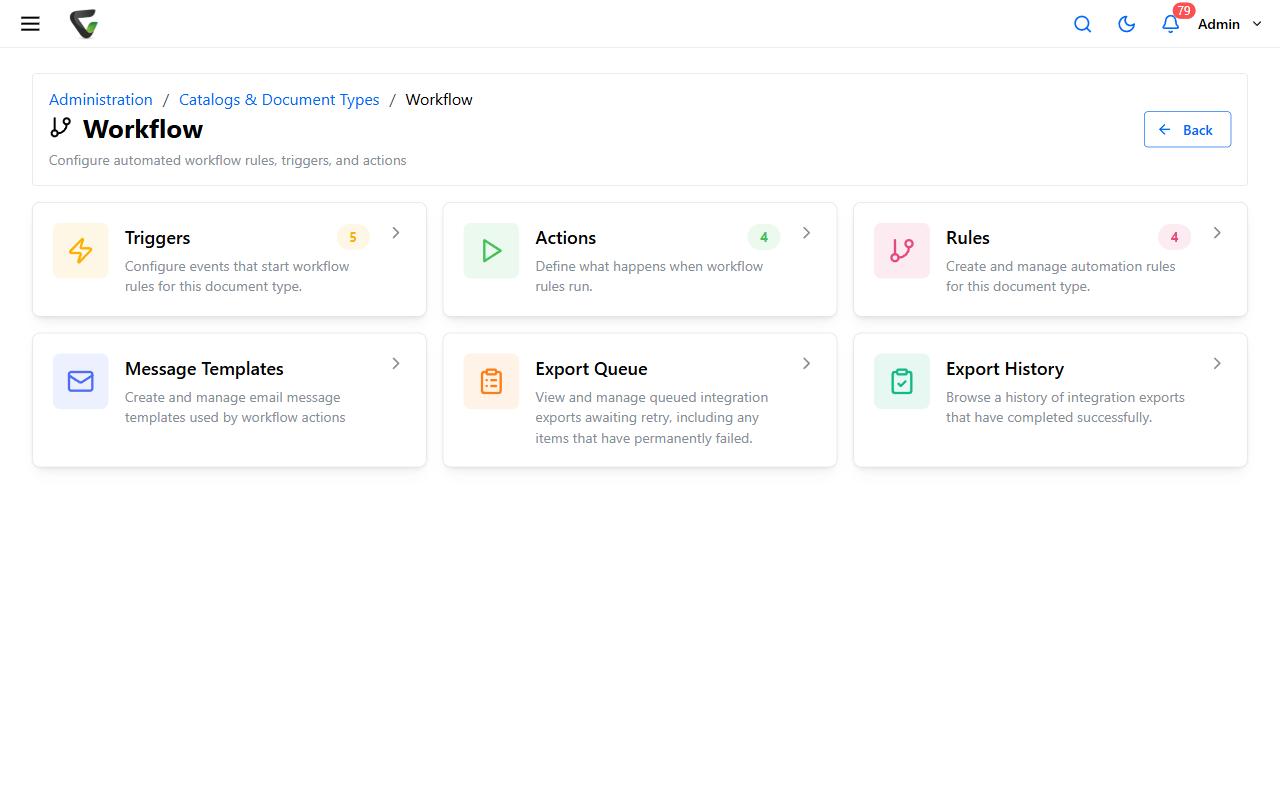
Click the Triggers card, then New Trigger.
Under Type:, choose Content Capture in the first box and Content Captured in this Document Type in the second.
Give it a Trigger Name: you'll recognize in a list —
Invoice captured.
Leave the conditions at their defaults: Source Evaluation:
All Sources, Format Evaluation:All Formats, Field Evaluation:No Field Evaluation, Capturing-User Evaluation:All Users and Groups.
Click Save.
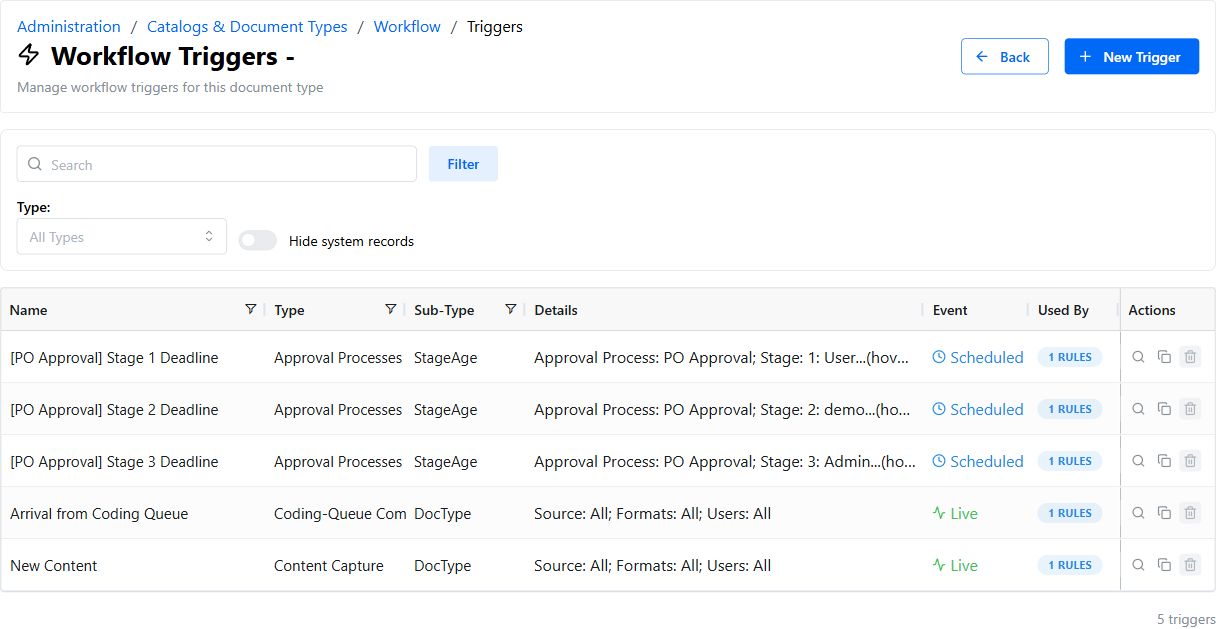
What you should see: the trigger in the Triggers list with Type Content Capture, Sub-Type DocType, and Event Live. Live means it fires the instant a document is filed — there is no schedule to wait for.
Build the action
Back on the Workflow page, click the Actions card, then New Action.
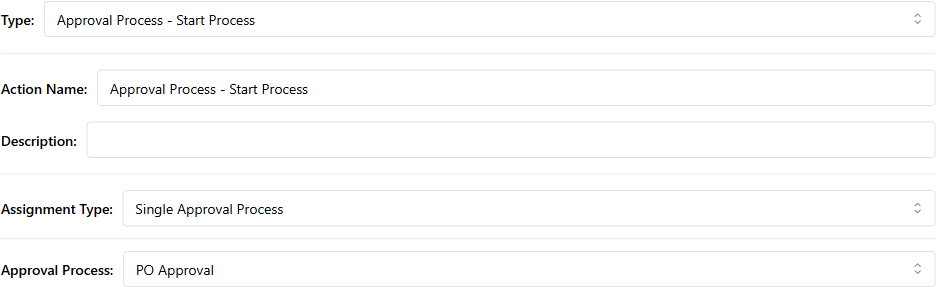
Under Type:, choose Approval Process - Start Process.
Action Name:
Start invoice approval.
Assignment Type:
Single Approval Process. Approval Process: pick your invoice process.
Click Save.
If the Approval Process: list is empty, the document type has no approval process yet. Build one first: Set up an approval process.
Wire the rule
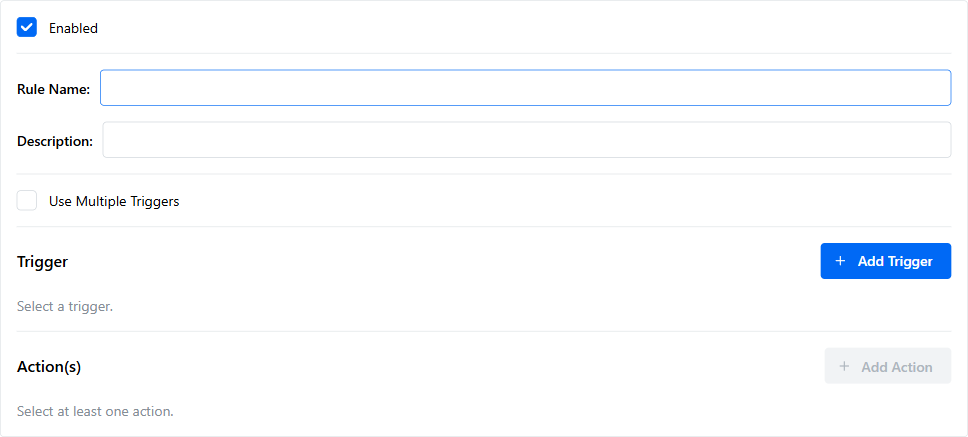
Click the Rules card, then New Rule.
Leave Enabled checked. Rule Name:
Invoice captured → start approval.
Click Add Trigger and pick
Invoice captured.
Click Add Action and pick
Start invoice approval.
Click Apply.
Test it
Capture one invoice by whatever route your office really uses — scan it, email it to the capture address, or drop it in the hot folder — and code it into the invoice document type.
Ask the first approver to open Queues and check the Approval tab.
Open the document's View History.
What you should see: the invoice on the approver's Approval tab, and a history entry reading Process started by workflow rule.
If nothing happened, the usual causes in order: the document went to the Coding Queue and hasn't been committed yet (capture triggers fire when the document is filed, not when it lands in the queue); the rule is disabled; or the document was filed under a different document type. For scheduled-style problems, see A scheduled workflow didn't run.
Variations
| Want this instead | Change this |
|---|---|
| Only invoices that came from the scanner | Trigger: Source Evaluation: DirectScan Upload (or Capture-Form Submission, XML Capture Job, and so on) |
| Only PDFs | Trigger: Format Evaluation: Selected Formats, then list pdf under File Extensions |
| Only invoices with no PO number | Trigger: Field Evaluation: Selected Field Lacks Value, Field: your PO field |
| Start approval when a coded item is committed from the Coding Queue instead | Trigger type Coding-Queue Commit › Committed in this Document Type |
| Also email the AP team on arrival | Add a second action, Send E-mail, to the same rule (recipe) |
| Different process depending on the amount | Route large invoices to a second approver |