
Email someone when a capture form is submitted
The moment a capture form comes in, an email with the form's values goes to whoever needs to know — a Content Capture trigger filtered to Capture-Form Submission, a message template, and a Send E-mail action.
Before you begin
- Outgoing email is configured and working (see Configure outgoing email)
- A capture form exists for the document type (see Create a capture form)
When you're done, each submitted form sends an email — with the submitted values written into the message — to the people who act on it, seconds after it's filed.
- Trigger
- Content Capture › Content Captured in this Document TypeSource Evaluation: Capture-Form Submission
- Action
- Send E-mailScope Type: Document Type · Message Template: "New request received" (Email type, Workflow Access visibility)
- Rule
- "Form submitted → email the office", enabled
The email's recipients, subject, and body all live in the message template, not in the action. The action only chooses which template to send and whether to attach the document.
Build the message template
On the document type's Workflow page, click the Message Templates card, then create a new template.
Message Type:
Email. Visibility:Workflow Access(orUser & Workflow Accessif people should also be able to send it by hand).
Fill To (and CC if needed) with the addresses that should receive it, separated by semicolons. Leave From blank to use the system sender.
Write the subject and body, using the Insert Code menu to drop in document values —
{!DocName;}for the file name and{!Field:...;}codes for the form's fields — so the message carries the request itself, not just "something arrived."
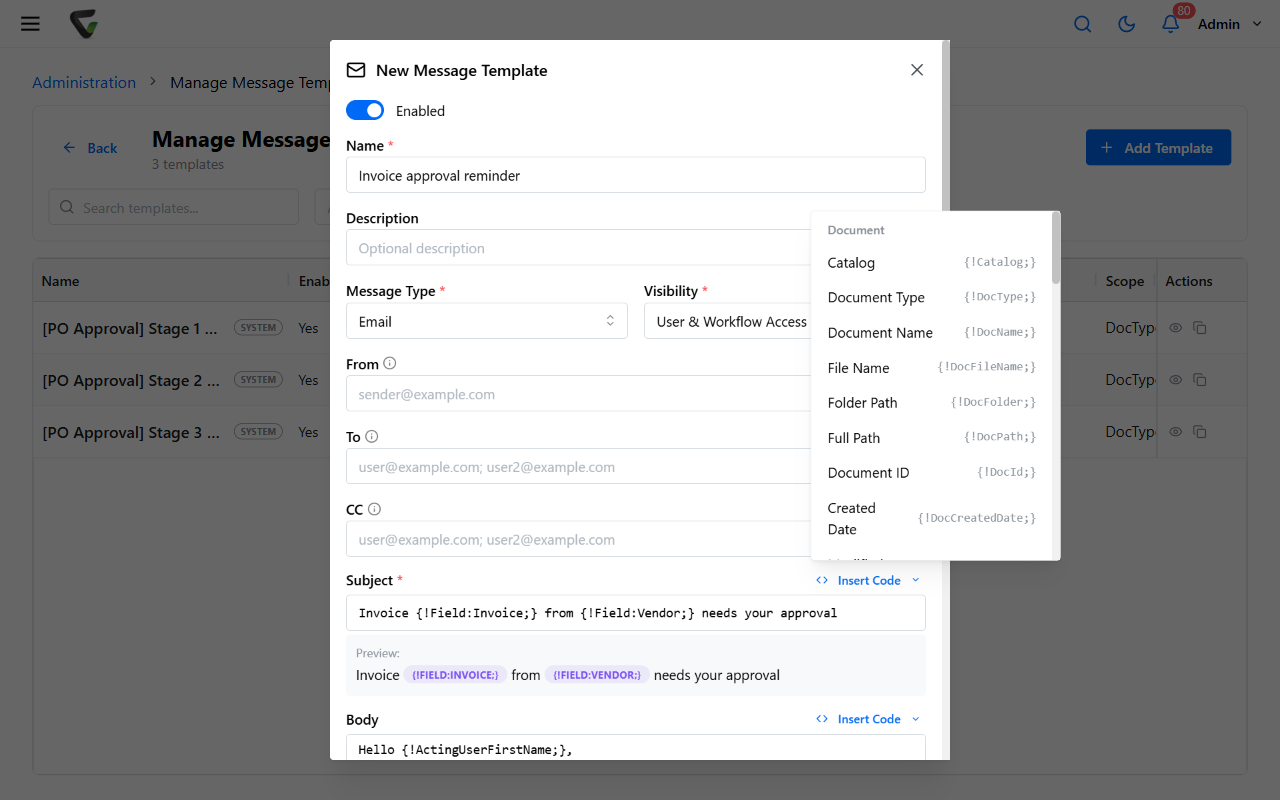
Save the template.
The full tour of the editor, including every insert code, is in Customize notification message templates.
Build the trigger
Click the Triggers card, then New Trigger.
Type:
Content CaptureandContent Captured in this Document Type. Trigger Name:Form submitted.
Source Evaluation:
Capture-Form Submission. Leave the other evaluations at their defaults.
Click Save.
What you should see: a Live trigger whose Details column reads Source: CaptureFormSubmission.
Build the action
Click the Actions card, then New Action.
Type:
Send E-mail. Action Name:Email the office about a new request.
Scope Type:
Document Typeto see templates created on this document type, orGlobalfor system-wide ones. Then choose your template under Message Template:.
Decide on Content Attachment: —
Do Not Attachfor a plain notification,Attachto include the document file,Zip and Attachfor large or multiple files, orDescription Only.
Click Save.
If you see There are no available message templates. under the scope you picked, the template was created under the other scope, or its Visibility doesn't include workflow. Switch Scope Type: or fix the template's visibility.
Wire the rule
Click the Rules card, then New Rule. Rule Name:
Form submitted → email the office.
Add Trigger:
Form submitted. Add Action:Email the office about a new request. Click Apply.
Test it
Submit the capture form once with test values.
Check the recipient's inbox, then the document's View History.
What you should see: an email whose subject and body show the values you typed where the insert codes were, and a history entry for the workflow rule. If the history shows the rule ran but nothing arrived, the problem is in the mail pipeline, not the workflow: Notification emails aren't sending.
Variations
| Want this instead | Change this |
|---|---|
| Email on every new document, not just forms | Trigger: Source Evaluation: All Sources |
| Email only when a form was submitted from outside the company | Keep the source filter and route the shared form to its own document type (share a capture form) |
| Send an in-product message instead of email | Action type Send Internal Message with an Internal template (recipients are users and groups, not addresses) |
| Email a different person depending on a field value | One trigger per value (Field Evaluation: Selected Field Value(s)), each rule pointing at a different template |
| Email the submitter, not the office | Put the form's email field in the template's To as an insert code |
| Also start an approval | Add an Approval Process - Start Process action to the same rule |