
Notification emails aren't sending
Find which of the five layers of Content Central's e-mail pipeline is failing — connection, sign-in, trigger, template, or delivery — by testing them in order.
Before you begin
- Administrator access to Content Central
- Your mail server name, port, and credentials (from your mail provider or IT team)
By the end of this guide you'll know exactly which of the five layers of Content Central's e-mail pipeline is failing — connection, sign-in, trigger, template, or delivery — and have it fixed, or have the exact evidence support needs.
Work the layers in order. Each one depends on the ones before it, so skipping ahead wastes time.
| Layer | Question it answers |
|---|---|
| 1. Connection | Can Content Central reach your mail server? |
| 2. Sign-in | Does the mail server accept the credentials? |
| 3. Trigger | Was a notification actually generated? |
| 4. Template | Is the message addressed and built correctly? |
| 5. Delivery | Did a real message reach a real inbox? |
Layer 1: Check the connection settings
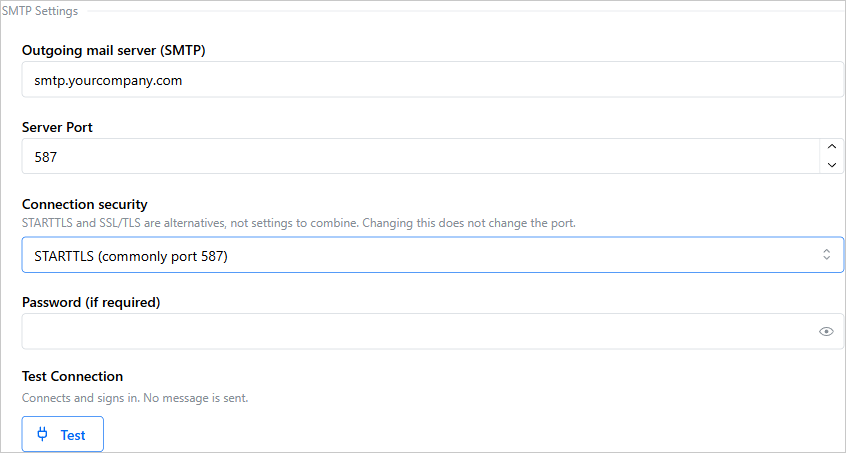
Go to Admin > System Settings and open E-mail Server Settings > SMTP Settings.
Check Outgoing mail server type. If it's
OAuth2(Microsoft 365 or Google), the SMTP fields don't apply — open the OAuth2 Settings subcategory instead, use its own Test Connection, then continue at Layer 3.
Confirm Outgoing mail server (SMTP) is your provider's server name (like
smtp.example.com) and that Server Port matches the Connection security choice:Server Port Connection security 587STARTTLS (commonly port 587) 465SSL/TLS (commonly port 465) 25None (unencrypted — only if your mail server requires it)
STARTTLS and SSL/TLS are alternatives, not settings to combine — and changing Connection security never changes the port for you. Port 587 paired with the wrong security choice is the single most common cause of sudden send failures.
If your version shows two separate switches — Use SSL and Use TLS — instead of one dropdown, enable only one. With both on, Content Central opens an encrypted connection and then tries to start encryption again inside it, which mail servers refuse. On port 587, turn SSL off and keep TLS on.
Recheck this screen after any Content Central upgrade or mail-provider change. A combination that was tolerated for years can start failing the day either side changes.
Layer 2: Verify the sign-in
Still under SMTP Settings, check Username (if required) and re-enter Password (if required). The password field is masked, so a stale or mistyped password looks identical to a correct one.
At the top of E-mail Server Settings, confirm From name and From address are values your mail provider allows this account to send as.
In the Test Connection row, click Test. The test uses the values currently on the form — even unsaved ones — so you can safely try a correction before saving it.
What you should see: a success result. The test connects and signs in; no message is sent.
If the test fails, stay on layers 1–2 until it passes — nothing downstream can work. Once it passes, save the settings and continue.
Never share your SMTP password with anyone, including support. Support never needs it — a screenshot with the password field masked is enough.
Layer 3: Confirm the notification actually fired
A perfect mail setup sends nothing if the workflow never generated a message.
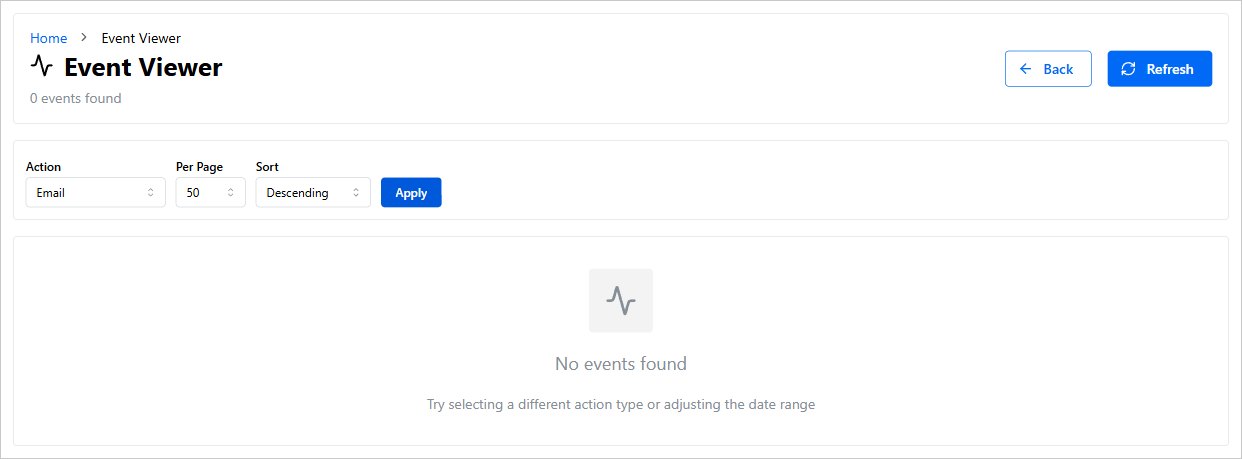
Open the Event Viewer from the menu behind your user avatar. (If you don't see it, your account needs the Event Viewer permission.)
Set the Action filter to the e-mail action type, set From and To to the time window in question, and click Apply.
What you should see: one row per sent notification, showing the document, the recipient as
To: <address>, and the subject.
No rows at all? The problem is upstream of mail. In the workflow rule's e-mail action, confirm a template is selected in Message Template: —
There are no available message templates.means the template it needs is missing or disabled.
The message Server info not defined for workflow. Please visit System Settings. is not about your mail server — it means Content Central doesn't know its own web address for building links. Fix it under System Settings > Notification Settings: turn on Override server URL in outgoing notifications and fill in Server URL (like http://domain.com/ContentCentral/).
Event Viewer entries are purged after the Purge Days value in Admin > System Settings > Event Log (empty = keep forever). Evidence for very old notifications may already be gone.
Layer 4: Check the template
Open the Message Templates page (Manage Message Templates) and verify, for the template in question:
- Enabled is on
- Message Type is
Email— anInternaltemplate delivers an in-app message and will never produce an e-mail - To and CC addresses are correct, separated by semicolons
- Variables use the correct syntax:
{!CodeName;}for system codes,{!Field:FieldName;}for document field values
An empty To field doesn't mean no recipients — templates can also target selected users, groups, and roles such as document-type admins or the document creator. Check every recipient source, not just the typed addresses.
Can't find the template? Disabled and system-generated templates (like approval deadline notices) are hidden behind the Hide system records toggle in the template list.
Layer 5: Prove real delivery
A passing Test proves connection and sign-in only — it never sends a message. Only a real message proves the whole pipeline.
Trigger the actual workflow (or another rule that uses the same template) with yourself as a recipient — for example, submit a test document that meets the rule's conditions.
Confirm a new e-mail row appears in the Event Viewer, then check your inbox and your spam or quarantine folder.
If the row exists but no message arrives, the hand-off to your mail server or beyond is failing. Your mail administrator can trace it from their side using the exact timestamp, sender, and recipient from that row.
Before declaring a message "missing," search the inbox for the exact subject shown in the Event Viewer. Messages sometimes arrive looking wrong rather than not at all — an unexpected subject, or an attachment whose filename came out differently than expected — and get overlooked.
If capture or processing stopped too
Notifications and document capture run in separate background services on the server, but they can share a root cause. If e-mails stopped and documents also stopped importing or moving through workflow around the same time:
Check Admin > System Health for the live status of Content Central's subsystems.
Report both symptoms together to support in one message, and include the diagnostics bundle System Health offers (nothing downloads until you confirm in a preview dialog). On older builds this combination can indicate a known product issue that an update resolves — it is not something to fix with settings.
Still stuck?
Send support this compact evidence set — nothing more is needed to start:
- Screenshot of E-mail Server Settings > SMTP Settings (password stays masked — never share it)
- The exact server, port, and Connection security values, and whether Test passes or fails
- A screenshot of the Event Viewer filtered to the e-mail action for the affected time window
- The template's name, Message Type, and recipient settings
- One concrete example: expected recipient, workflow, and date/time
- Whether capture or processing also stopped — and if so, the System Health diagnostics bundle