
Customize notification message templates
The wording of every email and internal message the system sends — templates with insertable codes for document values, the Email-versus-Internal type choice that decides delivery, and the visibility setting that controls who can use each one.
At the end of this guide the messages your system sends say what you want, carry the document's own values — "Invoice {!Field:Invoice;} from {!Field:Vendor;} needs your approval" — and exist as templates that workflow, approvals, and people all reuse.
Where they live
Administration > Manage Message Templates — every template in one list, filterable by type and catalog. One filter to know on day one: Hide system records is on by default, tucking away the built-in system templates (approval deadline notices and kin); un-tick it when the message you're hunting isn't yours.
Create or edit a template
Click Add Template (or open one). The choices, in the order they matter:
Message Type — Email or Internal Message. This is delivery, not tone: an Internal template appears in users' in-product messages and will never produce an email. When "the notification isn't arriving" and the mail settings check out, this select is the culprit surprisingly often.
Visibility — who can use the template: User Access (manual sends by people), Workflow Access (email actions in rules), User & Workflow Access, Approval Process, or Signature. Scoping keeps the picker in each feature short and relevant.
From / To / CC (Email type) — addresses separated by semicolons; the From tooltip states the useful default: "Leave sender blank for system value. User access will always use user's e-mail address." Internal type gets Users and Groups pickers instead.
Subject and Body — the wording itself, with the feature that earns this page its place:
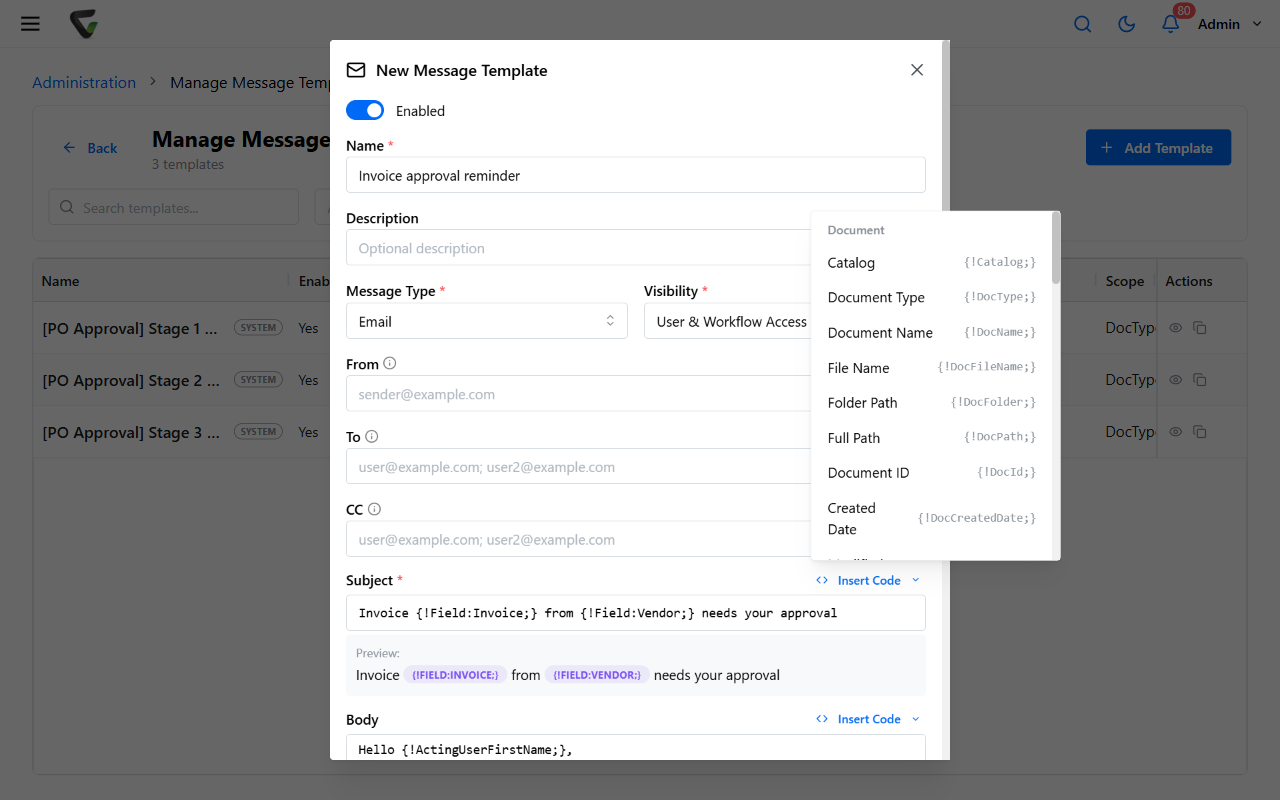
The Insert Code menu drops placeholders that resolve per message, grouped by what they describe: the document ({!DocName;}, {!Catalog;}, {!DocType;}, {!DocVersion;}…), its creator and the acting user ({!ActingUserFirstName;}…), the approval context ({!APName;}, {!APNote;}…), packets — and the workhorse, {!Field:FieldName;}, which is a pattern: replace FieldName with your field's actual name to pull its value into the message. A live Preview under each box renders the result.
Allow users to customize recipients, subject, and body during manual send. — for User-Access templates: template as starting point versus template as fixed form.
Templates in the wild
Wherever a message gets configured — a workflow rule's email action, an approval process's notifications, a signature request — a Message Template picker offers the templates whose visibility matches. Change the template once; every consumer sends the new wording.
Two rules the editor enforces once a template is in use: Message Type and Visibility lock (consumers depend on them — to change course, duplicate the template and retire the old one), and a template a workflow action uses can't be deleted until the action lets go.
Success check: build a test Email template with {!DocName;} and {!Field:...;} codes, point a test workflow rule's email action at it, trigger it, and read the arrived message — real values where the codes were. If it didn't arrive, the email pipeline article walks the layers; if it arrived as an in-product message instead, revisit step 1.