
Workflow rules, triggers, and actions
How Content Central automation is built: triggers watch for events, schedules, or conditions; actions do the work; rules wire them together — with the full map of what each piece can watch and do.
By the end of this page you'll know how Content Central automation fits together — what triggers can watch, what actions can do, and how rules combine them — so you can design an automation instead of guessing at one.
Three pieces, always:
- A trigger watches for something — an event (a document was captured), a schedule (every night at 2 AM), or a condition (invoices older than 30 days exist).
- An action does something — start an approval, send an email, update a field, move a document, export data.
- A rule connects them: when the trigger fires, run these actions, in this order. Nothing happens until a rule is enabled.
Two places to build, one system
| Scope | Where | Use it for |
|---|---|---|
| One document type | Administration > Catalogs & Document Types > pick catalog and type > Workflow tile | Most automations — invoice routing, notifications for one kind of document |
| Global | Administration > Workflow | System-wide automations, and the pieces that only exist globally: scheduled reports, catalog/document-type changes, packet triggers, export templates |
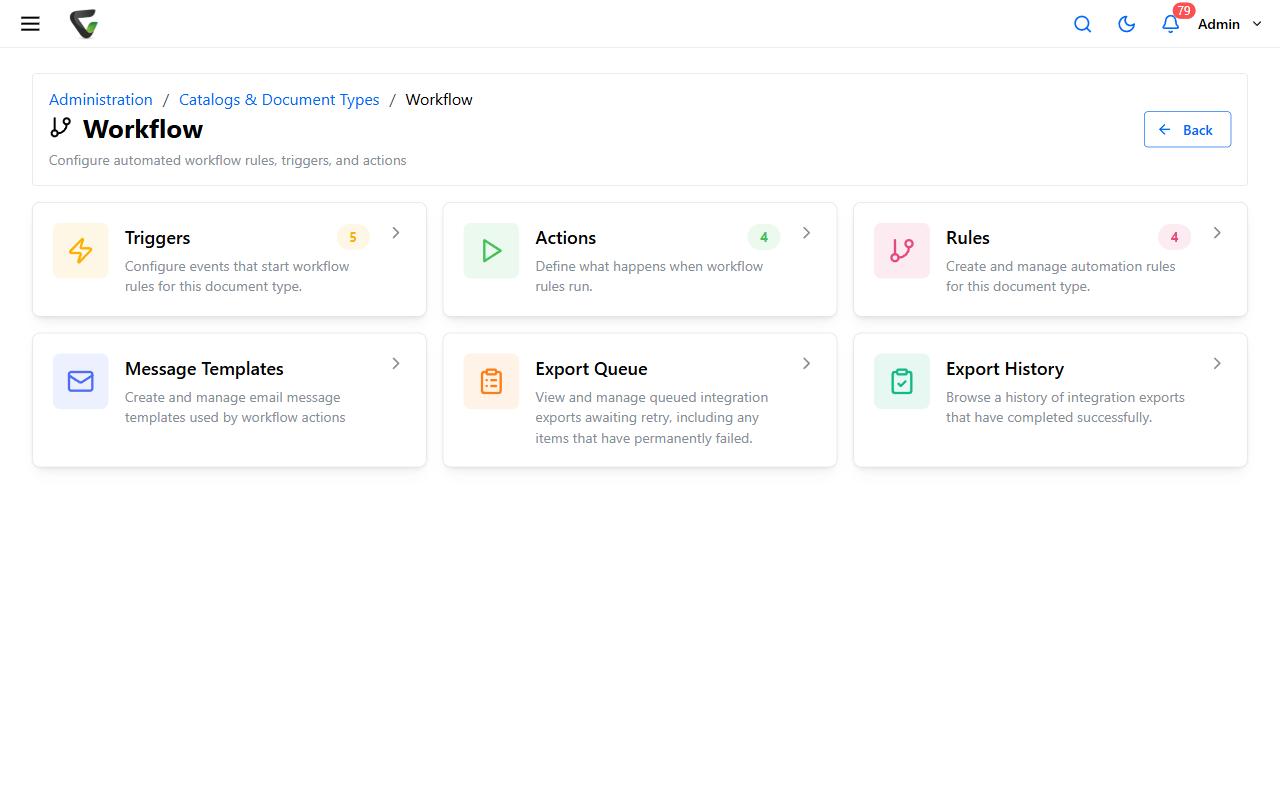
The two scopes show slightly different menus on purpose: some triggers and actions are global-only, and in the document-type area the catalog/type pickers disappear because the scope is already decided.
What triggers can watch
Every trigger has a Type and a sub-type, plus its own conditions. The families:
| Trigger family | Watches for |
|---|---|
| Content Capture / Check-In / Check-Out / Deletion / Revision Upload / DocType Change | A document event the moment it happens |
| Content Age / Content Delay | Documents reaching an age — or a span of time with no new documents (a great "the scanner went quiet" alarm) |
| Content Query / Content Field Values | Documents matching a query, or a field value being updated / reaching an age |
| Coding-Queue Arrival / Commit / Deletion / Age / Query / Field Values | The same ideas, inside the Coding Queue |
| Queue Items | Item counts sitting in the Coding, Approval, or Work queues |
| Approval Processes | Process events: assignment updates, movement between stages, items or age on a process or stage |
| Work-Queue Age / Arrival / Departure and Signature-Queue Age | Queue traffic and dwell time |
| Reports | The Report Scheduler — the schedule that fires report generation |
| Packet Query / System Query | (Global only) packet completeness; capture-service backlog and logged-in users |
Conditions live on the trigger: query types (all content, by full text, by field values, with return limits), field evaluations (equals, ranges, date offsets), capture-source filters (DirectScan, capture forms, specific file extensions…), and schedule settings for the timed types.
What actions can do
The everyday set, by group — labels as they appear in the Type: dropdown:
- Approvals: Approval Process - Start Process / Change Stage / Change Priority
- Communication: Send E-mail · Send Internal Message
- Documents: Content - Check Out · Delete · Copy to Folder · Move to Folder · Export · Share · Update Field · Update Date Field with Today's Date · Merge Field Values · Calculate Field-Value Range · Perform Field Lookup · Update Field Lookup · Generate Capture-Job XML
- Coding Queue: Coding Queue - Update Field · Perform Field Lookup · Delete
- Work Queue: Work Queue - Assign · Remove
- Output & integration: Export Data · Run External Application · Generate Report (global only) · accounting exports for QuickBooks Online and Desktop, Sage 50 and Sage 50 Canada, Workday, and Epicor
- Global-only utilities: catalog/document-type changes, packet merges, field summaries and summations
How a rule puts it together
On a rule's page (Rules > new rule):
Enabled — rules can be built disabled and switched on later; the Rules list has a per-row switch.
Trigger — click Add Trigger and pick one you've built. With Use Multiple Triggers checked, a Combine Method appears: AND ("ALL triggers must match for this rule to execute") or OR ("ANY trigger matching will cause this rule to execute").
Action(s) — add one or more, then arrange them with the move up/down arrows. Actions run in the order shown — put "update the field" before "export the data," not after.
Apply saves.
Triggers and actions are reusable — several rules can share one trigger. That cuts both ways: editing a shared trigger changes every rule that uses it, and a trigger in use can't be deleted.
Designing one: a worked pattern
"Email the AP manager when an invoice sits in the Coding Queue for more than 2 days":
Trigger: Coding-Queue Age → Age of Document-Type Content in the Coding Queue, on the invoice document type, threshold 2 days.
Action: Send E-mail, with a message template.
Rule: connect them, enable, Apply.
That same three-step shape builds almost everything — scheduled reports (full walkthrough), auto-started approvals, aging alarms, and integration exports.
When a rule doesn't fire
The diagnosis path is its own guide: A scheduled workflow didn't run — start there before rebuilding anything.