
Group related documents with packets
Packets assemble themselves — every document sharing a key field value belongs, automatically — so this page explains the packet template behind that, the Packet Search page, and the completeness checking that's the feature's real payoff.
By the end of this page you'll know the one idea that makes packets click — membership is automatic, driven by a shared field value — and how to use Packet Search's Complete/Incomplete verdict to answer the real question: "what's still missing from this file?"
The idea: packets assemble themselves
A packet is every document whose key field carries the same value, measured against a packet template that lists which document types belong. A loan packet template might say: key field Loan Number; required types Application, Appraisal, Note, Closing Disclosure. The moment a document is filed with Loan Number 20260147, it's in that loan's packet — no adding, no dragging, nothing to maintain.
That's the part that surprises people: you never create a packet or put documents into one. File documents with the right field values and the grouping is just true. It also means the reverse: a document with a mistyped key value is missing from its packet until the field is corrected.
Find a packet
Open Packet Search (under Search in the menu).
Pick the Packet Template, enter the key field's value, and click Search.
What you should see: the packet's contents — and its verdict. A Complete badge means every required document type is present; Incomplete comes with a count and the missing types shaded red in the results.
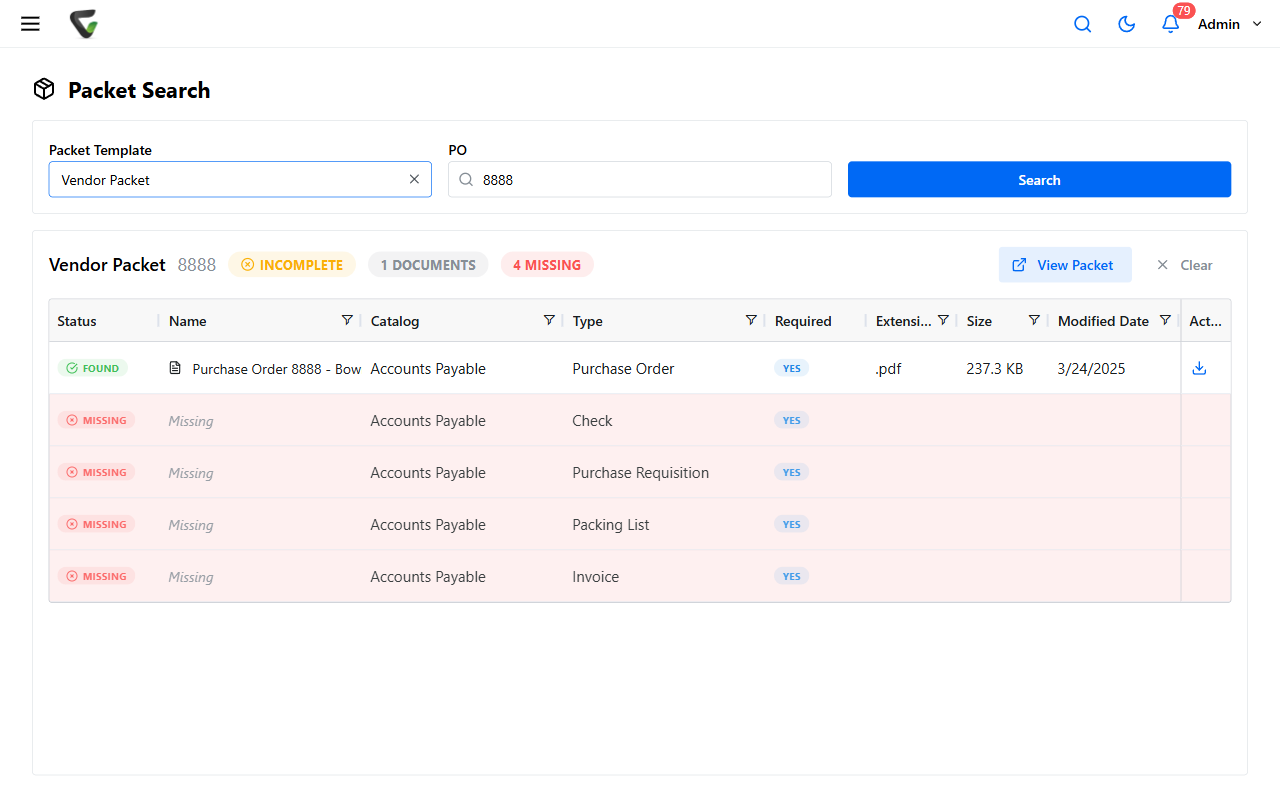
That verdict is the feature's payoff. "Is this loan file complete?" or "which employee files still lack an I-9?" stops being a folder-by-folder inspection.
From a document you're already viewing
- When an open document belongs to a packet, its right panel gains a Packet tab listing the other members — missing required types appear as placeholders.
- View Packet in the document's actions menu opens the full packet view: a completion meter, the documents, and the missing-types list, each member a click away.
Capturing toward completeness
Scanning a stack that belongs to one packet? The QCard Packet capture type (under Capture New) works from a packet template: enter the key value once and the documents you capture all carry it — arriving already grouped.
For administrators: the template
Packet templates live under Administration > Packet Templates. A template is: a name, the Key Field (a global field), and the list of document types in the packet — each marked required or not — plus sort order for the packet view and an optional system field that surfaces the packet's status on its documents. Guidance that matters more than the mechanics:
- Pick a key field that's truly shared and reliably filled — required at capture on every participating type. The template is only as good as the field discipline beneath it.
- Mark "required" honestly. Required types drive the Complete/Incomplete verdict; padding the list with nice-to-haves makes every packet read Incomplete forever.