
Change a document's type, catalog, or fields after filing
Update a filed document's field values, reclassify it under a different document type, understand when a catalog move is possible, and add new drop-down values — and know what it means when a control isn't there.
At the end of this guide you'll know how to edit a filed document's field values, change its document type, understand when a move to another catalog is possible, and add a new value to a drop-down list — plus what it means when one of those controls is missing or locked.
What can change, and what controls it
| Change | Where you do it | What enables it |
|---|---|---|
| Edit field values | Properties panel > Edit Properties | The document type's Allow Field Editing permission |
| Change document type | Document Type selector in the Properties panel | System setting Allow document-type changes (on by default), plus permission to add documents to the target type |
| Move to another catalog | Catalog selector in the Properties panel | System setting Allow catalog changes (off by default) |
| Add a new drop-down value | Type it into the field | The field's Allow user to add new entry to list. setting |
These restrictions apply only to documents that have been filed. In the coding queue, Catalog and Document Type are always editable.
Edit a document's field values
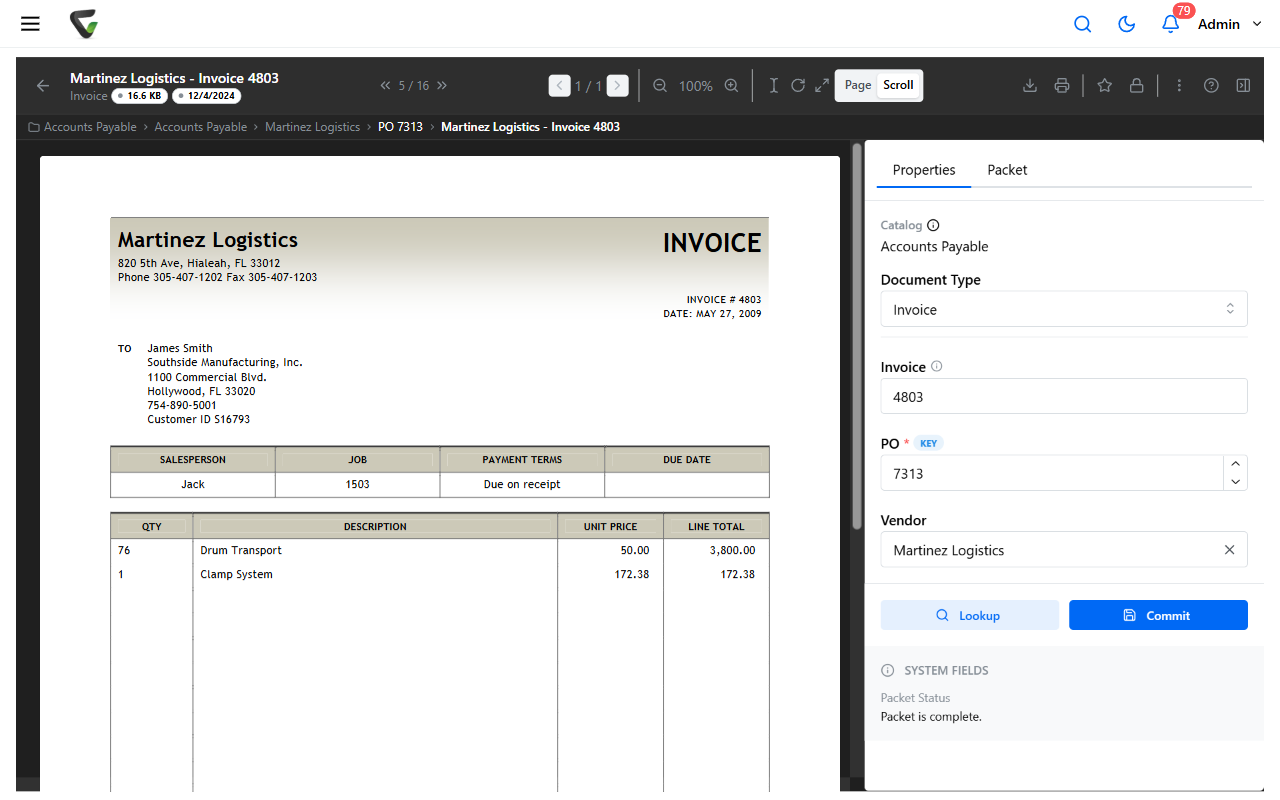
Open the document. The right-hand panel shows a Properties tab (plus a Packet tab when the document belongs to a packet).
Choose Edit Properties from the document menu.
Change the values, then click Commit to validate and save.
What you should see: the panel returns to read-only showing your new values. If a required field is empty, you'll see
Please fill in required fieldsnaming the fields — fill them in and commit again.
If someone else saved changes while you were editing, you'll see "This document was changed by someone else. Reload to see the latest, then re-enter your change." That's a safety check, not an error — reload and re-apply your edit.
Editing fields requires the Allow Field Editing permission on the document's type. If Edit Properties is missing or the fields never unlock, ask your administrator to check that permission (system and catalog administrators always have it). System settings also control whether an edit may blank out a value or change a date that was filled in automatically during capture — if a valid-looking edit is rejected, ask your administrator about those.
Change the document type
In the Properties panel, find the Document Type selector directly above the fields.
Select the new type, complete any required fields it adds, then click Commit.
The list offers only document types you have permission to add documents to — the server filters it. Seeing only the current type means there's no other type you can file into: a permissions answer, not an error.
If the selector is locked, the panel tells you why:
| Message | What it means |
|---|---|
| "You do not have permission to change this document." | You don't have update rights on this document |
| "Changing a document type after the document has been filed is turned off for this system." | An administrator turned off Allow document-type changes in System Settings |
| "There is no other document type you have permission to add documents to." | No eligible target types — ask your administrator for add rights where you need them |
Move to a different catalog
Moving a filed document to another catalog is a bigger operation than a type change, and it's off by default: the Allow catalog changes system setting starts disabled, so on most systems the Catalog value is read-only by design. Many organizations leave it that way on purpose — if you need a catalog move, ask your administrator rather than assuming it can or should be turned on.
When it's off, the panel shows: "Moving a document to a different catalog after it has been filed is turned off for this system. An administrator can turn it on in System Settings." If you only have access to one catalog, it says so instead.
When it is enabled:
Select the new catalog in the Catalog selector, choose a document type in it, complete the fields, and click Commit.
noteIf you see "You do not have permission to file documents into any document type in the selected catalog", you need add rights on at least one type there first.
Move to… and Copy to… in the document actions move a document between folders. A catalog change happens only through the Catalog selector in the Properties panel — they are different operations.
Add a new value to a drop-down list
Whether you can type a value that isn't already in a list is decided per field by whoever configures it:
- If the field allows new entries, it appears as a combo box that accepts free typing (multi-select lists accept typed tags). Type the new value and commit.
- If not, you can only pick existing values — ask your catalog administrator to add the value, or to turn on Allow new entries. for that field.
- A companion setting, Add new entries to choice list., saves your typed value into the list for future documents.
On some older versions, a newly typed list value could fail to stick after saving. If a value you add keeps disappearing, contact support — that's typically resolved by an upgrade, not by changing settings.
Checked-out documents
Check-out is exclusive: one person edits at a time, and everyone else can still view.
- A checked-out document shows an orange lock icon; hover over it to see Checked out by and the holder's name.
- By default the Properties panel locks too, replacing the fields with "Checked Out — This document is checked out and cannot be modified." Wait for check-in, or ask the holder to Check In or Undo Check Out.
- Checking in a new file creates a new major version. Undo Check Out releases the lock without creating a version and warns that any changes made to the document will be lost. Undoing someone else's check-out asks for confirmation and notifies that user.
Administrators can allow property edits during check-out with the system setting Allow document properties to be modified when documents are checked out.
If a control is missing entirely
The locked-with-a-reason messages above come from recent versions. Older versions may simply hide the Document Type or Catalog control with no explanation — and on certain builds a control could be missing or misbehave because of a defect a later version fixed. A missing control is therefore not proof that you lack permission.
Check with your administrator first, or contact support with: your Content Central version, which control is missing or locked (Edit Properties, Document Type, or Catalog), the catalog and document type involved, and the exact message shown, if any.