
Search for documents
The three ways to search — the always-there top bar, the Search page, and Power Search — plus field filters, exact-phrase matching, saved searches, and getting results out as CSV.
At the end of this guide you'll know all three ways to search, how to narrow results by catalog, document type, and field values, and how to save a search you'll run again — with results you can export as a CSV.
The fastest way: the top bar
The magnifier in the top bar works from every page. Click it, type, press Enter. When you don't know where else to start, start there.
The Search page
Open the menu (☰) > Search > Search. The page asks its own question:
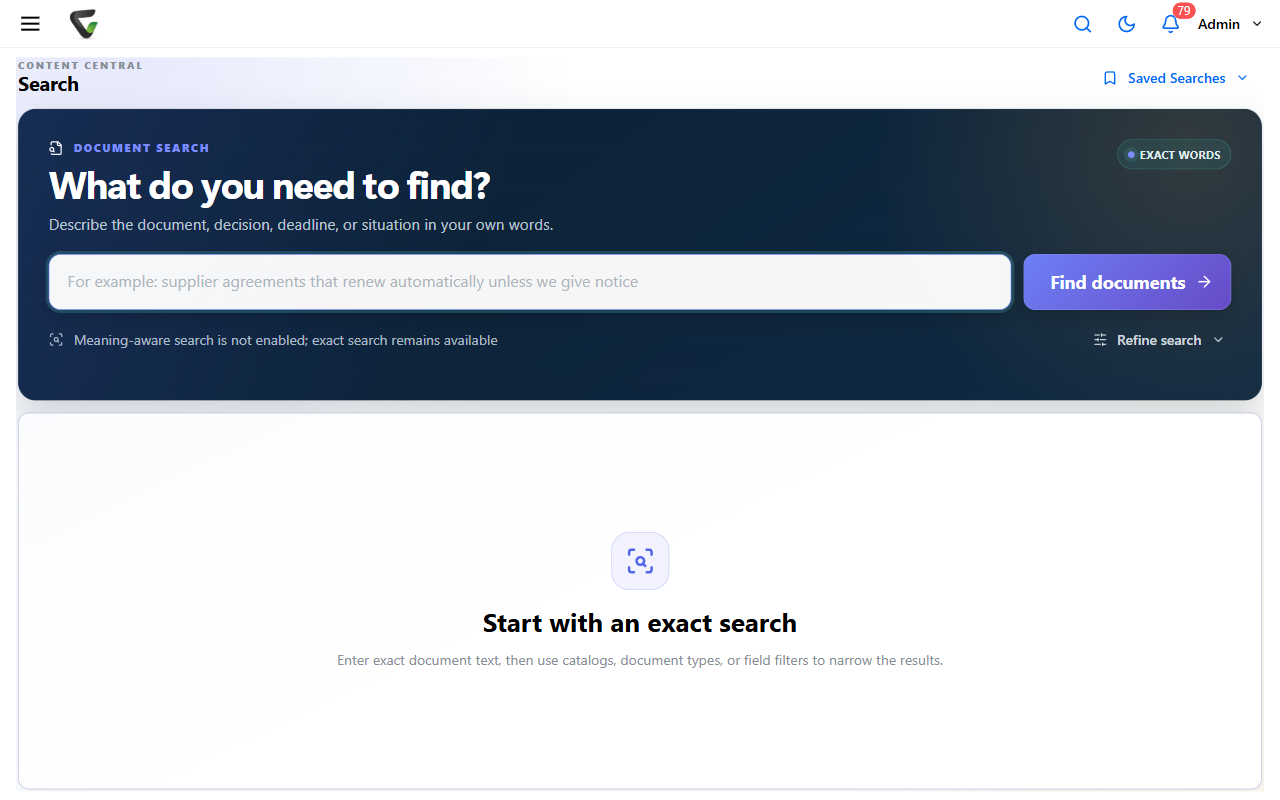
Describe what you're after in the search box and click Find documents.
To narrow down, click Refine search:
- Match this phrase exactly — the words together, in order
- All Catalogs / All Document Types — scope the search
- Field Filters — match on specific field values (see below)
Results appear in a grid — Name, Catalog, Document Type, Pages, Modified, and more, plus columns for the document type's own fields. Click a row to open the document.
Some systems have meaning-aware search enabled, where descriptions in your own words work well; others match exact words. The page tells you which with a badge — Exact words means choose your terms the way they'd appear in the document.
Search a specific field
Two ways:
- Type it: the search box understands
field:value— start typing and the Search suggestions popover offers the exact syntax for your fields. - Build it: under Field Filters > Add Filter, pick a Field, an Operator (Equals, Contains, Starts With, Between, Is Empty, and more), and a Value. Stack as many as you need.
Custom fields belong to document types — if the field you want isn't offered, select the document type first. The panel says so: "Select a Document Type above to filter by custom fields."
Power Search: filters-first
Open the menu > Search > Power Search for the same engine with a different posture — a single search line with every refinement already open:
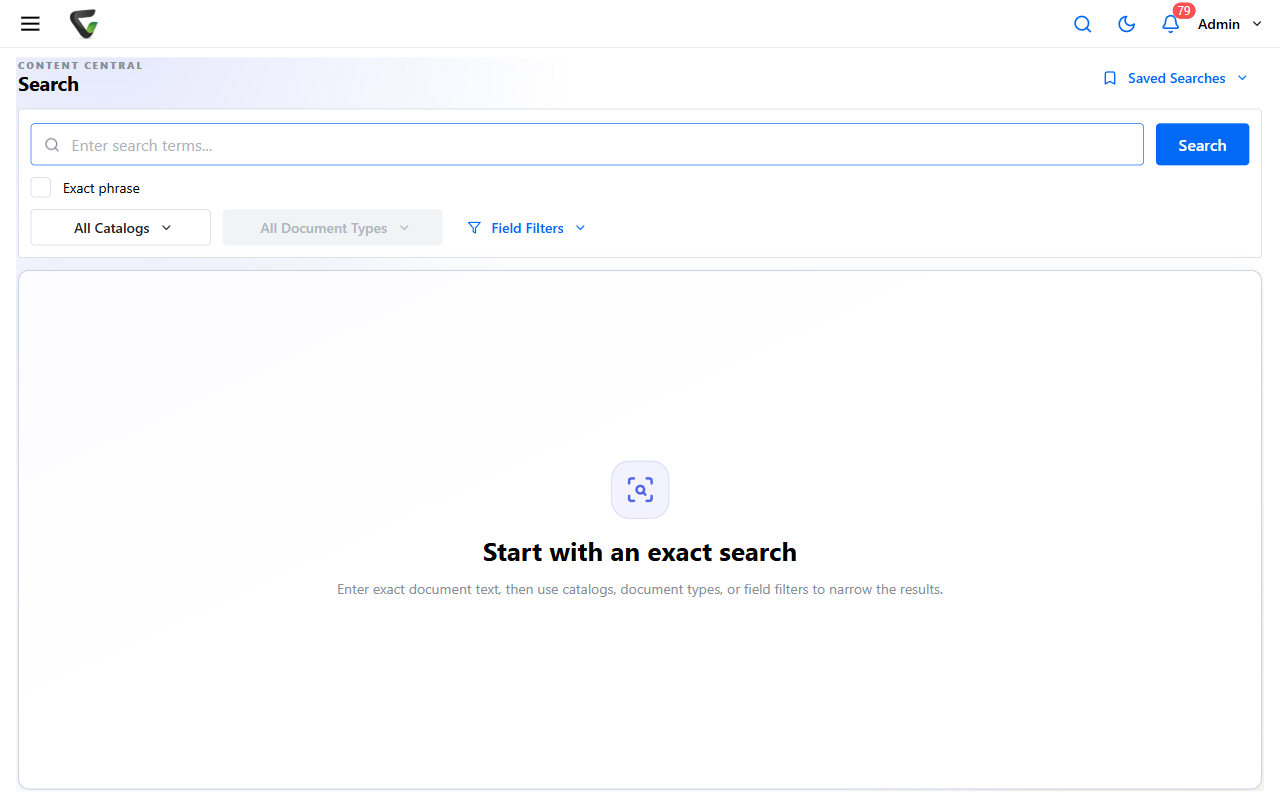
Use it when you live in filters: exact terms in the box, Exact phrase one click away, and the catalog/type/field controls always on screen. Everything you learned above applies unchanged.
Save searches you'll run again
Open Saved Searches (top right on either search page):
Build the search first — terms plus filters.
Type a name into Enter name to save... and press Enter.
Run it later from the same menu with one click. Each saved entry also offers Copy search link — paste the link to a colleague and they land on the same search.
Get results out
With results on screen, Export CSV downloads the full result set — field values included, up to the system's export limit. A big export runs in the background: you'll see Export Queued, and the file arrives in your Messages with a download link.
What you should see: the row count line ("Showing X of Y") above the grid tells you whether your filters bit. Zero results with filters set? Clear them one at a time — the stale-criteria notice will remind you if the grid is still showing a previous search.
When the document exists but search can't find it
That's its own problem with its own guide: Can't find a document walks permissions, filters, and indexing in order — and Why text you can see isn't searchable covers the scanned-image case.