
Why text you can see isn't always searchable
The three ways readable text hides from keyword search — annotations, un-OCR'd scans, and documents waiting for the next index update — and what finds the document anyway.
By the end of this page you'll know the three reasons a word you can plainly read in a document doesn't come up in keyword search — how to spot each one, and what finds the document anyway.
Keyword search doesn't read your documents when you search. It reads an index — a prepared list of the text inside each catalog's document files. When text isn't in that index, keyword search can't see it, no matter how clearly you can — and that happens in three ways:
| What you see | Why keyword search misses it | What works |
|---|---|---|
| Text added as an annotation or comment | Annotations aren't part of the page text, so they're never indexed | Field Filters — works immediately |
| A scanned page you can read | The page is a picture; there's no text until OCR runs | Field Filters; ask your administrator about OCR capture settings |
| A document added today | The catalog's index updates on a schedule | Field Filters now; keywords after the next index update |
First, know your two search modes
The Search page gives you both tools in one place, and you can combine them in a single search:
- The keyword search bar — full-text search against the catalog's index.
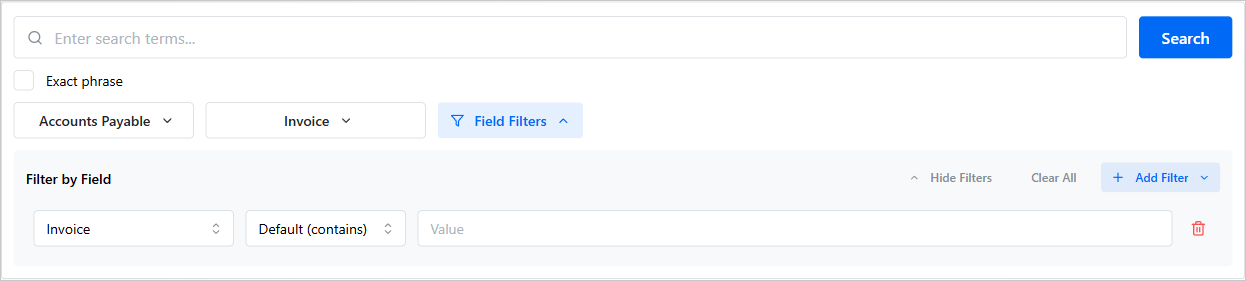
- Field Filters — conditions on specific field values (invoice number, vendor, date), answered directly from the database with no index involved.
That difference is the theme of this whole page: keyword search waits on the index; a Field Filters-only search never does.
1. Annotations aren't page text
Text added on top of a document in Content Central — typed notes, stamps, highlights — is stored with the document but separately from the document file itself. Indexing extracts text from the file, so an annotation is visible every time you open the document and invisible to keyword search forever. This isn't a delay you can wait out.
How to recognize it: the text you're searching for was added in the viewer after capture, not typed on the original page. Annotation changes show up in the document's history as minor version bumps (1.1, 1.2) — the file itself never changed.
What to do: search with Field Filters on the document's field values — that finds it instantly. And going forward, if a value needs to be findable, put it in a field, not an annotation.
Comments added to a PDF in other software before capture are also separate from the page text — don't count on those being keyword-searchable either.
2. Scanned pages are pictures until OCR runs
A scanned page is a photograph of words. Until OCR (optical character recognition) converts that picture into real text, the file contains nothing for the index to read.
How to recognize it:
Open the document and try to select a word with your mouse. If you can't select any text, the page is an image.
Open the document's History and look for a Make Searchable entry — that's the record of OCR completing. No entry usually means no OCR.
What you should see: when OCR has run, History shows Make Searchable and the document's minor version number went up.
What to do: Field Filters still finds the document by its field values right now. For the scans themselves, ask your administrator to check the OCR capture settings — when uploading a PDF you may be offered a PDF Action choice, and Make Fully Searchable or Make Searchable (Keep Original) is what turns a scan into searchable text. Capture As Is keeps the file exactly as uploaded, pictures and all.
Choose a PDF Action dialog during Electronic capture, showing the Capture As Is, Make Fully Searchable, and Make Searchable (Keep Original) options
OCR applies at capture time. Documents captured as-is in the past stay unsearchable until they're reprocessed — mention specific documents to your administrator rather than assuming a settings change fixes history.
3. New documents wait for the next index update
Each catalog's full-text index updates on a schedule — daily by default, though your administrator controls the interval per catalog. A document captured after the last update has searchable text on the way, but keyword search can't see it until the index next refreshes.
How to recognize it: the document was added recently, Field Filters finds it, but its words don't match keywords yet. Time, not the document, is the problem.
What to do: wait for the next scheduled update, or — if you need it now — ask your administrator to trigger an immediate index update for the catalog.
While an index is being built or rebuilt, keyword search can quietly return fewer results than usual without any warning on screen. Field searches are unaffected, so a "missing" document that Field Filters finds is a strong hint you're in this case.
Still can't find it?
If none of the three fits — or you're not sure which one you're looking at — work through the step-by-step checklist in I can't find my document. It covers hidden filters, catalog selection, and the places documents wait before they're filed.