
Drop-down fields: choices, sources, multi-select
The field-configuration reference for lists: the three places choices can come from, the allow-new and multi-select switches and how they exclude each other, and the dependent lists that narrow with each answer.
By the end of this page you'll know the three places a drop-down's choices can come from, the switch combinations that govern typing versus picking, and the dependent-list setups that make the second field's choices obey the first — the reference behind clean capture and clean search alike.
Everything here lives in the field editor: Administration > Global Fields > open a field (Manage Global Field Details), or a document type's Fields page for its local settings. The relevant panel is Field Options.
Where choices come from — pick one source
| Switch | Choices come from | Use when |
|---|---|---|
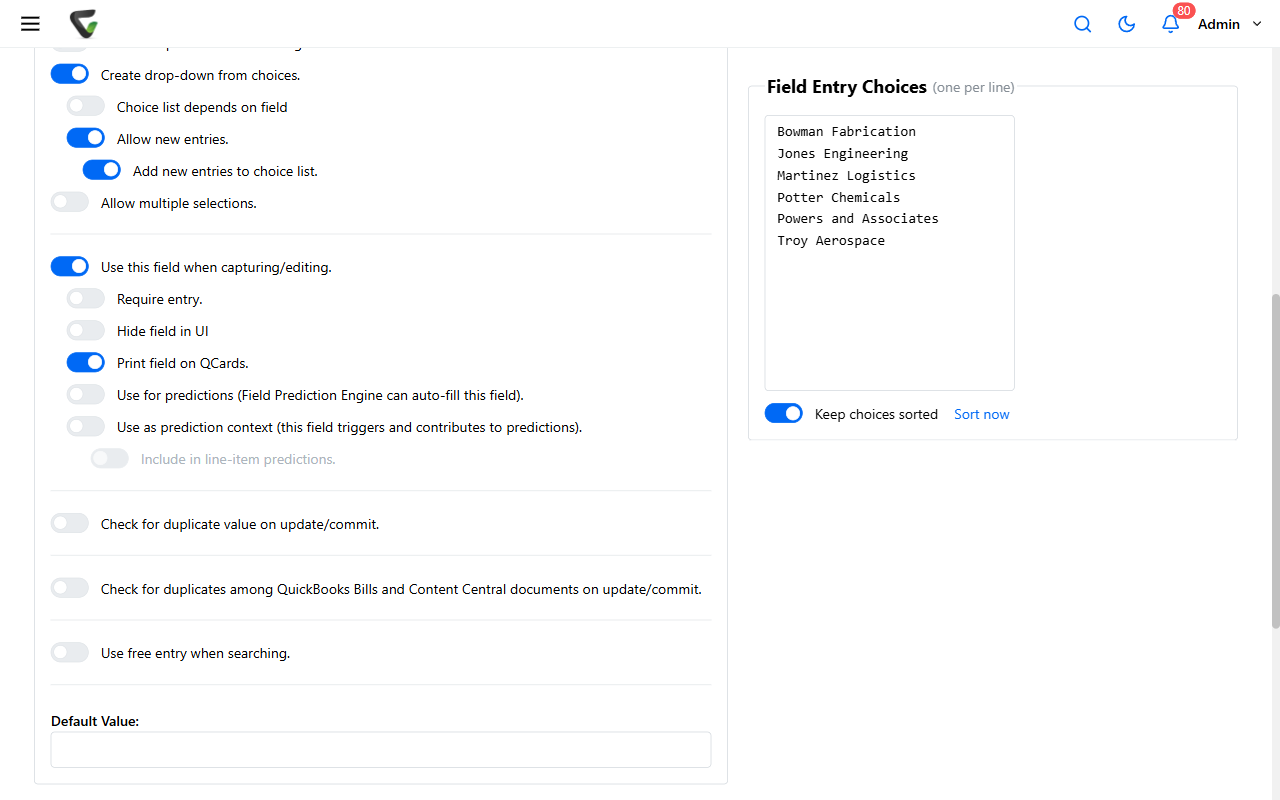
| Create drop-down from choices. | A list you type, under Field Entry Choices (one per line) | The list is yours to own — departments, statuses, categories |
| Create drop-down from external data source. | A database, via Data Source: / Table: / Column: | The truth lives elsewhere — your ERP's vendor table, updating itself |
| Create drop-down from an Integration. | A connected integration | The list belongs to a connected system |
The sources are exclusive — turning one on disables the others. External data sources themselves are defined once under Administration > External Data Sources (name, ODBC DSN, credentials, Test Connection) and then reused by any field; Look up field values from another system covers that setup end to end.
The behavior switches
- Allow new entries. — the drop-down accepts typed values that aren't in the list. Without it, users pick or nothing.
- Add new entries to choice list. — appears once new entries are allowed: typed values join the list for everyone after. Together these make a self-growing list; the first alone makes a list-plus-exceptions.
- Allow multiple selections. — the field takes several values (tag-style). This one and Allow new entries are mutually exclusive — a multi-select field only ever offers existing choices. If you need both behaviors, that's two fields.
- Keep choices sorted (with a one-shot Sort now) — alphabetical forever, however entries arrive.
Dependent lists: the second field obeys the first
Choice list depends on field turns a flat list into a cascade — pick the parent field, and then:
- Typed-choices fields get per-value lists: for each of the parent's values ("Choices for
<value>:"), enter the choices that apply. Department → Cost Center, where Finance sees only Finance's centers. - External-source fields get Filter choices by criteria — a criteria builder matching source columns against the parent field's value (or static values). The classic: Vendor filters the PO-number list to that vendor's POs.
One editor quirk worth knowing so it doesn't look like a bug: with criteria-based filtering on, the flat Field Entry Choices column disappears — the criteria are the choices now, so there's nothing flat to show (and Keep choices sorted goes with it).
Where these decisions surface
Every capture form, the coding queue, Edit Properties, and search filters all render the field the way this panel says. The user-side behaviors — the combo that accepts typing, the message when it doesn't — are covered from the user's chair in Change a document's type, catalog, or fields after filing.
Success check: configure a test field with typed choices + both allow-new switches, capture a document typing a brand-new value, then open the field editor again — the value is in the list. Flip on multi-select and note Allow new entries grey out: the exclusion, demonstrated.