
Look up field values from another system (ODBC)
Type a vendor number and watch the rest of the fields fill themselves from your accounting database — connect the source over ODBC, build the lookup on the document type, and control when it fires.
Before you begin
- A system ODBC DSN on the Content Central server pointing at the external database
- The External Data Sources admin permission (or full administrator rights)
At the end of this guide, entering a key value on a document — a vendor number, an employee ID — pulls the matching record from your external database and fills the other fields automatically, at capture, in the Coding Queue, and on filed documents.
Three layers, top down: a Windows ODBC DSN on the server (your database's doorway), an External Data Source in Content Central (the doorway registered), and a Field Lookup on the document type (what to fetch and when).
Step 1: The DSN comes first
On the Content Central server, create a System DSN in the Windows ODBC Data Source Administrator pointing at the external database (use the 64-bit administrator to match the server). Content Central connects through the DSN — there's no connection-string field to paste into.
Step 2: Register the data source
Go to Administration > External Data Sources and click Add Data Source.
Fill it in: a Name, the ODBC DSN (a dropdown when system DSNs are detected — a text box telling you "No system DSNs detected" means step 1 isn't done on this server), and the database Username/Password if the DSN needs them.
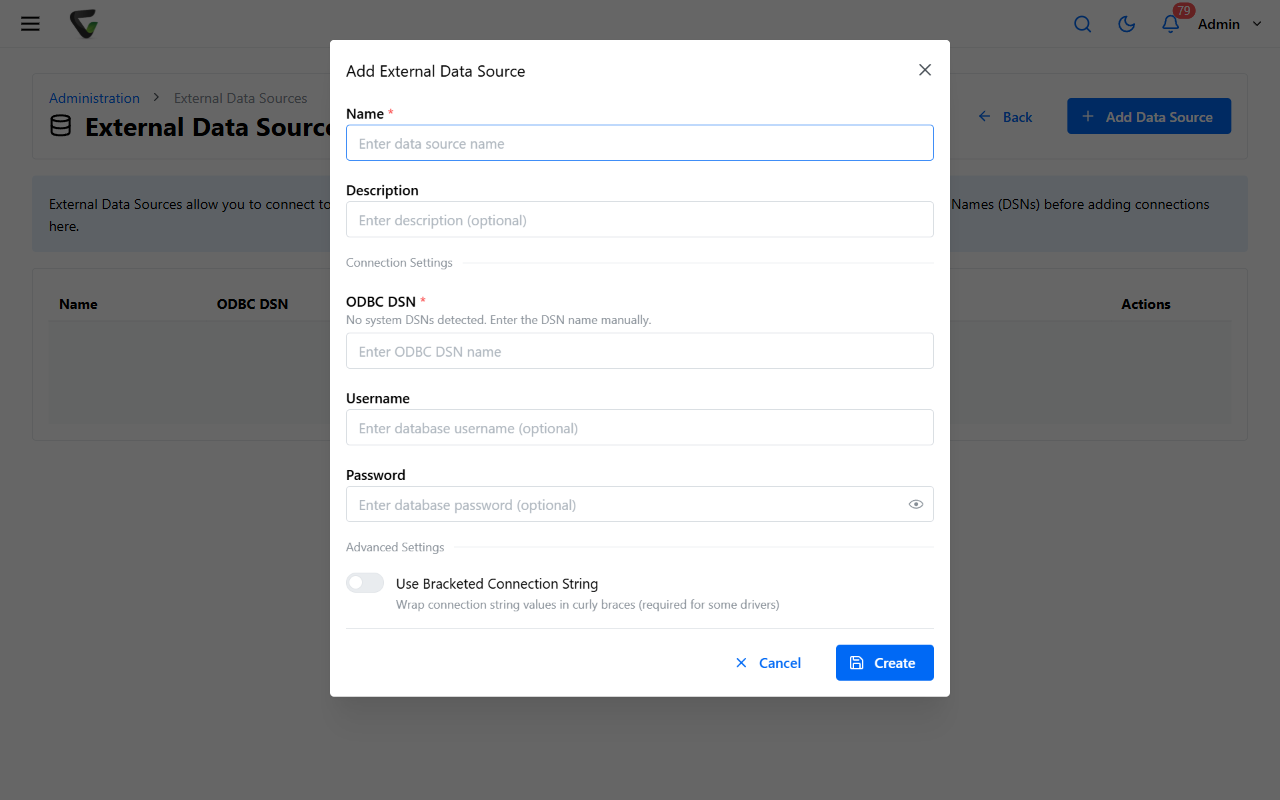
Click Create, then use the row's Test Connection action.
What you should see: the Test Result column reads Success. Failed at this stage is always the DSN, the credentials, or database reachability — fix it here before building anything on top.
Step 3: Build the lookup on the document type
Go to Administration > Catalogs & Document Types, pick the catalog and document type, and open the Field-Lookup Integration tile.
On Manage Field Lookups, click Add Lookup.
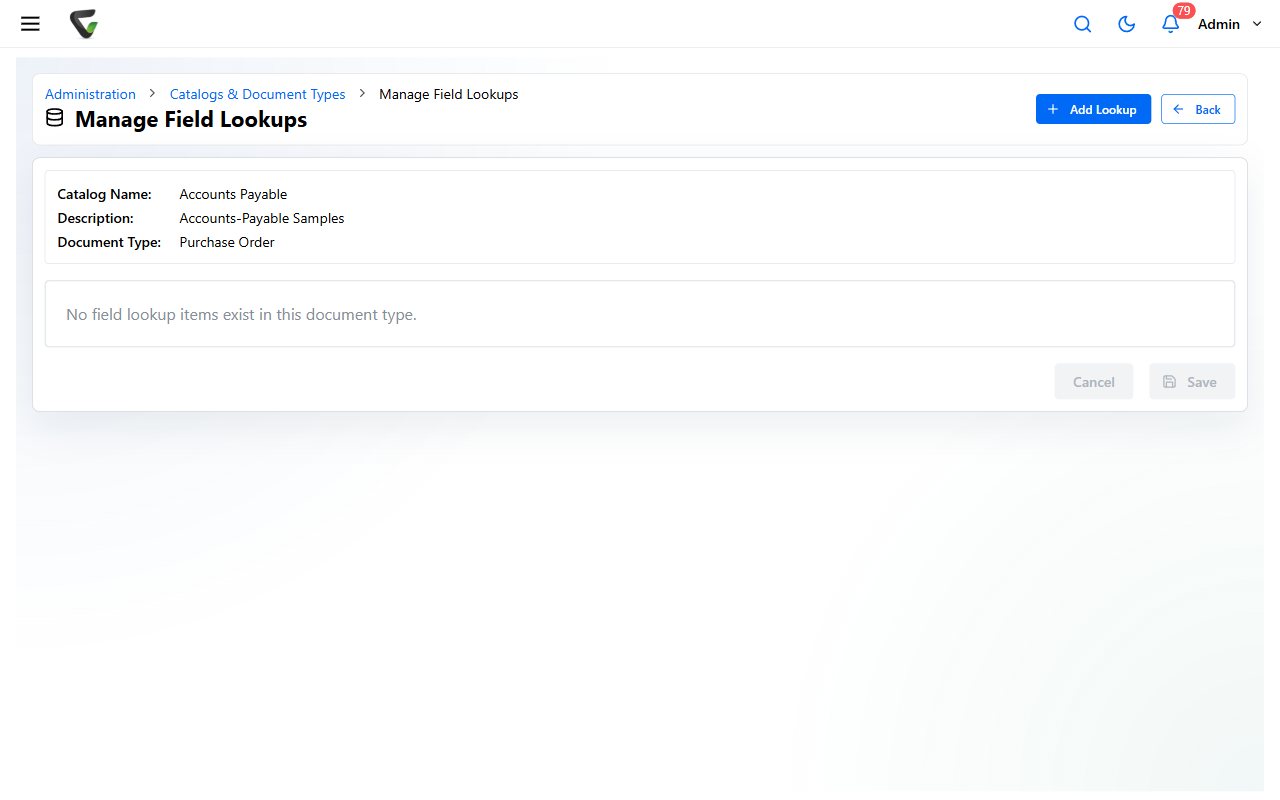
In the details editor:
- Data Source Type: ODBC, then pick your Data Source and the Data Table to read.
- Field(s) to Populate: each row says populate this Content Central field with that external column. Add a row per field you want filled.
- Lookup Items — the matching rule: where the external value matches (usually) a value from field — your key field, like Vendor Number. Operators run from equals through contains to is similar to; multiple items combine with AND/OR.
Set Maximum Results — at
1, an ambiguous match fills nothing; above1, the user gets a Select Lookup Result choice list when several records match.
Choose when it fires with the two Overwrite existing field data switches (inside and outside the UI) — or Make available for workflow actions only to keep it out of manual editing entirely. Save, then Save again on the list page.
Step 4: Prove it end to end
Open a document of that type (or capture one), enter a key value the external database knows, and press Enter in the key field — or click the Lookup button in the Properties panel.
Success check: the mapped fields fill with the external record's values. Multiple matches pop the Select Lookup Result picker — that's the Maximum Results setting doing its job, not an error.
The Lookup button appears only where it can work: the document type has an enabled lookup, the panel shows a key field, and you have update rights. Capture pages get it too, and QCard capture can run lookups automatically with Perform lookup at capture time.
When lookups misbehave later
The pattern to remember: Test Connection failing is infrastructure (DSN, password, network); lookups returning nothing with a good connection is matching (operator, key value formats, the AND/OR logic); wrong fields filling is the populate mapping. Diagnose in that order and you'll rarely be wrong twice.