
Connect another system to Content Central
Almost any system can feed Content Central through one of two front doors — an email address or a watched folder. Learn the pattern once: how to pick the door, what metadata rides along, and where a connector like Zapier fits.
Almost any system — a copier, an ERP, a cloud app — can feed documents into Content Central through one of two front doors, an email address or a watched folder, with no code and no API project.
When someone asks "does Content Central integrate with X?", the answer is almost always yes. Not through a purpose-built connector for X, but through a pattern you learn once and reuse everywhere: if X can email a document or drop a file in a folder, you have an integration.
The two front doors
Content Central's automated intake is built from capture jobs, and there are exactly two kinds:
| Front door | What Content Central does |
|---|---|
| Monitors an email address; attached files are converted to documents. A single document can't span multiple emails. | |
| Folder | Monitors a folder — the path can be local or on the network; incoming files are converted to documents. The job can include subfolders. |
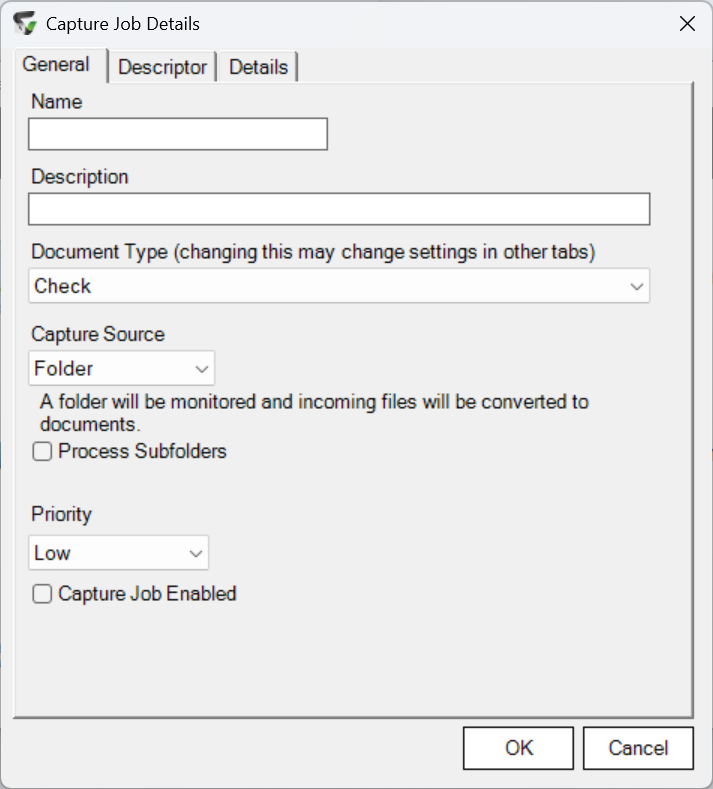
Capture jobs are configured per document type under Admin > Catalog, on the document type's Capture page — each job's Input Source is either Folder or Email. The capture service checks every enabled job about every 5 seconds, so a file dropped or emailed becomes a document within seconds — not instantly.
Once the document is in, the rest of Content Central takes over exactly as if a person had scanned it: coding, routing, approval, and notifications all run from workflow, triggered by the capture event.
Both doors consume their input. Folder capture moves each file out of the watched folder as it imports it, and email capture consumes messages from its mailbox as it processes them. Give capture a dedicated mailbox and a dedicated folder — never someone's inbox or a shared working folder.
Pick a door
Does the other system send email with attachments? Use an email capture job. It connects to a standard
POP3orIMAPmailbox, so a hosted mailbox works fine. If your mail provider requires modern (OAuth2) authentication for mailbox access, ask Ademero support whether your Content Central version supports it for capture before committing to this door.
Can it export or save files to a folder? Use a folder capture job. The watched folder can be a local or network path, and the job can be set to watch subfolders beneath it.
Neither? Put a connector service such as Zapier in the middle — but only then. Most cloud apps that can't email a file natively can do it through a Zap: the trigger is the event in the source app (a form submitted, a file created), and the action sends an email with the document attached to your capture address. Content Central neither knows nor cares that Zapier is in the middle — it just sees email.
A connector service is glue for the gap, not the default. If the source system can already email documents or save them to a share — most ERPs, copiers, and scanners can — connect it directly.
What rides along as metadata
Getting the file in is half the job; the other half is filling the document's index fields so it files and routes correctly. What's available depends on the door.
Email carries rich metadata. An email capture job can map parts of the message — sender, recipients, date, subject, and body — into document fields, and regular-expression rules can extract or transform pieces of a value. A subject like PO 8841 - Acme Corp can fill a PO-number field and a vendor field at once.
Filenames do not fill fields. A file dropped in a watched folder keeps its name as the document's file name, but Content Central does not parse that name into field values — a naming convention like 8841_Acme.pdf won't code the document. (Filing rules actually run the other direction: after capture, field values can build the stored file name.)
For structured hand-offs, use XML descriptors. A folder capture job can accept a companion XML descriptor file: the sending system drops the document plus a small XML file carrying its field values, and Content Central builds a fully coded document from the pair. This is the richest no-code option when the other system can generate a file describing what it's sending — if you'd rather deliver descriptors through the email door, ask Ademero support whether your version supports that pairing.
Everything else lands in the Coding Queue. A document that arrives without complete metadata waits there for a person to fill in its fields beside a preview — a perfectly good design at low volume. A capture job can also bypass the Coding Queue and file documents directly when their metadata arrives complete.
What this pattern is — and isn't
This pattern moves documents in, one way. Capture's only outputs are a document in a catalog or a Coding Queue item; nothing flows back to the sending system — no status updates, no field sync, no confirmation.
If you need two-way data exchange with another system, that's a different kind of project — ask Ademero support about options for your specific systems.
Three worked examples
| Other system | Door | How it's wired |
|---|---|---|
| Office copier / scanner | Folder | The copier's scan-to-folder feature saves into the watched folder. An Image-processing job runs the scans through OCR; metadata comes from zonal recognition, QCard separator sheets, or the Coding Queue. |
| ERP that emails POs | Point the ERP's existing "email this PO" output at the capture mailbox. Regular-expression rules on the subject fill the PO-number and vendor fields automatically. | |
| Cloud form tool | Email via Zapier | A Zap triggers on each submission and its action emails the generated PDF to the capture address. Content Central just sees email. |
For a real end-to-end build of the third row, see the ClickUp recipe below.