
Remind the owner 30 days before a contract expires
A daily check that emails whoever owns a contract when its expiration date is within 30 days — a scheduled Content Query on a date field with a day offset, a message template, and a Send E-mail action — including the date math that makes reminders fire once instead of never or forever.
Before you begin
- The document type has a Date field holding the expiration or renewal date
- Outgoing email works, and a Workflow Access email template exists (see Customize notification message templates)
When you're done, Content Central checks every morning for contracts whose expiration date is within the next 30 days and emails the owner once about each one — then stays quiet until the next one comes due.
- Trigger
- Content Query › Content in this Document TypeQuery: by Field Value(s) · Field: Expiration Date · Field-Match Type: Less Than or Equal to (Current Date Plus Offset Days) · Offset Days: 30 · Process Interval: Every Day on Hour 6 · Reprocess Matching Records After: 60 Days
- Action
- Send E-mailMessage Template: "Contract expiring soon" (Email, Workflow Access)
- Rule
- "Contract expiring within 30 days → email owner", enabled
The date math, in one paragraph
The trigger asks, on each run: is the expiration date less than or equal to today plus 30 days? A contract expiring on the 25th of next month starts matching 30 days before that and keeps matching every day afterward — including long after it has expired. Two settings tame that: Reprocess Matching Records After decides how long a document that already fired must wait before it can fire again (set it longer than your reminder window, so each contract gets one email), and the optional second trigger in Variations stops matching once the date has passed. Get the offset direction wrong (Greater Than or Equal to when you meant Less Than or Equal to) and the reminder can never fire for a future date — the most common reason "my reminder never sent."
Build the message template
Create an Email template with Visibility Workflow Access whose To is the owner. If the owner varies per contract, put the owner-email field into To as an insert code; if it's one person, type the address. Use insert codes in the body for the contract name and the expiration date so the email says which contract and when. Details: Customize notification message templates.
Build the trigger
Go to Administration > Catalogs & Document Types, pick the Catalog and the contract Document Type, click the Workflow tile, then Triggers > New Trigger.
Type:
Content QueryandContent in this Document Type. Trigger Name:Contracts expiring within 30 days.
Query:
by Field Value(s). Return:All Matching Content (Multiple Records)— every contract in the window, not just the newest.
Field Evaluation:
Selected Field Value(s). Field: your expiration date field.
Field-Match Type:
Less Than or Equal to (Current Date Plus Offset Days). Offset Days (negative values allowed):30.
Process Interval:
Every Day, on Hour6, on Minute0— early enough to be in the morning's inbox. Process Start:On First Interval.
Reprocess Matching Records After:
60Days— longer than the 30-day window, so a contract that already triggered isn't emailed again the next morning.
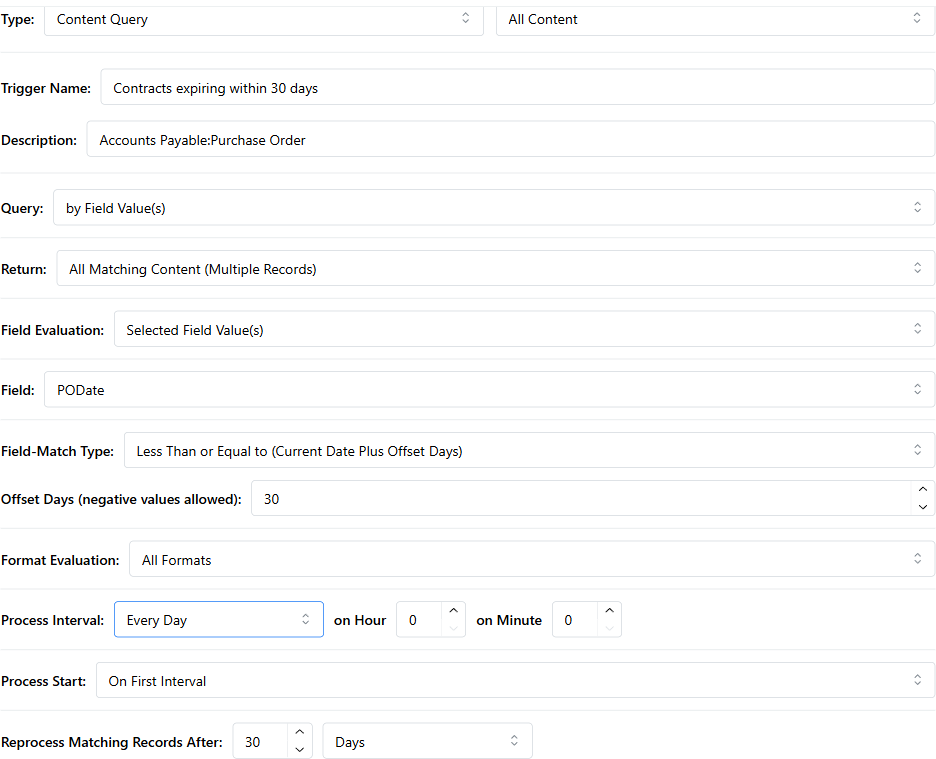
Click Save.
What you should see: a trigger with Event Scheduled in the Triggers list.
Build the action
Click Actions > New Action. Type:
Send E-mail. Action Name:Email owner — contract expiring.
Scope Type: where the template lives (
Document TypeorGlobal), then pick it under Message Template:. Content Attachment:Do Not Attachunless the owner needs the file. Save.
Wire the rule
Click Rules > New Rule. Rule Name:
Contract expiring within 30 days → email owner.
Add Trigger:
Contracts expiring within 30 days. Add Action:Email owner — contract expiring. Apply.
Test it — with one document, safely
Create one test contract with an expiration date 10 days from today. Don't test on the live population: a wide window plus a fresh trigger would email about every contract that's already inside it on the first run.
Wait for the next scheduled run, or temporarily set Process Interval to
Every 5 Minuteson the trigger, and set it back afterward.
What you should see: one email about the test contract, and the workflow rule in the document's View History. The next run should not email again about the same contract. If it never fires, walk through A scheduled workflow didn't run — it covers the server-date, interval, and offset mistakes in order.
Variations
| Want this instead | Change this |
|---|---|
| Stop reminding once the contract has actually expired | Tick Use Multiple Triggers, Combine Method: AND, and add a second Content Query: same field, Field-Match Type: Greater Than or Equal to Current Date |
| A second reminder at 7 days | A second trigger with Offset Days: 7 and its own rule and template (subject "expires in one week") |
| Remind after a date has passed (overdue) | Field-Match Type: Less Than or Equal to Current Date, or …Plus Offset Days with a negative offset |
| Put it in a work queue instead of email | Action Work Queue - Assign to the owner (recipe) |
| Remind on the document's age, not a field | Trigger Content Age › Age of Content in this Document Type (recipe) |
| Weekly digest instead of daily | Process Interval: Every Week — and a report template (Create a report that runs on a schedule) if you want one email listing them all |