
Schedule reports to run automatically
Turn a report template into a recurring report: the Report Scheduler trigger's interval-and-offset schedule, the Generate Report action, where the output lands, and the delete-order dependency that trips template cleanup.
Before you begin
- A report template that produces the output you want (see Create a report)
At the end of this guide your report regenerates itself on a schedule — every night, every Monday, the first of the month — and you'll know how to express the schedule in the trigger's interval-and-offset language, plus the dependency rules that matter when templates get cleaned up.
Scheduling is the same three-part assembly as any automation — trigger, action, rule — with one constraint worth knowing up front: report scheduling is global-only. All three pieces are built under Administration > Workflow, never under a document type.
Step 1 — The trigger: when
Under Administration > Workflow > Triggers, add a trigger of Type: Reports (its subtype is Report Scheduler).
Express the schedule as an interval plus offsets — there's no clock picker, and the grammar takes one example to click:
You want Process Interval on Day on Hour on Minute Nightly at 2:00 AM Every Day — 2 0 Mondays at 6:30 AM Every Week 1 6 30 First of the month, 5 AM Every Month 1 5 0 Hourly on the half hour Every Hour — — 30 Process Start decides the first run: On First Interval (wait for the schedule) or On Workflow-Service Start (also run when the service starts — handy after maintenance windows).
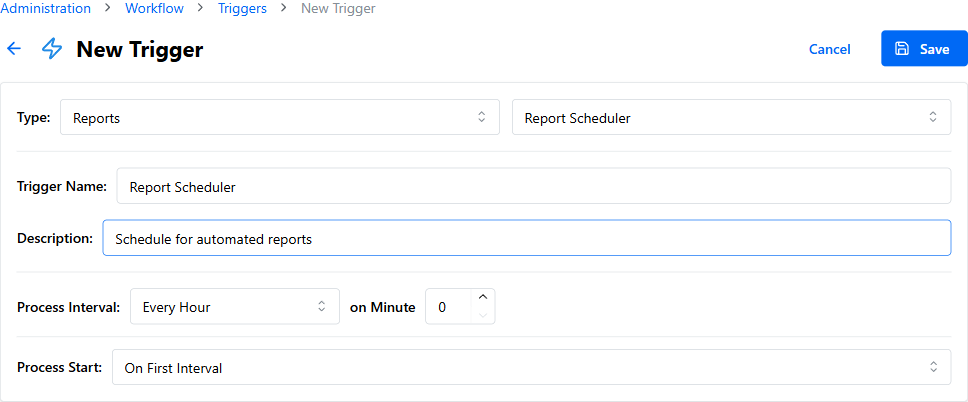
Step 2 — The action: what
Under Workflow > Actions, add a Generate Report action. It has exactly one setting — Report Template: — pick yours. ("There are no available report templates" means that half hasn't happened yet.)
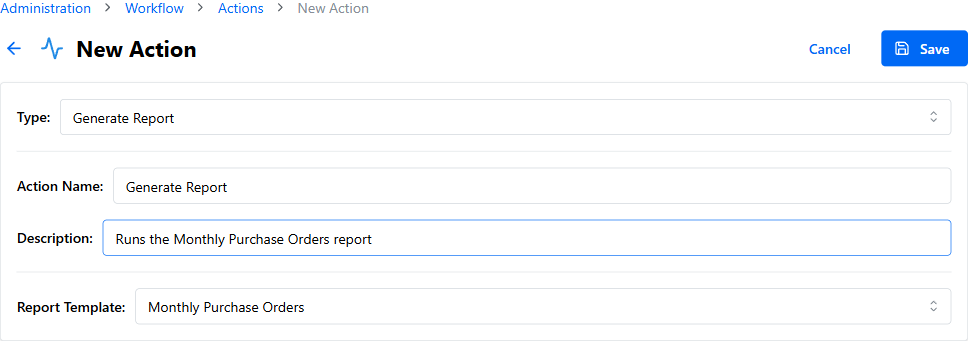
Step 3 — The rule: wire them
Under Workflow > Rules, create a rule: your Report Scheduler trigger, your Generate Report action, Enabled. Done — the report now regenerates on schedule.
Where the output goes — and doesn't
Each run writes the file to the server's Reports area, into a folder named for the template, honoring the template's Write mode (Append, Replace, or Keep All). Two consequences:
- Nothing is emailed. The generated file stays on the server; the Download Report icon on the template's row (Administration > Report Templates) fetches the latest. If people expect delivery, point them at that page — or have the server folder picked up by whatever moves files in your shop.
- Append mode accumulates deliberately — a nightly Append report is a growing log, not a fresh snapshot. Pick the write mode to match the question the report answers.
The dependency web (read before deleting anything)
Scheduled reporting links objects that then protect each other from deletion, each with its own refusal:
| You try to delete | You're told |
|---|---|
| A field the template outputs or filters by | "This field is used in report template(s) and cannot be deleted." |
| An approval process a template reports on | "Approval process is used by report templates" |
| The template itself, while a Generate Report action uses it | "Report template is used by workflow actions" |
So teardown runs in reverse: rule → action → template → then the field is free. These refusals are the feature working — a schedule silently generating a broken report would be worse.
Success check: set the trigger a few minutes ahead, let it fire once, and confirm the file's timestamp on the Report Templates page (Download Report) — then set the real schedule.