
Your first day in Content Central
Where everything lives and what to set up first: the dashboard, the menu, search, the queues where work finds you, and the five-minute setup that makes tomorrow easier.
By the end of this page you'll know where everything lives — the dashboard, the menu, search, and the queues where work arrives for you — and you'll have set up your workspace so tomorrow starts faster.
You land on the Dashboard — and it starts empty
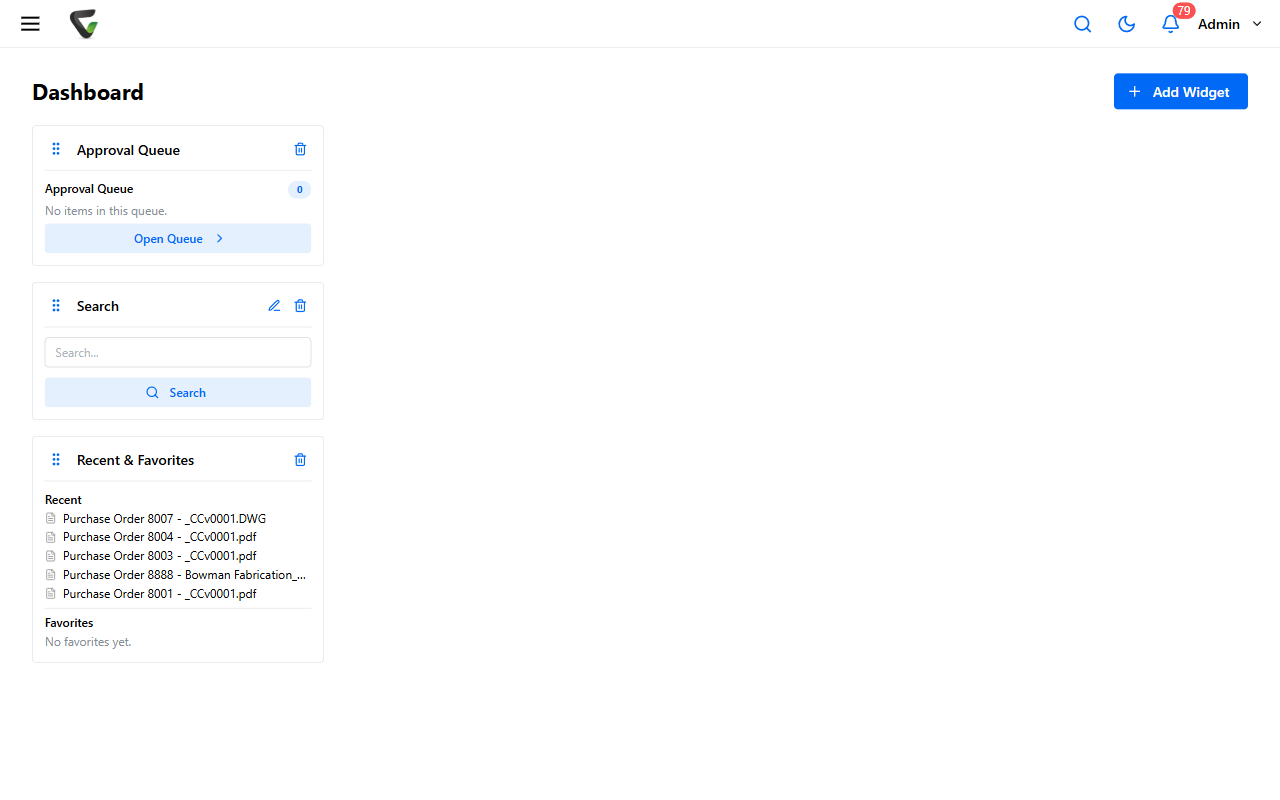
After signing in, you're on the Dashboard. The first time, it says exactly what to do: Your dashboard is empty. Use "Add Widget" to get started.
Widgets are live tiles of the things you check anyway. Click Add Widget, pick a Widget Type, and place as many as you like — drag them between the four columns to arrange, and remove one anytime from its own controls.
Worth adding on day one:
- Approval Queue, Work Queue, or Coding Queue — whichever kinds of work your role receives, visible at a glance
- Recent & Favorites — the documents you touched last, one click away
- Search — a search box that lives on your dashboard
The menu is behind the ☰ button
Click the ☰ button at the top-left and the menu slides in (it closes itself once you pick a destination). What you'll find, top to bottom:
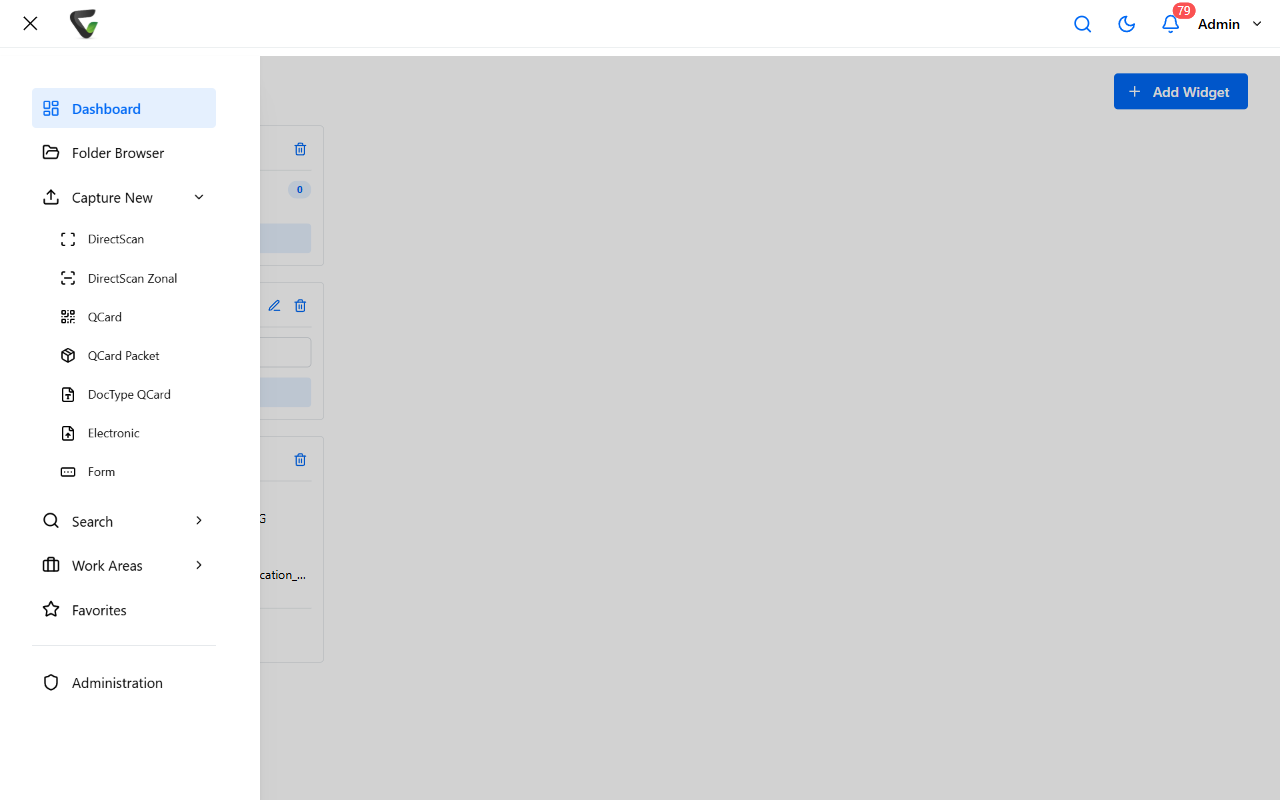
| Menu item | What it is |
|---|---|
| Dashboard | Back to your widgets |
| Folder Browser | Documents arranged in folders, like a drive you browse |
| Capture New | The ways to bring documents in — which options appear here (DirectScan, Electronic, Form, and others) depends on what your administrator turned on |
| Search | The search pages (more below) |
| Work Areas | The queues — where work assigned to you lives |
| Favorites | Documents you've starred |
Administrators see an extra Administration entry; if you don't see it, you're not missing anything you need today.
Finding documents
The fastest path is always in the top bar: click the magnifier, type into the Search… box, press Enter.
For more control, the menu's Search group offers:
- Search — on many systems, a smart search page that asks "What do you need to find?" and takes plain descriptions in your own words; click Find documents
- Power Search — the precise version: exact terms, field-by-field refinements
- Packet Search — for finding grouped document sets, if your organization uses packets
Which search pages you see depends on your system's configuration. The top-bar magnifier always works.
Work finds you in the queues
You don't go looking for assigned work — it arrives. Open Work Areas in the menu, or go to the Queues page, which has four tabs with live counts: Approval, Work, Signature, and Coding.
- Approval — documents waiting for your sign-off. Open one, review it, approve or reject (a rejection asks for your reason).
- Coding — scanned or captured documents waiting for you to fill in their details. Open one: the Properties panel on the right holds the Catalog, Document Type, and fields; the green Commit button files it.
- Work and Signature — task hand-offs and signature requests, when your organization uses them.
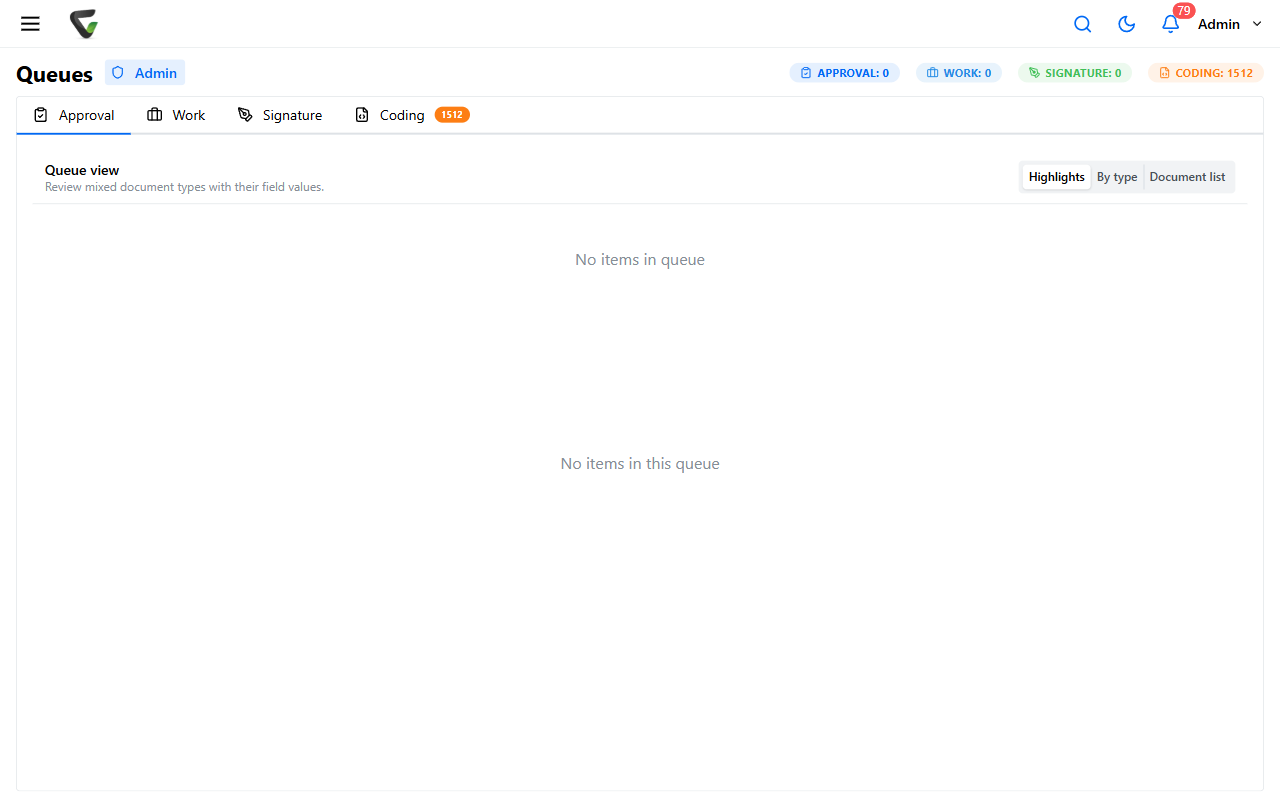
What you should see: if all your tabs read zero, that's normal on day one — counts appear as colleagues route work to you.
Bringing documents in
Capture New in the menu lists your intake options. The most common on a desk with a scanner is DirectScan — paper straight into the system from your browser. That one has its own guide: Scan documents with DirectScan.
Your account menu, briefly
Your name at the top-right opens the Account menu: User Profile, Options (personal preferences), Account Security, Downloads (desktop tools like the DirectScan agent), and Sign Out live here. You'll rarely need it after day one.
The five-minute setup
- Add the two or three widgets that match your role
- Run one search from the top bar for a document you know exists
- Open each queue tab once so you recognize them when work arrives
- Star one document you use often (that's what Favorites collects)
When something you expect isn't there
A missing menu item or capture option usually means your administrator hasn't enabled it for you — not that something's broken. Ask them first. If they're stumped, contact support with: what you were trying to do, what you expected to see, and where you looked.