
Make the dashboard yours: widgets and search shortcuts
Build your own dashboard from ten widget types — queues, checked-out documents, folder shortcuts, and the search widgets that put a specific lookup one keystroke from sign-in.
At the end of this guide your dashboard shows your work — the queues you check, the folder you live in, and a search box pre-aimed at the field you look things up by all day — arranged how you want it.
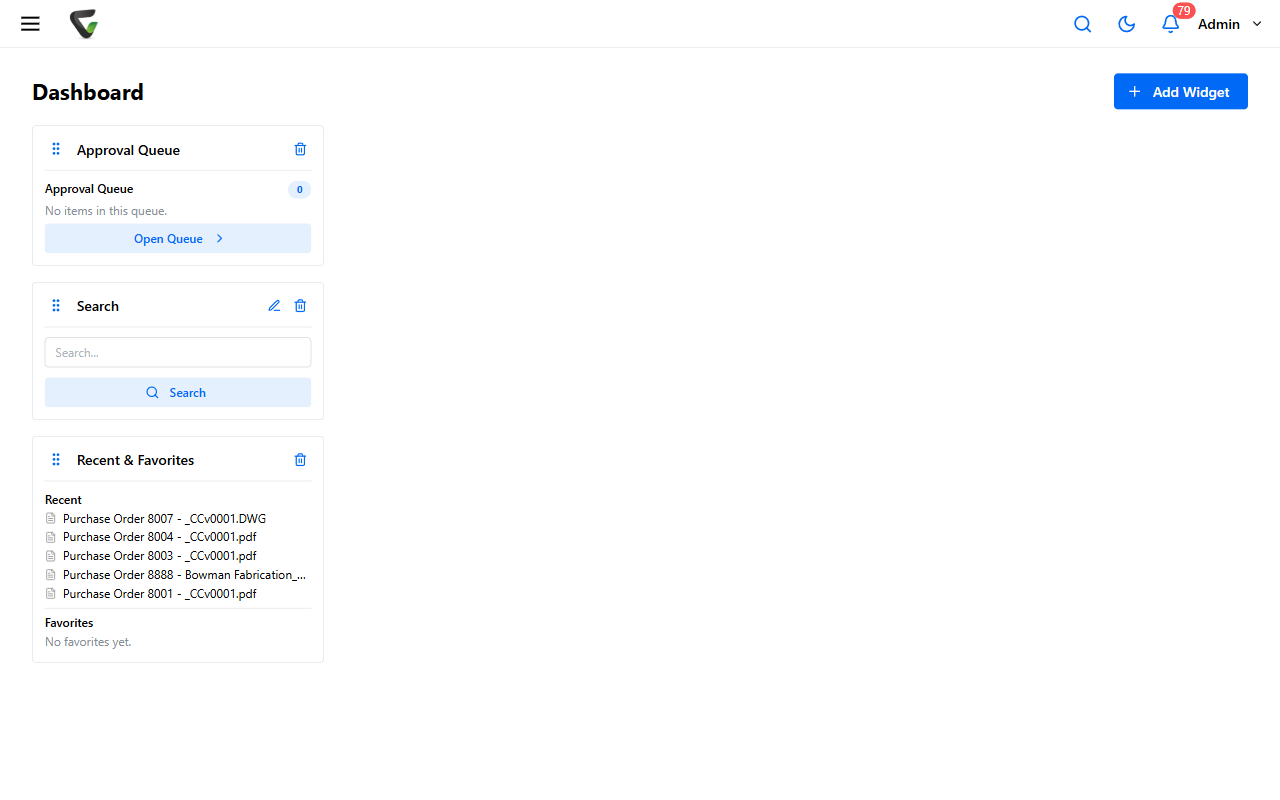
The dashboard is yours alone: every user builds their own, changes here affect nobody else, and a brand-new account starts empty with exactly the right hint — "Your dashboard is empty. Use 'Add Widget' to get started."
Add a widget
On the Dashboard, click Add Widget (top right).
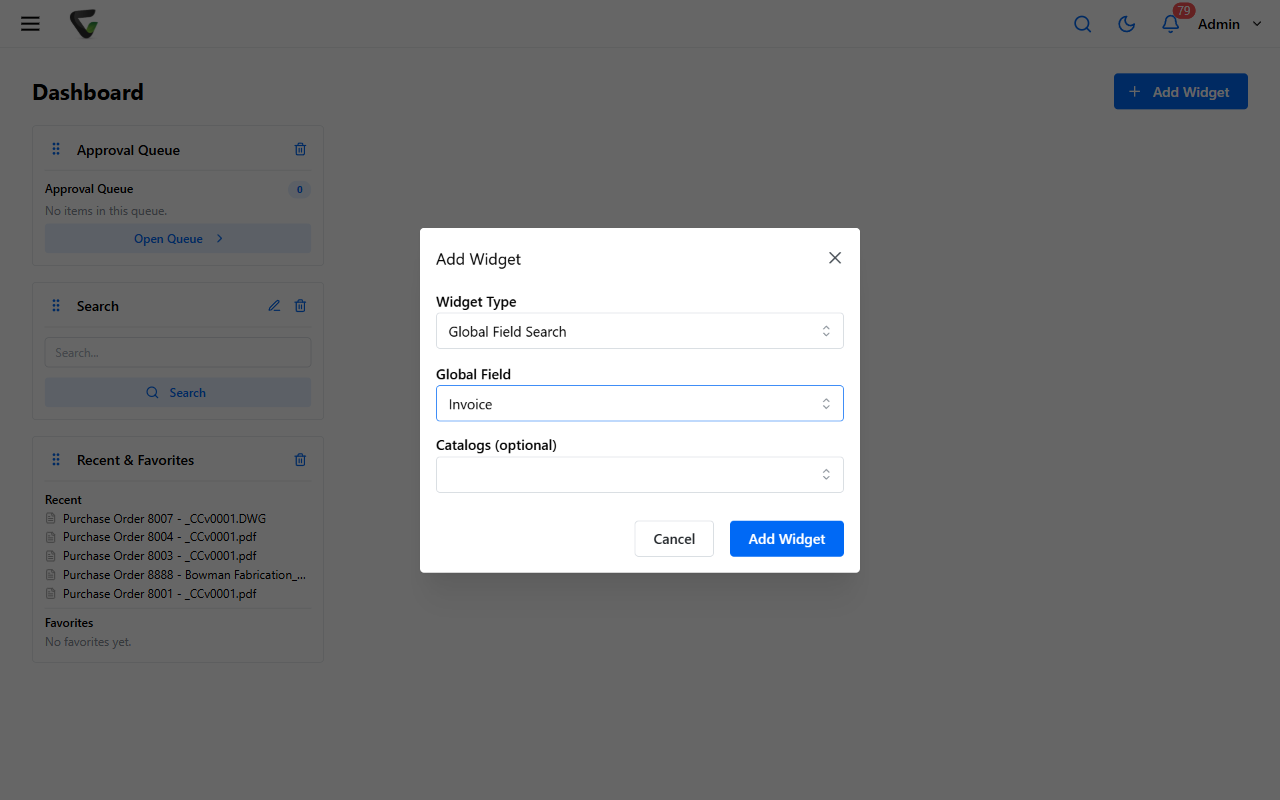
Pick a Widget Type:
Widget What it shows Approval Queue Documents waiting on your approval Work Queue Your work-queue items Coding Queue Documents waiting for index values Signature Queue Documents waiting for signatures Checked Out Documents you have checked out Recent & Favorites Where you've been and what you've starred Search A search box, optionally scoped to one catalog Folder A shortcut into one folder Global Field Search A search box aimed at one specific field Approval Process Stage Totals Document counts per stage of one approval process
Fill in the widget's options (only some types have any — see below) and click Add Widget.
The three shortcut widgets worth configuring
- Search — optionally pick a Catalog (default is all catalogs). The tile is a search box with a Search button; Enter works too.
- Global Field Search — pick the Global Field (required) and optionally limit Catalogs. This is the power move for anyone who looks documents up by the same field all day: an invoice-number box or a client-ID box sitting on your home page. Date-type fields get a date picker instead of a text box, and the tile deliberately has no button — press Enter or click the little search icon in the box.
- Folder — click Select Folder, pick the folder, and the tile becomes an Open Folder shortcut straight into it.
Approval Process Stage Totals rounds out the configurable set: pick the process (listed as Catalog > DocType > Process) and the tile shows live counts per stage — a manager's at-a-glance load meter.
Arrange and maintain
- Rearrange by dragging a card's grip handle; the dashboard is a four-column grid on a full-size window, and empty columns light up as drop targets while you drag.
- Edit (the pencil on the card) exists only for the four configurable types — Search, Folder, Global Field Search, and Stage Totals. A widget's type can't be changed after creation; to turn a Search widget into a Folder widget, remove it and add the other.
- Remove deletes the card immediately. There's no reset-to-default — the default is empty, so your dashboard is only ever what you've built.
Success check: add a Global Field Search widget for the field you use most, press Enter in it with a value you know exists, and land on the results — that round trip is the whole point of the feature.