
Install or update Content Director
Put Content Director on a Windows computer so Edit opens documents in Word, Excel or another program, and update it after an upgrade to Content Central 7.8. The new version replaces the old one, so there is nothing to uninstall first.
Before you begin
- A Windows computer
- Administrator rights on that computer, or help from your IT team
At the end of this guide, the current Content Director is installed on your computer, and choosing Edit on a document opens it in Word, Excel or whatever program goes with the file.
Who needs this
Content Director is a small Windows program that runs next to the clock. Content Central hands documents to it when you choose Edit, and it checks your changes back in when you save. Install it on every computer where people edit documents this way.
After an upgrade to Content Central 7.8, every one of those computers needs the 7.8 version of Content Director. Content Central 7.8 no longer accepts the versions that came with 7.5 and other earlier releases, so until a computer is updated, Edit does not open documents on it.
Updating uses the same installer and the same steps as a first install. You do not need to uninstall the old version first: the installer finds it and replaces it.
Before you start
- Administrator rights. The installer sets Content Director up for everyone who signs in to the computer, so Windows asks for administrator approval. If you don't have administrator rights, ask your IT team to do these steps.
- Microsoft .NET Framework 4.8 or later. Current versions of Windows 10 and Windows 11 already include it.
- Updating? Close the old Content Director first. Find its icon near the clock (it may be behind the Show hidden icons arrow), click it, and choose Close.
Step 1: Download the installer
Sign in to Content Central in your web browser.
In the top-right corner, click your name.
Choose Downloads.
Under Desktop Applications, click Content Director.
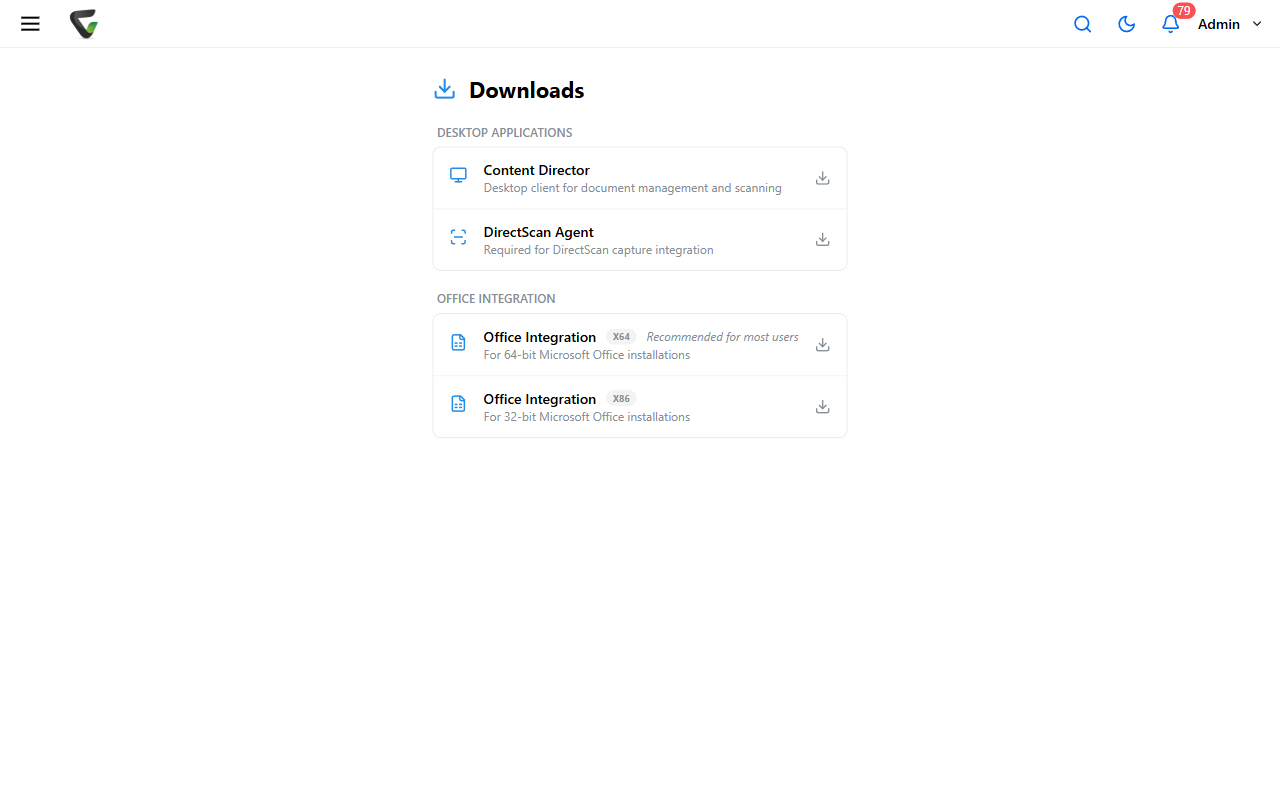
What you should see: your browser downloads ContentDirector_Setup.exe.
Step 2: Run the installer
Open
ContentDirector_Setup.exefrom your browser's downloads.In the Ademero Content Director Setup window, check I agree to the license terms and conditions.
Click Install.
When Windows asks whether to allow the app to make changes to your device, click Yes.
Wait for Installation Successfully Completed, then click Launch.
If setup shows Restart instead, save your work and click Restart. Content Director starts on its own when you sign back in.
What you should see: the Content Director icon appears near the clock. From now on it starts by itself whenever anyone signs in to this computer.
The first time, setup may also install a Microsoft Visual C++ component that Content Director needs. That's expected, and it's the usual reason setup asks for a restart.
Step 3: Check the version
Open Windows Settings.
Go to Apps > Installed apps (on Windows 10, Apps > Apps & features).
Search for
Content Director.
What you should see: Ademero Content Director with a version that starts with 7.8. There is only one entry, because the old version was replaced.
Hovering over the Content Director icon by the clock shows an internal build number that can start with 7.6, even on the new version. Go by the version in Installed apps.
Step 4: Confirm Edit works
In Content Central, find a document you're allowed to change.
Open its ⋯ actions menu and, under Make Changes, choose Edit.
What you should see: the document opens in its program. You may first see a Beginning Edit notification from Content Director. Either way, the document opening confirms Content Director is working.
To finish the test without changing anything, close the file without saving. Then go to Work Areas > Checked Out, open the document's ⋯ menu, choose Undo Check Out, and confirm.
For the full editing routine, including the three choices Content Director offers after you save, see Edit documents in place with Content Director.
If something isn't right
| What you see | What to do |
|---|---|
| A red message: "Content Director is not running, is not installed, or its security certificate is not trusted on this computer." | Look for the Content Director icon near the clock. If it isn't there, open the Start menu, type Content Director, and open it. Then try Edit again. If the message comes back, run ContentDirector_Setup.exe again, and click Repair if setup offers it. |
| Edit does nothing, or Content Director shows an error such as "Error communicating with Content Central" | Check the version first (step 3). If it doesn't start with 7.8, install the new one (steps 1 and 2). If it already starts with 7.8 and the error continues, pass Content Director won't connect to your administrator. |
| The version still starts with 7.5 after you installed from the Downloads page | Your Content Central server is on an early 7.8 release that still offers the old installer. Ask your Content Central administrator to update the server to the current release, then download and install again. |
| Windows asks for an administrator user name and password | Your account can't install programs on this computer. Ask your IT team to run the installer for you. |
| Setup shows Files In Use with Content Director listed | Choose Close the applications and attempt to restart them. and continue. |
Documents checked out with the old version
A document that was checked out through the old Content Director can't be checked back in through the new one. Finish it from Content Central instead.
If you have changes to keep:
In the program where the file is open, use Save As to save a copy somewhere you'll find it, then close the file.
In Content Central, go to Work Areas > Checked Out.
Open the document's ⋯ menu and choose Check In.
In Check In Document, click Select file and choose the copy you saved.
Click Check In.
If you have nothing to keep:
Go to Work Areas > Checked Out.
Open the document's ⋯ menu and choose Undo Check Out.
In Confirm Undo Check Out, click Undo Check Out.
Undo Check Out throws away edits that were never checked in. Before a future upgrade, check in everything you have checked out so nothing is left behind.
For IT teams
The same ContentDirector_Setup.exe works on every computer. To install without prompts, run it with administrator rights, for example from a command prompt opened with Run as administrator or from your software deployment tool:
ContentDirector_Setup.exe /quiet /norestartContent Director then starts the next time someone signs in to that computer.
Still stuck?
Contact Ademero support and include:
- the Windows version of the affected computer
- the Ademero Content Director version from Installed apps
- the exact message you see, or a screenshot of it
- the name of a document you tried to edit, and roughly when