
How documents get into Content Central
Every way a document can enter the system — scanning, uploading, email, watched folders, forms, and more — what each path is for, and where your document goes right after it arrives.
By the end of this page you'll know every path a document can take into Content Central, which one fits which situation, and the one decision that applies to all of them: whether you fill in the document's details now or later.
The Capture New menu — paths you drive yourself
Open the menu (☰) and expand Capture New. Up to seven options appear — your administrator chooses which ones your system shows:
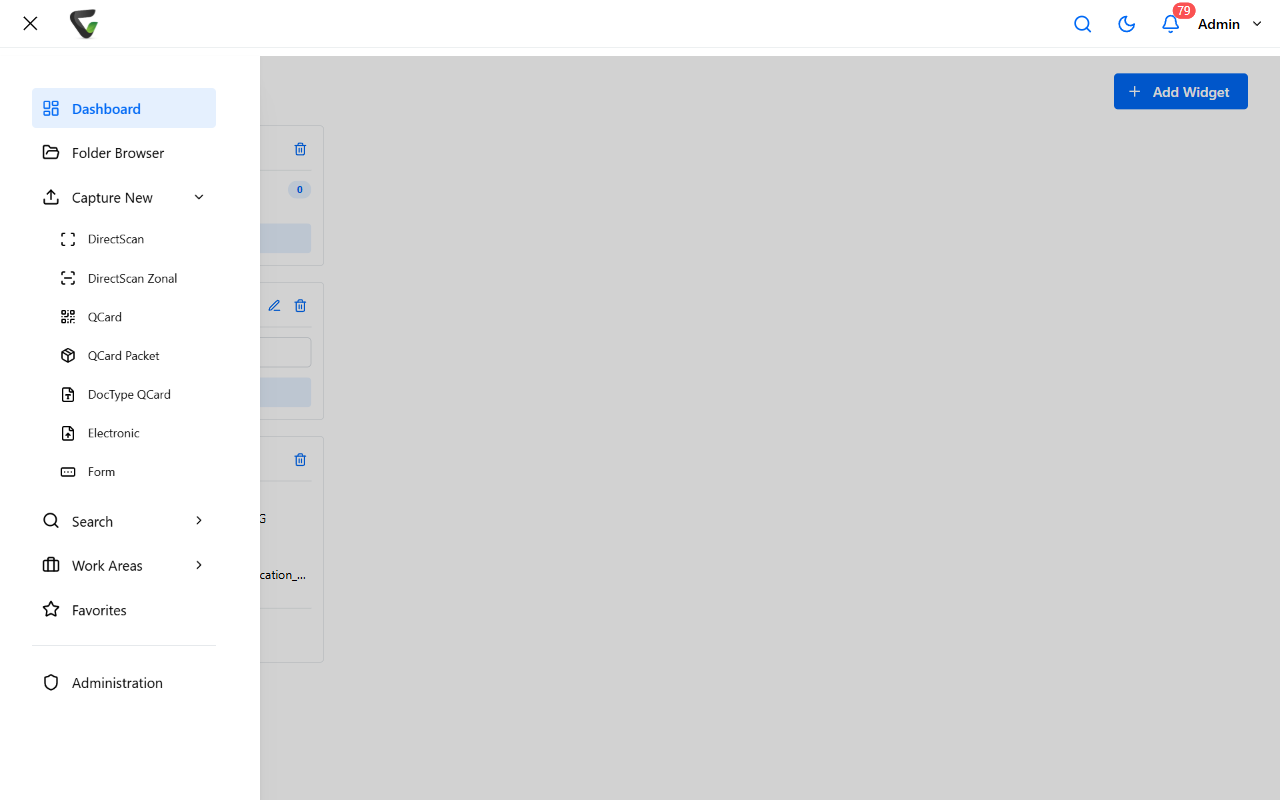
| Option | Use it when |
|---|---|
| DirectScan | Paper is in your hand and a scanner is on your desk — full guide |
| DirectScan Zonal | Scanning documents whose fields fill themselves from zones an administrator defined on the page |
| QCard | You need printable barcode separator sheets for batch scanning |
| QCard Packet | Separator sheets for a whole packet of related documents |
| DocType QCard | A separator sheet that carries just the document type |
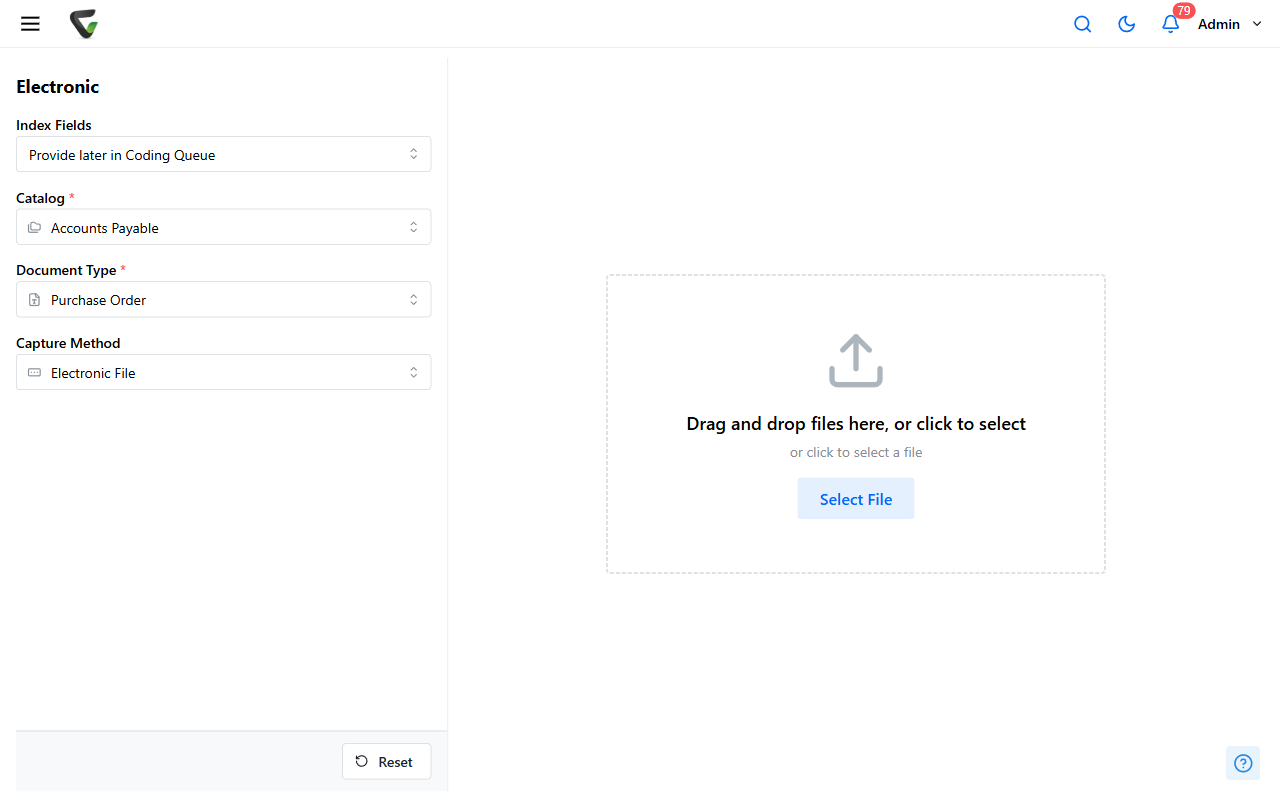
| Electronic | The document is already a file on your computer |
| Form | You're creating the document by filling out a form instead of uploading anything |
The most common everyday pair: Electronic for files, DirectScan for paper.
Paths that run without you
Administrators can set up intake that happens automatically:
- Watched folders — files dropped into a monitored folder become documents on their own (a "folder capture job")
- Monitored email — attachments (or the messages themselves) sent to a watched mailbox become documents (an "email capture job")
- Capture forms — shareable forms that create documents when someone submits them, even from outside Content Central
- CapturePoint — the high-volume scanning station hands finished documents to Content Central over a dedicated connection
- The Office add-in — capture from Word, Excel, or Outlook without leaving those programs
You'll also find Add Documents in the Folder Browser — a quick upload straight into the folder you're looking at.
The one decision every path shares: details now, or later?
Documents need a catalog, a document type, and field values. On capture pages this choice is the Document Properties selector (on Electronic capture it's labeled Index Fields):
| Choice | What happens |
|---|---|
| Provide now | You fill everything in at capture; the document files directly |
| Provide later in Coding Queue | The document waits in the Coding Queue for its details |
| Provide some now, some later | You start; a Destination choice sends the rest to Your Queue or a Shared Queue |
| Provide only Catalog & Document Type | Just the destination — everything else waits in the queue |
Automatic paths make this decision in their setup instead — a watched folder can send everything to the Coding Queue, or file documents directly when its separator sheets or XML descriptors carry the details.
Your administrator can hide choices here, too. Seeing only one option isn't an error — it's policy.
What "captured" actually means
Most captures are processed in the background: scans and folder pickups run through the capture pipeline (OCR, splitting, filing), so the message that pages were submitted for capture processing means the document appears shortly, not instantly. That's expected. If you chose to provide details later, look for it under Work Areas > Coding Queue.
Two things you might see along the way, both normal:
- "Duplicate Values Found" — a field value you entered already exists on another document; you can go back or Proceed Anyway.
- A capture that can't be processed (an unreadable file, for instance) doesn't vanish silently — turn on "Notify me when a document cannot be processed by the Capture Service" in your Preferences to hear about it immediately.
When a capture option you expect is missing
Capture types and property choices are administrator-controlled system-wide. A missing menu item means it's switched off, not broken — ask your administrator before troubleshooting anything.