
Set up multi-factor authentication
Turn on authenticator-app sign-in for one account or require it for everyone — enrollment with QR code and recovery codes, the admin enforcement switch, and how to rescue a user who lost their phone.
At the end of this guide, accounts sign in with a code from an authenticator app on top of their password — enrolled per user, enforced for everyone if you choose — and you know the two rescue paths when a phone goes missing.
MFA here is TOTP: any standard authenticator app works (Google Authenticator, Microsoft Authenticator, Authy, and the rest).
Enroll an account
Each user enrolls themselves:
Open the user menu (your name, top right) and choose Account Security.
In the Multi-Factor Authentication panel, click Enable MFA.
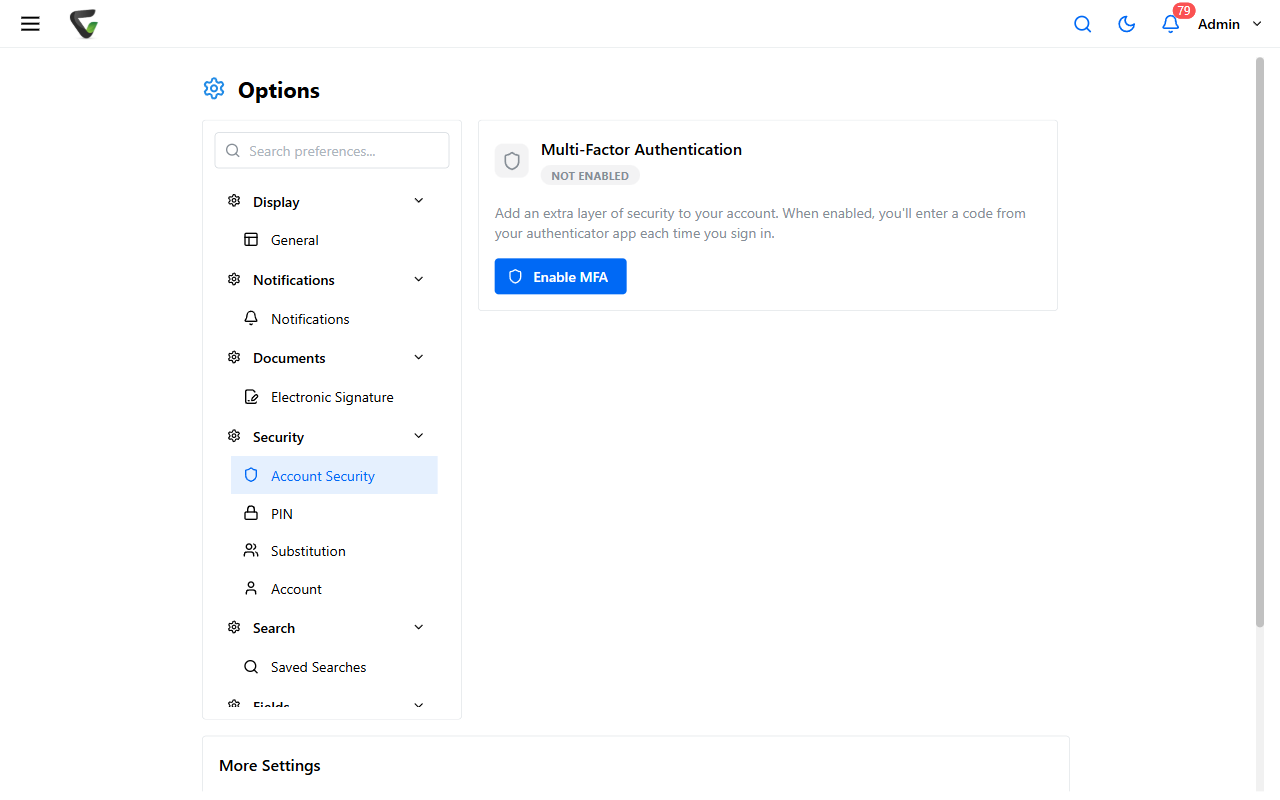
Scan QR code — open the authenticator app and scan. Can't scan? A manual entry key is shown right below.
Enter verification code — type the app's 6-digit code and click Verify and Enable.
Save the recovery codes. The panel warns you exactly right: "Save these codes now — they won't be shown again." Eight one-time codes — Copy all codes into a password manager, then Done.
What you should see: the panel's badge flips to Enabled. From now on, sign-in adds a 6-digit code prompt (it submits itself on the sixth digit), with a Use a recovery code instead link underneath.
Require it for everyone
Go to Administration > System Settings and search for
multi-factor.
Under Security Settings, switch on Require multi-factor authentication for all users and save.
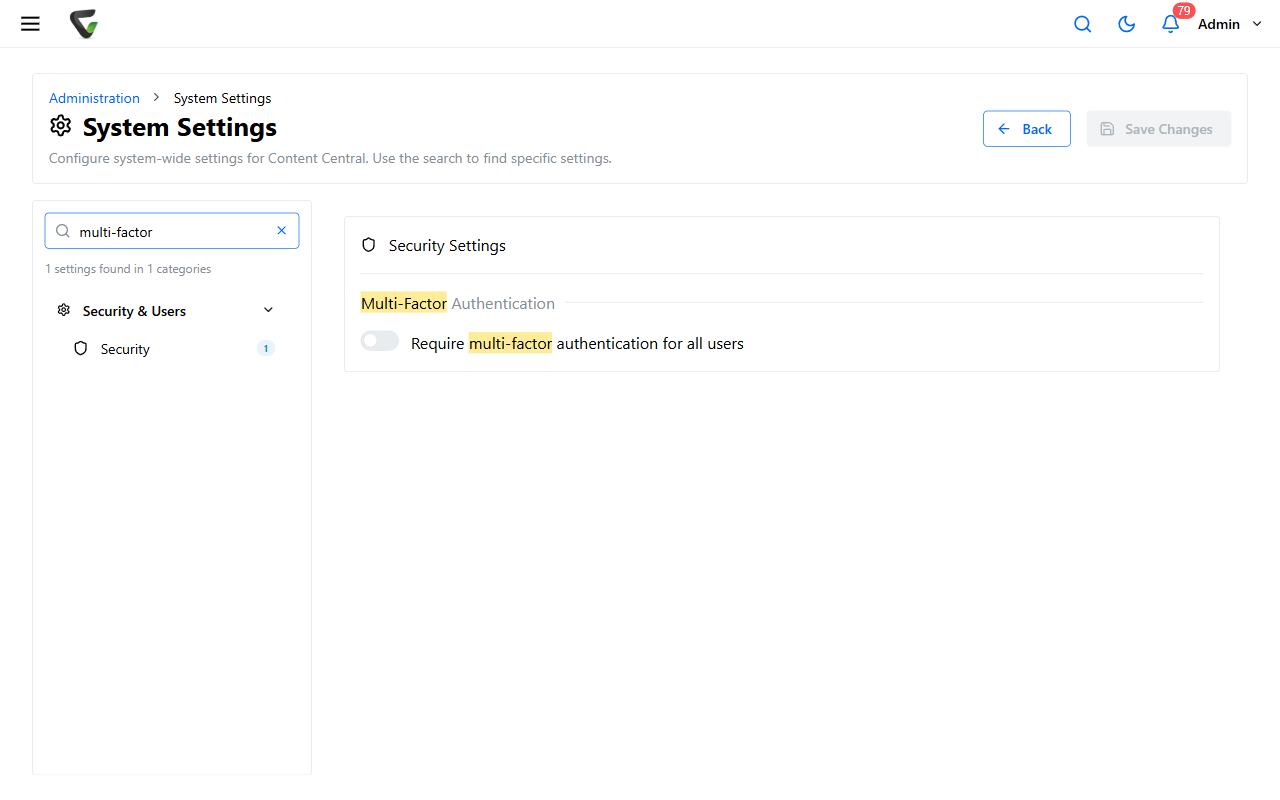
What users experience: anyone not yet enrolled is taken to Account Security with the notice that their administrator requires MFA — they complete the enrollment above before continuing to work.
When a phone is lost
Two rescue paths, in order of preference:
- The user has recovery codes: at sign-in, Use a recovery code instead accepts one of the eight saved codes (each works once). Once in, they can regenerate codes or re-enroll a new device from Account Security.
- No codes either: an administrator opens Administration > Users > the user, and clicks Reset MFA. The confirmation says it straight: they'll set MFA up again from scratch. With enforcement on, that happens at their next sign-in.
Reset MFA removes the second factor until the user re-enrolls. Verify who's asking before you click it — a reset request is exactly what an attacker with a stolen password would make. A quick call-back to a known number beats a fast reset.
Managing an enrolled account
Back on Account Security, an enrolled user first confirms a current code (Verify identity), then can Regenerate recovery codes or Disable MFA — each with its own confirmation.