
How signing in works: local, Active Directory, and SSO
Understand Content Central's three sign-in layers — local accounts, Active Directory, and SAML single sign-on — and why every one of them still ends at a Content Central user record with permissions.
By the end of this page you'll know which of Content Central's three sign-in layers checks the password, which layer decides what a user can actually do, and why "just add them to the AD group" or "turn on Windows Authentication in IIS" never does what people hope.
The three layers at a glance
| Sign-in method | Who checks the password | Who decides access |
|---|---|---|
| Local account | Content Central (password stored hashed inside Content Central) | Content Central user record + permissions |
| Active Directory (AD) | Your AD domain controller | Content Central user record + permissions |
| SAML single sign-on (SSO) | Your identity provider (Okta, Entra ID, ADFS, …) | Content Central user record + permissions |
The right column never changes. External systems only prove who someone is. What they can do is always decided by a user record and permissions inside Content Central — so a user who authenticates perfectly but has no Content Central user record gets nowhere.
Layer 1: local accounts
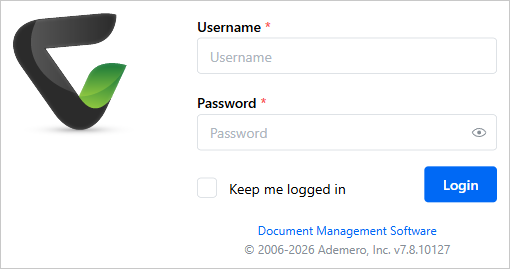
The simplest path: a Username and Password typed into the login form, checked against a password Content Central itself stores (hashed). Local accounts come with their own safety controls: lockout after a configured number of failed login attempts, a minimum password length, and password expiration that forces a change at next login.
Layer 2: Active Directory login
With AD integration enabled, the login page gains a Domain dropdown (it only appears once at least one domain is configured; the last-used choice is remembered). The user's password is validated against your AD domain — Content Central never stores it.
But AD only answers "is this password right?" Two things must also be true:
The user must already exist in Content Central as an AD-linked user. Sign-in looks the user up by domain + username first — if no Content Central user record exists, login fails before the password is even checked.
That user record must have permissions. Membership in an AD group grants nothing by itself — permissions are assigned in Content Central.
AD users are imported and linked by an administrator; they can't self-register. If the AD account is later disabled or deleted in the directory, that user can no longer sign in — even though their Content Central record still exists.
AD settings live in the Configuration Manager desktop tool on the server, under Active Directory: check Enable Active Directory Authentication, Add a domain with its Fully Qualified Domain Name (e.g. corp.company.com), and use Test Login to confirm the connection with a directory account.
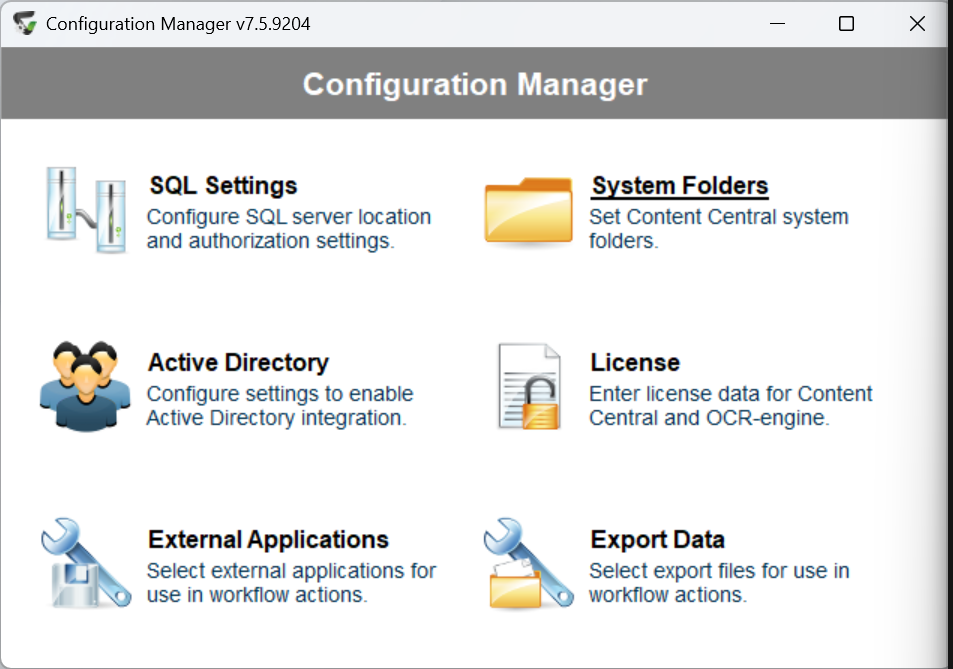
You can't delete a domain that users still reference — Configuration Manager will tell you to remove those users first. That's protection, not a bug.
Layer 3: SAML single sign-on
SSO in Content Central is application-level SAML 2.0: your identity provider signs the user in, and Content Central acts as the service provider that trusts the result.
IIS Windows Authentication is not the SSO mechanism. Content Central's web application runs with authentication mode None and never consumes an IIS Windows identity — enabling Windows Authentication in IIS does not create single sign-on; it usually just breaks the login page. If someone proposes "turn it on in IIS," the answer is no.
SSO is set up in configuration files on the server (uncommenting the marked SSO sections in web.config, and defining your identity provider in web.sustainsys.saml2.config in the Content Central web application folder) — there is no admin web page for it. Certificates are referenced from the Windows certificate store. Once at least one identity provider is configured, a Login using single sign-on button appears on the login page.
How SSO matches the user
After the identity provider signs someone in, Content Central takes the authenticated name in DOMAIN\username form and looks up a matching existing user. SSO never creates users:
- Match found: the user is signed in (if they have multi-factor authentication enabled, they're sent to the login page to complete MFA first).
- No match: no session is created — the browser is quietly redirected back to the home page with no error. If SSO "does nothing," a missing or misspelled Content Central user is the first thing to check.
Fallback login
Enabling SSO does not remove the standard form. The Username/Password fields (and the Domain dropdown, if AD is configured) stay on the same login page next to the SSO button — so local and AD sign-in keep working even when your identity provider is down. This is your safety net; don't disable local accounts you may need in an outage.
Keep an inventory of your administrator accounts
Members of the built-in Administrators group have full system access — all permission checks pass, and the group can't be deleted or renamed. At least one user must always be a member. Protect yourself now, while nothing is broken:
- Keep at least one local administrator account (not AD, not SSO) so an identity-provider or domain outage can't lock everyone out
- Record every Administrators-group member in your team's password manager or system documentation
- Review the membership periodically on the Administration > Users page (the AD column shows which accounts are directory-linked)
Permissions in Content Central are additive across the user and all their groups — there's no "deny." Removing someone from one group doesn't revoke access they get through another path, so review the whole picture.
Locked out of admin? Stay inside the lines
If no administrator can sign in, work through this — in order:
Try every account on your administrator inventory, starting with the local one.
For an AD admin: confirm the AD account is enabled and the domain controller is reachable from the Content Central server.
For an SSO admin: skip the SSO button and use the credential form with a local or AD account.
A locked local account (too many failed attempts) can be helped by any other administrator.
Never "fix" a lockout by creating a hidden or undocumented administrator account, and never edit the product database directly. An untracked backdoor admin is a security hole with your name on it — and direct database edits can corrupt your system.
If none of that gets an administrator in, contact Ademero support and recover through a documented path. Have ready: your Content Central version, which sign-in method the locked-out admins use (local, AD, or SSO), and which of the steps above you've already tried.