
Offboard a user without breaking approvals
Disable a departing employee's account, hand their waiting approvals to a named replacement, reassign everything else that depends on them — queues, checkouts, searches — and delete the account cleanly later.
Before you begin
- Administrator access to Content Central
At the end of this checklist the departing employee can no longer log in, everything that depended on them — approvals, queued documents, checkouts, shared searches — belongs to someone else, and the account can be deleted cleanly when you're ready.
Deleting a user is permanent, and their saved searches, favorites, and workflow rules go with them. Always disable first, reassign, and delete only after a waiting period — never delete on day one.
The safe order
- Disable the account (stops logins immediately)
- Hand their pending approvals to the replacement — or clear them
- Remove their approval-process memberships — direct and group
- Update notification recipients that point at them
- Empty their personal coding queue
- Release their checked-out documents
- Recreate saved searches that others rely on
- Wait, then delete
Step 1 — Disable the account
Go to Administration > Users and open the departing user's account.
Under Account Settings, check Disabled and save. As the page says: "Disabled users cannot log in to the system."
What you should see: back on the user list, the account now shows a gray Disabled badge instead of a green active one.
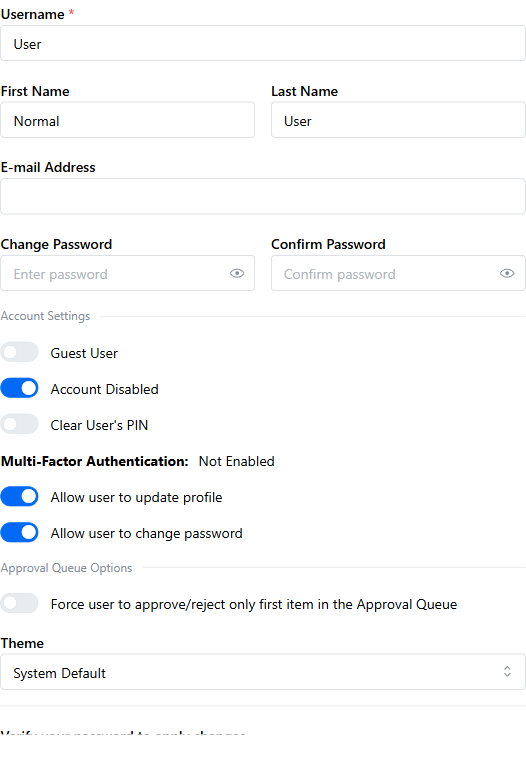
Disabling removes nothing. Permissions and group memberships stay intact, and re-enabling restores full prior access — so treat a disabled account as dormant, not gone. (Disabled is also not "guest": a guest can still log in with limited rights; a disabled user cannot log in at all.)
Need someone to cover their work while you finish this list? Set up user substitution on their account with From and To dates — the substitute receives their approval items and notifications while the substitution is active, and a disabled account does not switch it off. That is also the fastest way to hand a large backlog of waiting approvals to a replacement; see the next section.
Step 2 — Reassign everything that depends on them
Pending approvals: hand them to a replacement
An approval step waiting on this user always blocks deletion, because detaching the assignee would strand documents mid-approval. There is no reassign button — nothing in the Admin Queue or the approval-process editor moves a waiting item from one person to another. You have two tools instead, and the right one depends on how many items are waiting:
- Substitution (any number of items). On the departing user's account, set the replacement as substitute with a wide date range. Every waiting item then appears on the replacement's own Approval tab and they approve or reject it exactly as the owner would have. Disabling the account does not stop this. Full steps: Cover an absence with user substitution.
- Remove and restart (a handful of items). Open Queues, click Admin to reach the Admin Queue, select the item and choose Remove from Process (the dialog asks "Are you sure you want to remove this item from its approval process?"). Then open the document, use Start Approval Process, and the process routes it afresh. Removal cannot be undone from the queue.
What the restart does depends on how the item came to wait on this person:
| How the item is waiting on them | Substitution | Remove and restart |
|---|---|---|
| Named directly as a User member of the process | Works | Works — but first swap the member (below), or the restart lands on the same person |
| Chosen by name from a group member with Single routing | Works, as long as they stay in that group (see warning) | Works — in Start Approval Process, pick the replacement under Send to User. Disabled users are not offered |
| Routed as the document's creator (a Created-By User member) | Works | Does not help. The creator is fixed on the document, so a restart returns the item to the same account. Use substitution, or approve/reject it yourself from the Admin Queue |
| One of several approvers in a group with Multi routing | Works | Usually unnecessary — the other members already see the item |
A Single-routed item stays attached to the person who was chosen. If you remove the departing user from that group before the item is dealt with, it vanishes from everyone's Approval tab, including the substitute's — only the Admin Queue still lists it. Leave their group memberships alone until the waiting items have drained.
Swapping a named member in the approval-process editor. Open the process (document type > Approval Processes tile), and under Members use Remove Member on the departing user, then Add Member > Add User for the replacement and drag the new row into the same position. The editor refuses to save while any document is still waiting on that member — you'll see Cannot remove a member that has active approval steps — so clear or remove those items first, and add the replacement to the relevant groups as well.
What you should see: in the Admin Queue, the Current Member column no longer shows the departing user on any item, or the remaining items are being worked by the substitute. Once their in-flight items are gone, the deletion block goes away on its own.
Approval-process membership
Do this after the waiting items above are handled — the editor won't let you remove a member who still has documents in their queue.
For each document type they approve, open the approval process details (under the document type's Approval Processes area).
In the Members section, select the user and choose Remove Member. If the step still needs a person, add a replacement with Add Member > Add User (or Add Group).
Direct membership and group membership are checked separately. Removing the user from every group does not clear a direct membership — they must also be removed from each approval process itself. This is the most common reason a "fully removed" user still can't be deleted.
Notification recipients
Review approval processes that send notifications or deadline messages to this user and point them at a current employee. Deadline messages can also go to approval-process, document-type, or system administrators instead of a single named person.
Personal coding queue
Documents in a personal coding queue are visible only to that user and administrators — disable the account without emptying it, and those documents just sit there where no one else will ever see them. Open the Admin Queue for a system-wide view, find their items, and reassign them to another user, change their document type, or commit them yourself.
Checked-out documents
A checked-out document stays locked and can't be deleted. As an administrator, use Undo Check-out on each of their checkouts — the lock releases without creating a new version.
Undo Check-out doesn't recall the copy on their computer and doesn't notify anyone. If they had edits worth keeping, get the file and check it in before releasing the lock.
Saved searches
Deleting the user permanently deletes their saved searches — including any they shared that colleagues rely on. Recreate the important ones under another account first.
Step 3 — Wait, then delete
Keep the account disabled until their approvals have fully drained and no one has come asking for something only they had — 30 days is a comfortable default. Content Central doesn't enforce a waiting period; this part is on you.
On the Users page, delete the account. A Delete User dialog confirms the exact username and warns that the action cannot be undone.
Confirm. Deletion clears their name as creator on documents and removes their saved searches, favorites, work-queue completion records, and workflow rules.
What you should see: the user disappears from the list. If a red Cannot Delete alert appears instead, see below.
A yellow "Historical approval references found" alert in the dialog is safe to proceed past — those are leftover references from long-finished processes, and deleting the user detaches them cleanly.
If deletion is blocked
A blocked delete is protection, not an error: the dialog shows a red Cannot Delete alert with the specific reason, plus an Approval dependencies list naming each approval process and document type, with an Open approval process link straight to its editor. On a blocked user, the delete icon's tooltip reads Inspect delete blockers — you can always open the dialog to see why.
| Reason shown | What to do |
|---|---|
You cannot delete your own account | Have another administrator delete it. |
Administrator accounts cannot be deleted | Remove the administrator role from the account first. |
| A message about a capture service account | That account belongs to an integrated capture service, not a person — leave it in place. |
User is assigned to approval processes | Direct membership. Use the Open approval process links and remove them under Members. |
User is in a group assigned to approval processes | Remove them from that group, or replace the group in the process. |
User has documents in the coding queue | Empty their personal queue from the Admin Queue. |
If assignments change while the dialog is open, it re-checks and shows "Approval assignments changed after the user list loaded." The Delete button stays disabled until every dependency is resolved — fix the listed items and it unlocks.
Still stuck?
If you've cleared every listed dependency and the delete is still blocked — or the reason shown doesn't match anything you can find — contact support with: the exact Cannot Delete reason text, the process names from the Approval dependencies list, your Content Central version, and a screenshot of the dialog.