
Folder and file building
Make Content Central name files and build folder paths from field values automatically — the item-by-item pattern builder, the live example that shows what you'll get, and the truth about already-filed documents.
At the end of this guide, every captured document files itself into a folder path built from its field values and gets a file name that means something — \Acme Corp\PO 8001.pdf instead of scan_00423.pdf — from a pattern you assemble once per document type.
Where it lives
Administration > Catalogs & Document Types > catalog and document type > Folder & File Building.
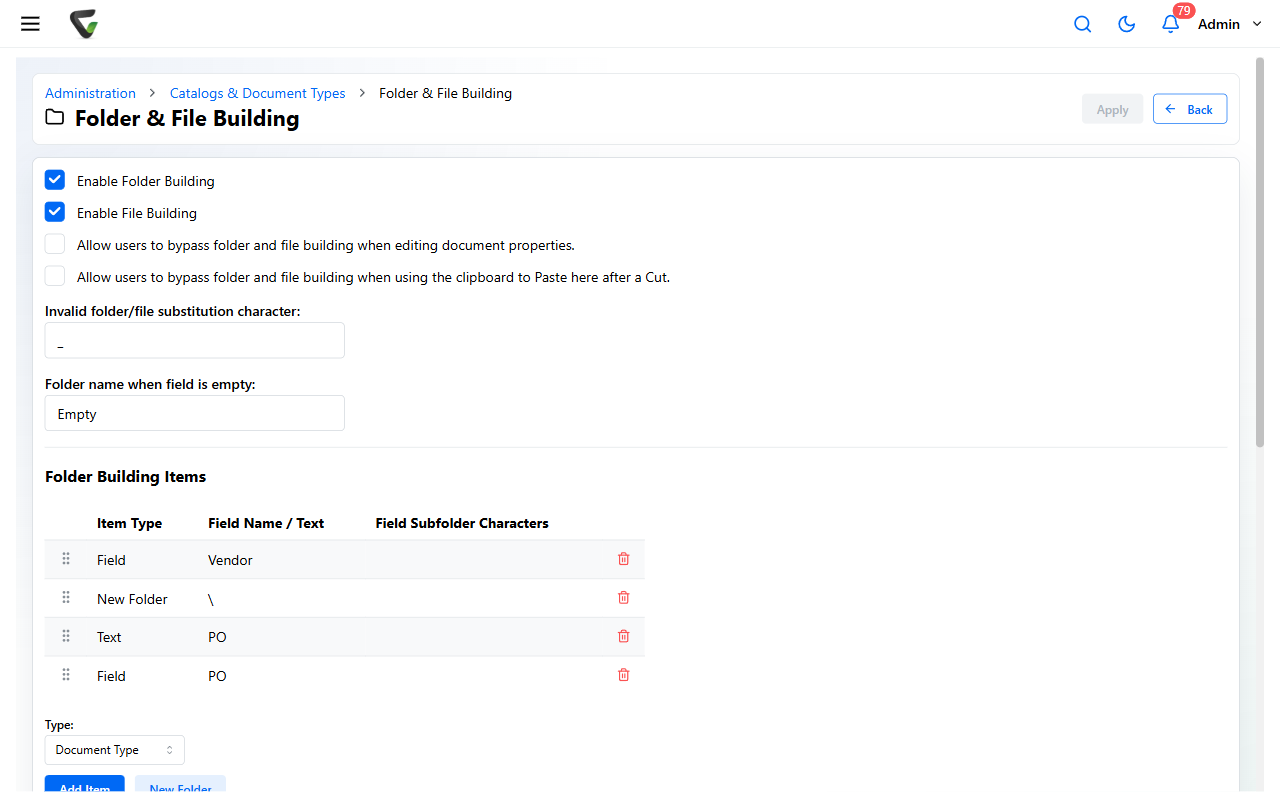
Build the pattern
Check Enable Folder Building and/or Enable File Building — they're independent.
Under Folder Building Items, add pieces in order. Each is a Type:
- Field — a field's value becomes part of the path (Date fields can contribute Full Date, Year, Month, or Day — a
\2026\09\structure is two Field items) - Text — literal text you type
- Document Type — the type's name
- New Folder — starts the next subfolder level
A field item can also take just a prefix: Use only left portion of field with a character count — the classic A–Z folder trick.
- Field — a field's value becomes part of the path (Date fields can contribute Full Date, Year, Month, or Day — a
File Building Items works the same, minus New Folder. The extension stays what it was; you're naming, not converting.
Watch the Example: block under each list update as you build — it renders your pattern with
<FieldName>tokens exactly as documents will be placed. Drag items to reorder.
Set the two safety valves at the top:
- Invalid folder/file substitution character: — what replaces characters Windows won't allow in names (default
_) - Folder name when field is empty: — where documents land when the pattern's field has no value. Name it something findable, like
Empty— it's where strays collect.
- Invalid folder/file substitution character: — what replaces characters Windows won't allow in names (default
Click Apply.
The two bypass switches
- Allow users to bypass folder and file building when editing document properties. — lets a person keep a hand-placed location when they edit fields, instead of the pattern yanking the document back.
- The clipboard variant does the same for Paste after a Cut moves.
Leave both off until someone has a real reason — every bypass is an exception your structure no longer explains.
The truth about already-filed documents
Changing the pattern affects only documents captured afterward. Nothing already on the shelf moves or renames. Refiling an existing catalog to a new pattern is a deliberate, support-assisted maintenance operation — it runs from the server with the system stopped and backups taken first, and it requires an authorization code from Ademero support. If you need it, that's a support conversation, not a settings change.
Success check: capture one test document with fields filled. It should land at the path the Example block predicted, named accordingly. A document in your "empty field" folder means the pattern references a field capture didn't fill — make that field required, or reorder your capture flow.