
Connect ChatGPT to Content Central
Let ChatGPT search and read the Content Central documents you're allowed to see: check your ChatGPT plan, copy your connector URL from Options, add it in ChatGPT as a custom MCP server, sign in and allow the connection, then ask your first question. Read-only, with your own permissions.
Before you begin
- Content Central 7.8.10195 or later, with AI Connections set up by your administrator
- ChatGPT Pro, Business, Enterprise, or Edu (on Business, your ChatGPT admin adds Content Central first)
- A computer with a web browser for the setup
- Your own Content Central sign-in
At the end of this guide, ChatGPT can search and read the Content Central documents you're allowed to see, and answer questions about them with links back to the originals. It can look, but it can never change anything.
Content Central calls this AI Connections. You connect your own ChatGPT account once, using your own Content Central sign-in, so ChatGPT sees exactly what you can see and nothing more.
Before you start
- Content Central 7.8.10195 or later. Quickest check: in Content Central, click your name at the top right and choose Options. If AI Connections is listed under Security, your version is new enough. If it isn't, first make sure you're in the new interface (the last item below). Still missing there? Find your version number and ask your administrator to upgrade Content Central.
- AI Connections is set up and switched on. Your administrator does this once for everyone, with their own guide. Step 1 shows you whether it's done.
- ChatGPT Pro, Business, Enterprise, or Edu. OpenAI lists custom connections like this one only for those plans. On a Business workspace, only a ChatGPT admin or owner can add Content Central; on Enterprise or Edu, an admin adds it or gives you permission.
- A ChatGPT account that's approved for work documents. When ChatGPT reads a document for you, the document's text is sent to ChatGPT. Not sure your organization allows that? Ask first.
- A computer with a web browser. Adding Content Central works at chatgpt.com, not in the phone app.
- Your own Content Central sign-in, plus your multi-factor code or single sign-on if you normally use them. Guest accounts and integration service accounts can't connect.
- The new interface. AI Connections is only in the new interface. If you land on the older Classic pages when you sign in, here's why, and how to change it.
Quick check in ChatGPT: open Plugins in the sidebar. If Content Central is already listed, your ChatGPT admin has added it for you; do step 1, then follow the note at the top of step 2. Otherwise click +. If you see Add custom MCP server, you can add it yourself. If you don't (for example, + opens a chat with Plugin Creator instead), your plan or workspace may not allow it: check OpenAI's guide, or ask your ChatGPT admin to add Content Central for you, sending them this guide and the connector URL from step 1 (it's the same for everyone).
Step 1: Copy your connector URL from Content Central
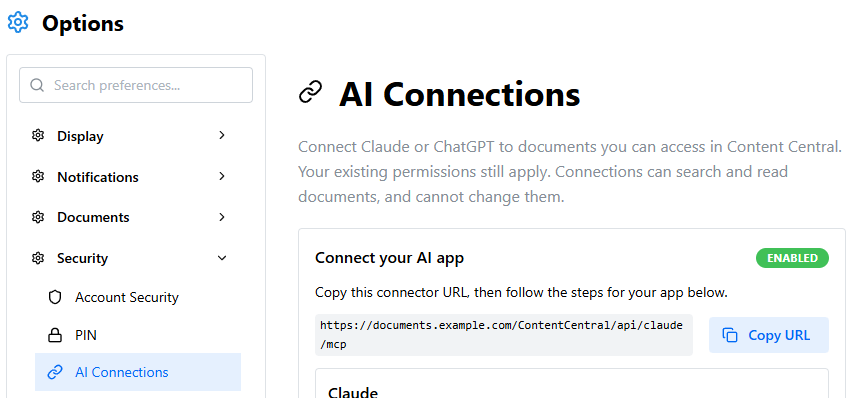
In Content Central, click your name at the top right and choose Options.
In the list on the left, under Security, choose AI Connections.
Click Copy URL. The button changes to Copied.
What you should see: a green ENABLED badge next to Connect your AI app, and an address that starts with your Content Central address and ends in
/api/claude/mcp. A message instead of the address usually means your administrator hasn't finished setting up; find it in When something goes wrong.noteYes, the address says
claudeeven though you're connecting ChatGPT. That's right: Claude and ChatGPT use the same address.
Step 2: Add Content Central to ChatGPT
While you add it, ChatGPT calls Content Central a custom MCP server; once it's added, ChatGPT calls it a plugin. Both just mean another system ChatGPT can look things up in. Do this at chatgpt.com in your web browser.
Is Content Central already in your Plugins list? On a Business, Enterprise, or Edu workspace, your ChatGPT admin may have added it for everyone. Skip the steps below: open Content Central in Plugins, install it with Install plugin (or +), select Connect if asked, and go to step 3.
Open Plugins in the sidebar, click +, and choose Add custom MCP server.
Name it
Content Central. The description is optional.
Under Connection, paste the URL you copied.
For authentication, choose OAuth. ChatGPT works out the rest on its own; there's no client ID or secret to type. If it shows a client registration choice, keep the one it selected automatically.
ChatGPT shows a risk warning. It shows one for every custom server; Content Central is your organization's own system, and this connection can only read. Tick I understand and want to continue, then click Create as a plugin. ChatGPT lists the Content Central tools it found; each one only searches or reads.
Open your Personal plugins, select Content Central, and install it with Install plugin (on some screens, the + button). If ChatGPT asks, select Connect. ChatGPT then opens Content Central so you can sign in, either right away or the first time you use it in a chat (step 4). Whenever it opens, follow step 3.
ChatGPT's screens change often. If yours don't match these steps, follow OpenAI's guide to connecting custom MCP servers for this step, then come back for step 3.
Step 3: Sign in to Content Central and allow the connection
ChatGPT opens Content Central in a new window or tab, right after you install it or the first time you use it in a chat. From the moment it opens, you have 10 minutes to click Allow connection.
If Content Central asks you to sign in, use your Content Central username and password (not your ChatGPT ones), plus your multi-factor code or single sign-on as usual. If you're already signed in, it goes straight to the next screen.
Nothing opened when you expected it? Allow pop-ups for chatgpt.com, then open Content Central in your Plugins and select Connect.
Scroll down past the Connect your AI app box to Connect ChatGPT?. It spells out what you're agreeing to: "Allow ChatGPT to search documents you can view and read their searchable text and metadata."
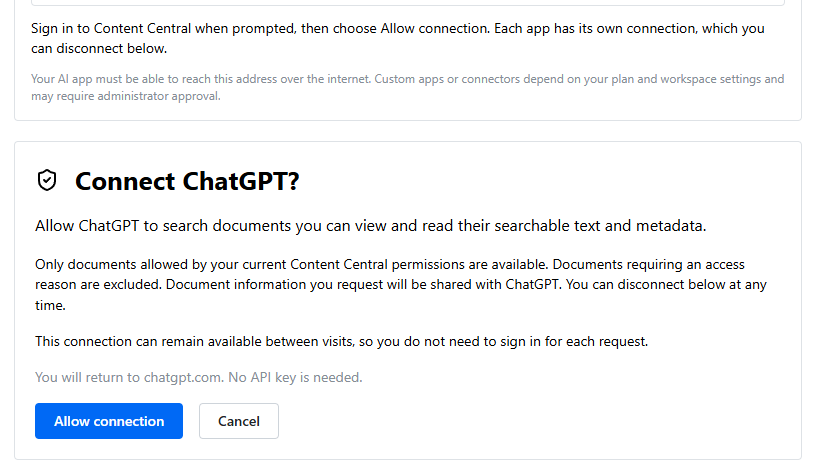
Click Allow connection.
importantUnless you signed in within the last 15 minutes, you'll see this next, and it's expected. A red box appears at the top of the page: Unable to complete this request, "Sign in again before connecting your AI app or changing its settings.",
Error code: RECENT_AUTHENTICATION_REQUIRED. Content Central wants a fresh sign-in before any app connects (being signed in automatically with Keep me logged in doesn't count). Click Sign in again, sign in, scroll back down, and click Allow connection once more.
Content Central sends you back to ChatGPT.
What you should see: you're back in ChatGPT. The sure sign it worked is in Content Central: Options > AI Connections now lists ChatGPT under Your connections.
Took longer than 10 minutes? Content Central shows "The connection request expired or was already used." Try again won't fix that one. Open Content Central in your ChatGPT Plugins and select Connect to start over.
Step 4: Ask your first question
Start a new chat in ChatGPT. If the home page has Chat and Work tabs at the top, choose Work. Then type @ and choose Content Central.
Ask in plain words, the way you'd ask a colleague. For example:
- "Find this year's invoices from [a vendor you work with] and list their amounts."
- "Summarize the most recent contract with [a customer]."
- "Compare the two latest quotes for [a project]."
What you should see: ChatGPT searches Content Central, reads what it needs, and answers with links to the documents it used. A link opens the document in Content Central in your browser, which may ask you to sign in first.
ChatGPT uses Content Central for the message where you chose it. When a follow-up question needs more documents, type @ and choose Content Central again.
On the ChatGPT desktop app, Content Central appears once you sign in with the same ChatGPT account and workspace. You don't need the desktop app's MCPs tab.
What ChatGPT can and can't see
- Only your documents. ChatGPT finds and reads only what you can already open in Content Central.
- Never documents that ask for a reason. Document types that ask you for a reason before opening are left out entirely.
- Read-only. ChatGPT can't file, edit, approve, move, or delete anything.
- On the record. Every search ChatGPT runs and every document it reads is recorded in Content Central's activity log under your name, as a search or a document view. (The words it searched for aren't stored.)
- Check before you act. ChatGPT can misread a document. Before you pay, approve, or send anything based on its answer, open the linked document and check.
Disconnect
In Content Central, open Options > AI Connections and click Disconnect next to ChatGPT under Your connections. ChatGPT loses access straight away. To tidy up ChatGPT as well, remove Content Central from your plugins.
Your ChatGPT and Claude connections are separate. Disconnecting one doesn't touch the other.
When something goes wrong
| What you see | What it means | What to do |
|---|---|---|
| No AI Connections under Options > Security | Your Content Central is older than 7.8.10195, or you're on the older Classic pages | See The new interface and Classic view; if it's still missing in the new interface, ask your administrator to upgrade |
| No Add custom MCP server under Plugins > + | Your ChatGPT plan or workspace probably doesn't allow custom connections | Check OpenAI's guide, or ask your ChatGPT admin to add Content Central for the workspace; send them this guide and the connector URL from step 1 |
| Installation setup required on the AI Connections page | AI Connections hasn't been set up on your server | Send your administrator their setup guide |
| Connections are currently disabled | Your administrator hasn't switched AI Connections on, or has switched it off | Ask your administrator |
| Connector service unavailable, The connector is temporarily unavailable, or AI Connections setup is unavailable | Something on the server needs attention | Tell your administrator |
| Connect your AI app using a personal Content Central account | You're signed in with a guest account or an integration service account | Sign in with your own account |
| ChatGPT can't create the plugin or can't reach Content Central | Your Content Central isn't reachable from the internet, which ChatGPT needs | Ask your administrator |
| The connection request expired or was already used | More than 10 minutes passed, or the request was already used | Open Content Central in your ChatGPT Plugins and select Connect to start over |
| "Open Content Central using its configured public HTTPS address, then reconnect from your AI app." | Content Central opened at a different address from the one it's set up with | Start over from ChatGPT; if it happens again, tell your administrator |
| It worked before, but now ChatGPT can't use Content Central or asks you to connect again | Your Content Central password changed, your administrator now requires multi-factor sign-in and you haven't set it up yet, the connection went unused for about three months, or your administrator switched AI Connections off | Once your administrator confirms AI Connections is on, connect again from ChatGPT. Then, under Your connections, Disconnect the older ChatGPT entry (the earlier date) if it still has a Disconnect button |
| The desktop app doesn't show Content Central | The plugin was added under a different ChatGPT account or workspace | Sign in to the desktop app with the same account and workspace you used at chatgpt.com |
| The approval page says Connect ChatGPT desktop (Codex)? | You connected through the desktop app's MCPs tab instead of a plugin | That works too; it's simply a separate connection, listed separately under Your connections |
| A document you expected isn't found | It's outside your permissions, or its type asks for a reason before opening | Check whether you can open it in Content Central yourself |
| ChatGPT says a document has no readable text | Content Central has no searchable text stored for it; for a scan, that usually means it was never made text-searchable | For scans, ask your administrator to make them searchable |
Still stuck? Ask your Content Central administrator, and include your Content Central version, that you're using ChatGPT (and which ChatGPT plan), the exact message or a screenshot, and roughly when it happened.