
Back up your CapturePoint database
Take a verified backup of the CapturePoint SQL database with SQL Server Management Studio run as administrator — and know the two folders a complete restore point also needs.
At the end of this guide you'll have a verified .bak file of your CapturePoint database, taken with SQL Server Management Studio on the CapturePoint computer — the backup to take before replacing or re-imaging that PC, before any upgrade, and on a regular schedule always.
CapturePoint keeps its database in a SQL Server instance on the same computer as the application. This guide assumes that standard setup: everything happens on the CapturePoint computer, signed in with an account that is a local administrator on it.
Backups run while CapturePoint is open and the background service is running. You do not need to stop anything — SQL Server backs up a live database safely.
Before you start
You need three things:
- A local administrator account on the CapturePoint computer. Sign in with it.
- SQL Server Management Studio (SSMS). CapturePoint does not install it. If it isn't already on the computer, download it free from Microsoft (search for "Download SQL Server Management Studio") and install it with the defaults.
- Your SQL Server instance name. On a standard install it's
localhost\ADEMEROCP— CapturePoint sets up its own SQL Server instance calledADEMEROCP. If your organization pointed CapturePoint at a different instance, or an older install used another name, it may differ on your machine. To check: in CapturePoint's top toolbar click ADMIN, then Database Manager. The SQL Server Connection Info panel shows the server\instance and the Database Name.
Opening Database Manager closes and reopens CapturePoint (the tile says so). Finish or save any batch you're working on first, and don't change anything in that window — just read it, then close it.
Steps
Right-click SQL Server Management Studio in the Start menu and choose Run as administrator. Click Yes when Windows asks to allow changes.
importantThis is the step people skip. CapturePoint's SQL Server instance grants access to the computer's Administrators group, and Windows only applies that membership to a program that was started as administrator. Open SSMS the normal way and it will connect, then be refused with
Login failed for user '…'. (Microsoft SQL Server, Error: 18456). That message means "not elevated", not "wrong instance" — close SSMS and reopen it as administrator.
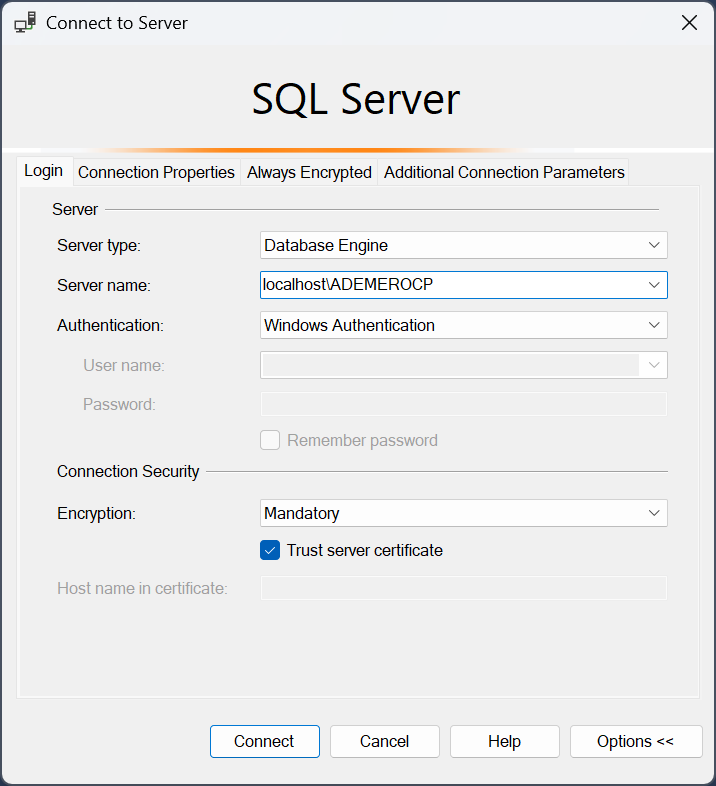
In the Connect to Server dialog, set Server name to your instance (
localhost\ADEMEROCPon a standard install), Authentication to Windows Authentication, and click Connect.noteNewer SSMS versions (20 and later) show a Connection Security section. Leave Encryption at Mandatory and check Trust server certificate — CapturePoint's instance uses a self-signed certificate, and without that box the connection is refused with a certificate-chain error.
What you should see: the Object Explorer panel on the left shows the server, and under Databases there is a database named AdemeroCapturePoint (the default — yours may have a different name if it was set up that way; it's the name Database Manager showed you).
Right-click the
AdemeroCapturePointdatabase and choose Tasks > Back Up….
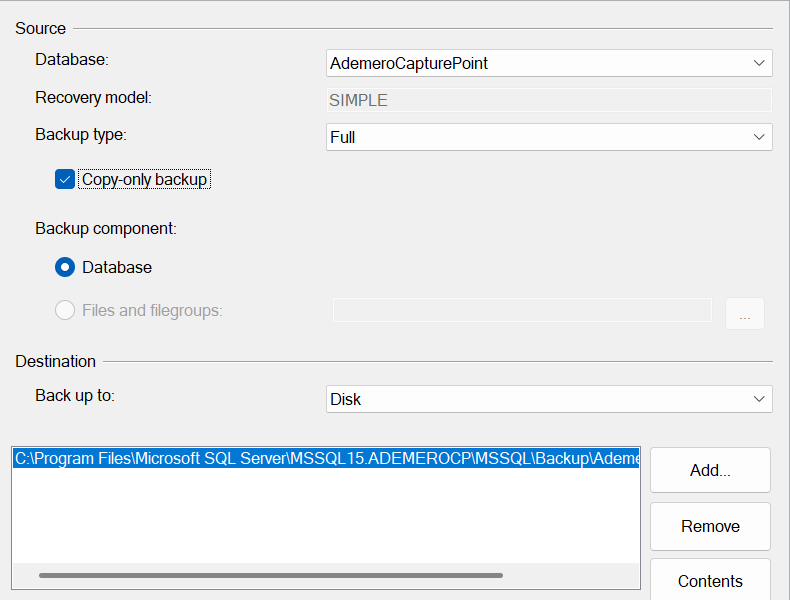
In the Back Up Database dialog, on the General page, set Backup type to Full and check Copy-only backup. Under Destination, leave Back up to: Disk and note the file path that's pre-filled — it's SQL Server's own Backup folder, and it's the safest choice.
noteCopy-only means this backup won't disturb any backup schedule your IT team already runs against the same instance. If you'd rather put the file somewhere else, click Remove, then Add…, and pick a folder on a local drive. Avoid your Desktop or Documents folders — SQL Server writes the file under its own service account, not yours, and a folder it can't write to fails with
Operating system error 5(Access is denied.).
On the Media Options page, check Verify backup when finished and Perform checksum before writing to media. Click OK.
What you should see: a progress indicator, then the message
The backup of database 'AdemeroCapturePoint' completed successfully.On most systems this takes well under a minute.
Copy the
.bakfile off the CapturePoint computer — a network share, another PC, or external media. A backup that lives only on the machine it protects disappears with it.
CapturePoint also takes its own backup automatically before it upgrades its database, into C:\ProgramData\Ademero\CapturePoint\DBBackups. Those are a safety net for upgrades, not a backup plan — they stay on the same disk, and old ones are cleaned up.
A database backup is not a complete restore point
The database holds your batches, templates, index values, and settings — but the scanned page images are files on disk, not rows in the database. A complete restore point is the .bak file plus:
| What | Where |
|---|---|
| Page images | The Primary Storage Location (default C:\ProgramData\Ademero\CapturePoint\DataPrimary\) and the Secondary Storage Location if one is set. See ADMIN > Storage Locations for the folders your install actually uses. |
| Connection settings | C:\ProgramData\Ademero\CapturePoint\ConnectionInfo.xml — tells CapturePoint which instance and database to open. |
Take the database backup and copy the storage folders in the same window. A database restored from Monday pointing at images copied Thursday means batches whose pages can't be found.
Your CapturePoint license is tied to the computer, not to the backup. Restoring onto a new or re-imaged PC works, but CapturePoint will ask you to activate again — see Find your Machine ID and license tokens.
How often?
At minimum: a nightly database backup, the storage folders on your organization's normal file-backup schedule, and an extra verified backup immediately before any CapturePoint upgrade, Windows reinstall, or move to a new computer — kept until you've been stable on the new setup for a comfortable period. If you already have an IT backup platform, include the database and the storage folders in it and keep the pre-change copy-only backup as your explicit restore point.
If something goes wrong
| What you see | What it means | What to do |
|---|---|---|
Login failed for user '…'. Error: 18456 | SSMS isn't running as administrator, or your account isn't a local administrator | Close SSMS; reopen with Run as administrator using a local admin account |
Cannot connect to localhost\ADEMEROCP / error: 26 | The instance name is wrong or the SQL Server service isn't running | Confirm the name in ADMIN > Database Manager; in Windows Services, check SQL Server (ADEMEROCP) is running |
Operating system error 5(Access is denied.) | SQL Server can't write to the folder you picked | Use the pre-filled Backup folder, or a folder on a local drive that isn't inside a user profile |
Still stuck? Contact Ademero support with the exact error text, your CapturePoint version, and the instance name from Database Manager.