
Set up document retention policies
Make documents of a type delete themselves on schedule after their retention period — set the period and the destruction schedule, exempt individual documents, and control who's allowed to override.
Before you begin
- Catalog-administrator access to the document type involved
At the end of this guide, documents of one type will be deleted automatically once their retention period ends, on a destruction schedule you chose — with a way to exempt individual documents and a permission that controls exactly who may do that.
A retention policy deletes documents. Before enabling one, confirm the period with whoever owns your records policy, and make sure your backups are real — the destruction process will not ask twice.
Step 1: Open the document type's retention policy
Go to Administration > Catalogs & Document Types. In the selectors at the top, pick the Catalog, then the Document Type.
Click the Retention Policy tile ("Configure the length of time documents will be retained in the catalog").
Turn on Enabled.
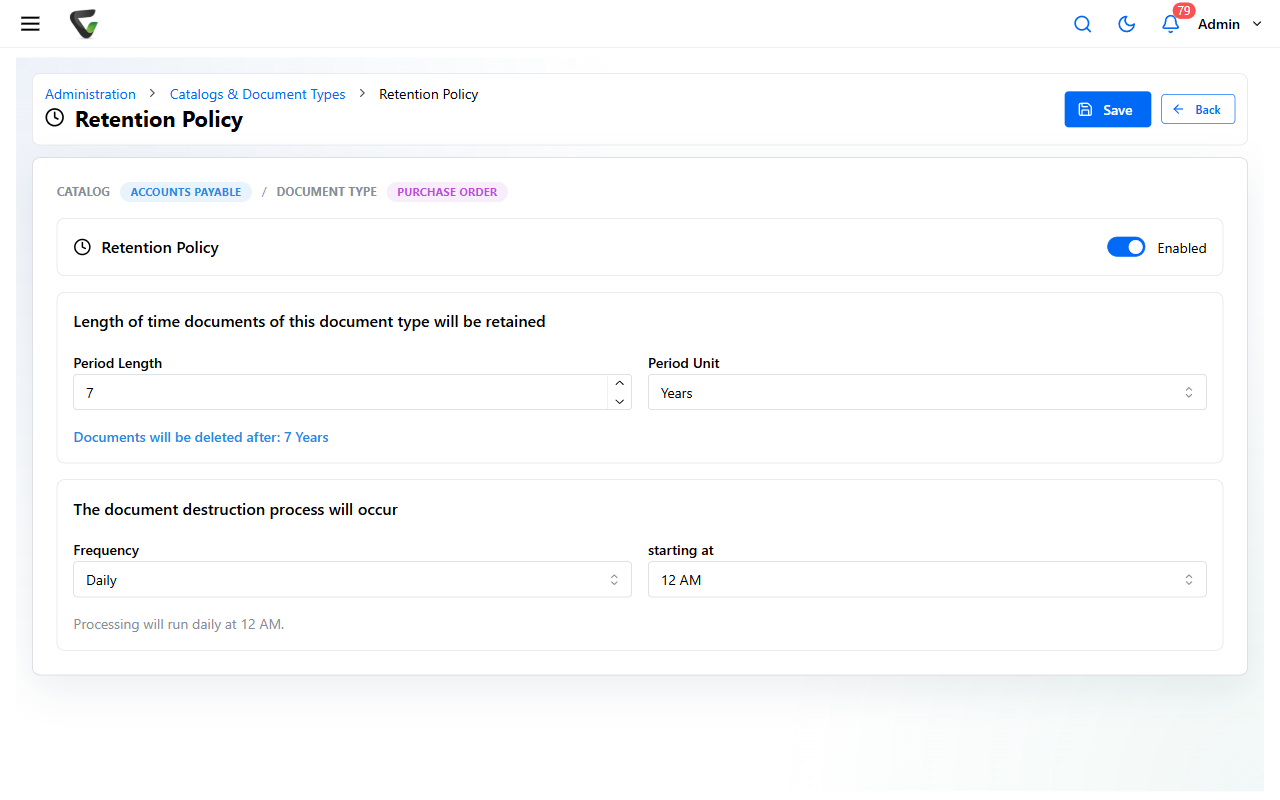
Step 2: Set how long documents are kept
Under "Length of time documents of this document type will be retained":
Enter the Period Length and pick the Period Unit — Years, Quarters, Months, Weeks, or Days.
What you should see: the page states the outcome plainly, for example Documents will be deleted after: 7 Years. Read that line back against your records policy before moving on.
Step 3: Schedule the destruction process
Under "The document destruction process will occur":
Pick the Frequency — Daily, Weekly, Monthly, Quarterly, or Yearly.
For anything other than daily, set on day (which day of the week, month, quarter, or year), then set starting at (the hour).
Click Save.
What you should see: a summary such as Processing will run monthly on day 1 at 2 AM. and the toast Retention policy saved successfully.
The schedule controls when deletions are processed, not when documents expire. A document past its period simply waits for the next scheduled run — so a yearly schedule means documents can outlive their period by up to a year.
Step 4: Exempt or adjust individual documents
Some documents need to outlive their type's policy — a contract under dispute, a record someone asked you to hold.
Find the document (search, Folder Browser, or a queue) and choose Set Retention Policy from its action menu.
In the dialog choose one:
- Retain for — a different period for this one document
- Retain Indefinitely — never auto-delete this document
- Remove Policy — drop this document's individual override
Click Set.
This power is permission-gated. Back on Catalogs & Document Types, the Membership & Permissions tile opens the permission grid where Allow Retention Overrides controls who can set per-document retention. Grant it deliberately — an override is exactly the kind of thing an auditor asks about, and each one records the overriding user.
If the dialog blocks you, it says why: retention is disabled for the type, the document is checked out, or you lack the permission.
Step 5: Review the exceptions
Open Retention Policies in the sidebar (visible only to users with access). It lists every document whose retention was overridden — the policy, time remaining, and Overriding User — with documents shown as Pending Removal highlighted in red.
Make reviewing this list part of your records routine: it's the complete inventory of "documents that don't follow the rule."
Getting a document back
Treat deletion by retention as final. There is no undelete button — recovering anything after the destruction process runs is an administrator-level operation, and only if your organization's safeguards were in place before the deletion. Set the period conservatively rather than counting on recovery.
Still unsure about a setting?
Contact support with: the catalog and document type, the exact period and schedule you configured, and what you expected versus what happened — a screenshot of the Retention Policy page answers most of it in one image.